These settings are available to everyone, including staff logins — no manager PIN needed. They are saved on this screen only, and apply to everyone who signs in on it.
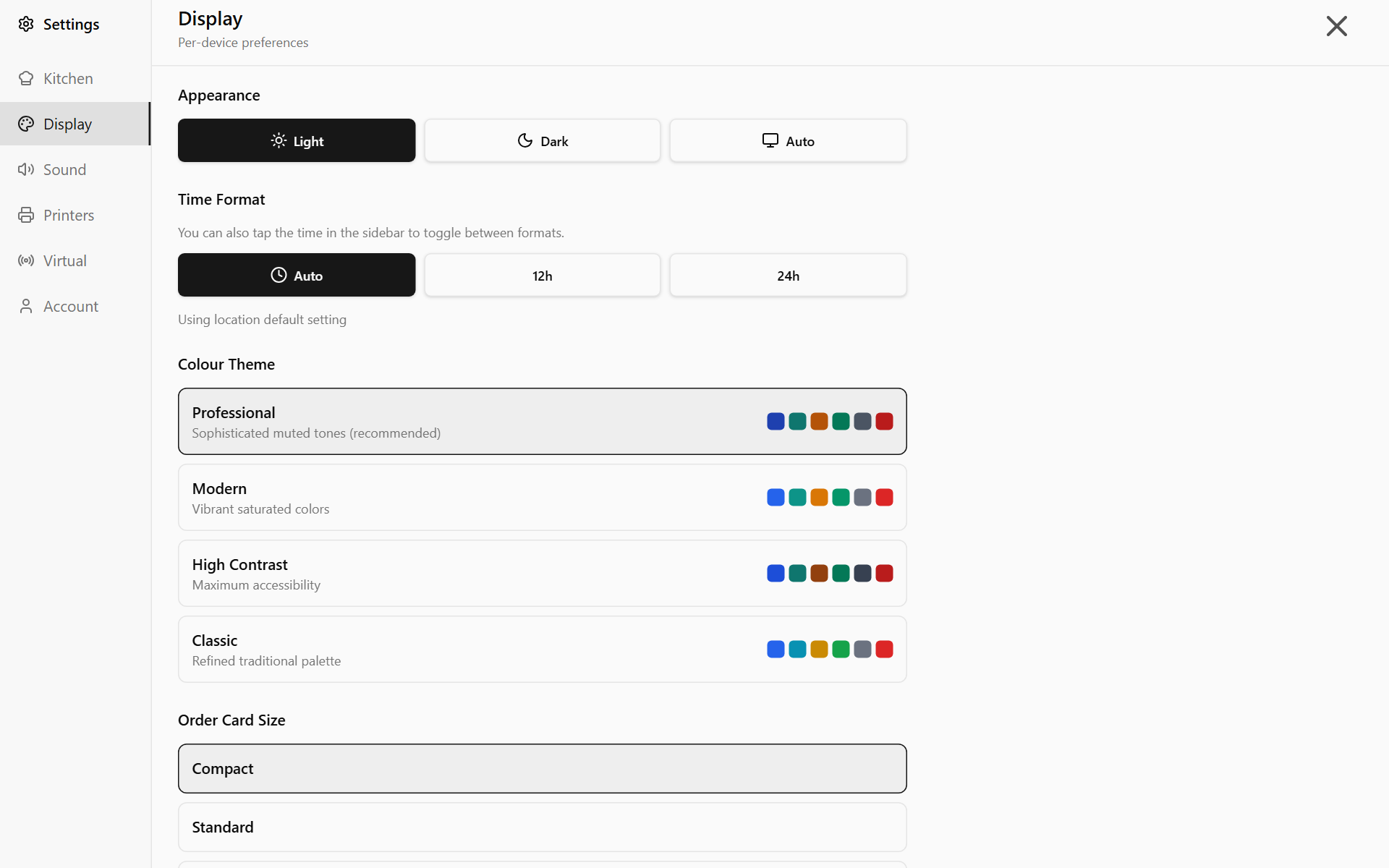
Card and text size
Settings → Display has two separate size controls, and they do different things:
- Order Card Size — how wide the cards are, and so how many fit on screen. Compact fits the most, Standard fewer, Large the fewest. How many you see depends on the width of the screen. This option does not show on a phone-sized screen.
- Content Size — how big the text is inside a card. Small, Medium, Large or Extra Large. Medium is the default.
If the screen is across the kitchen and hard to read, raise Content Size first. If you need to see more orders at once, drop Order Card Size.
Colours
Colour Theme changes the palette used for the stage colours on card headers:
| Theme | Best for |
|---|---|
| Professional | The default — muted, easy on the eye over a long shift |
| Modern | Vibrant and highly saturated |
| High Contrast | Maximum readability, and the best choice for a screen in bright light |
| Classic | A more traditional palette |
Appearance sets Light, Dark or Auto. Auto follows the tablet's own light or dark setting. Dark is usually easier in a dim kitchen; light is better under bright overhead lighting.
Time format
Time Format has three choices: Auto uses your location's own setting, or pick 12h or 24h. You can also just tap the clock in the sidebar to switch between them.
Sound
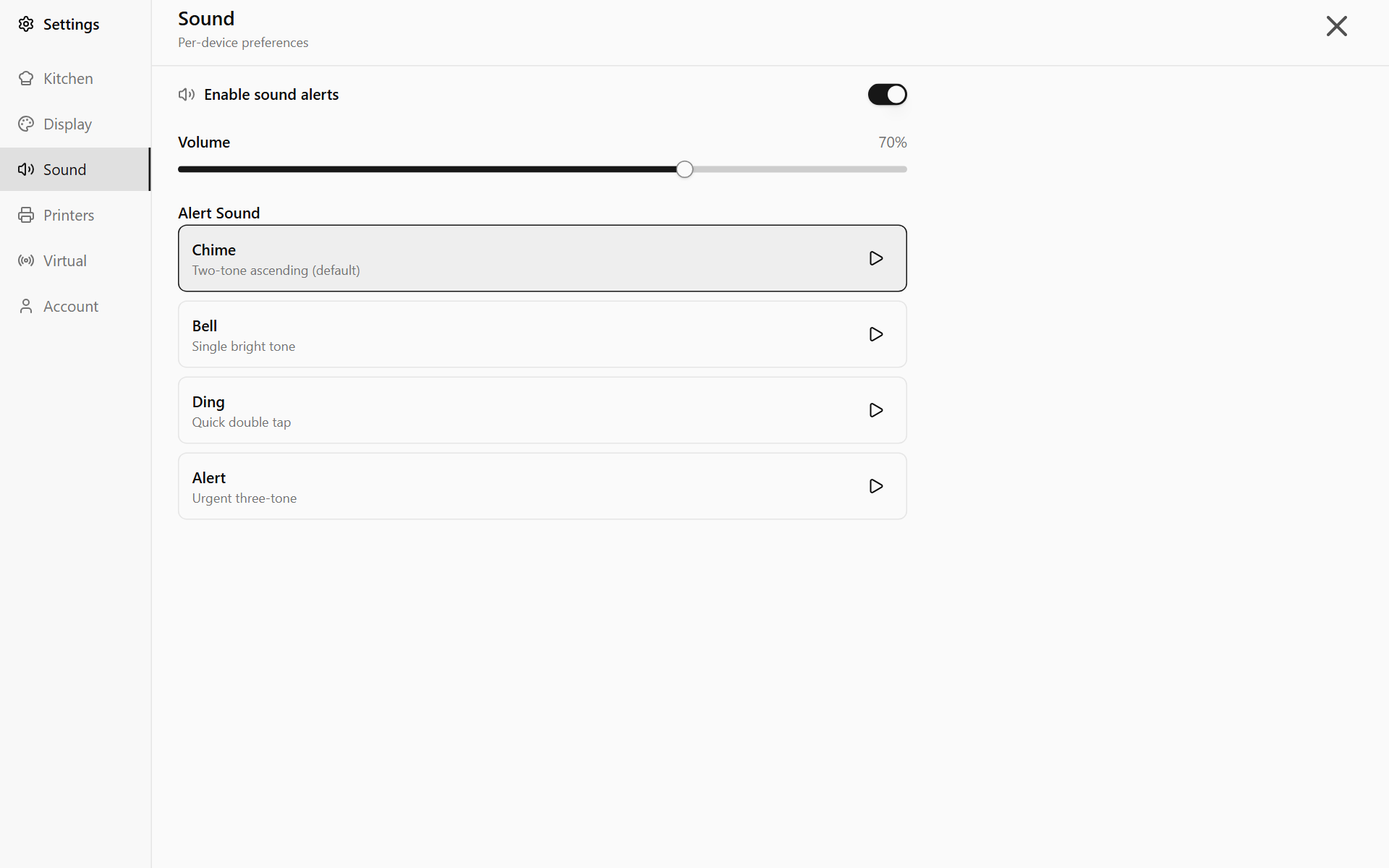
Settings → Sound controls the alert that plays when an order arrives. Enable sound alerts must be on to see the rest.
| Sound | Character |
|---|---|
| Chime | Two ascending tones — the default |
| Bell | A single bright tone |
| Ding | A quick double tap |
| Alert | An urgent three-tone, for a noisy kitchen |
Use the Volume slider to set the level. Tap a sound to choose it. To hear one first, tap the play button next to it, so you can compare them with the kitchen's extraction fans running.
Keeping the screen on
Keep Screen Awake, under Device Settings on the Display tab, stops the tablet sleeping mid-service. It is on by default. Leave it on for any screen being used as a permanent kitchen display. It shows only in the installed app, not in a web browser.
On an Android tablet, Auto-start on Boot in the same place opens the app when the tablet starts.