When something is not working, this saves a long back-and-forth.
Send the diagnostics
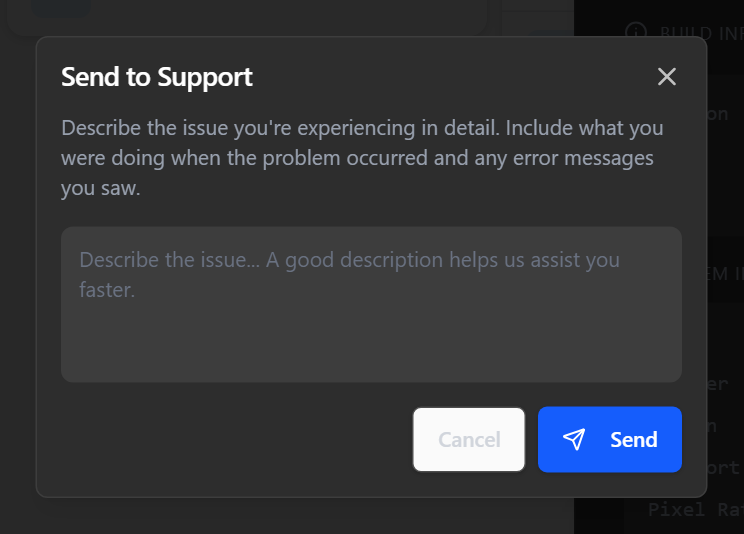
- Tap HELP in the sidebar.
- Scroll to the bottom and tap Send to Support.
- In the box, describe what happened and roughly when.
- In the Android app, leave Include device logs on.
- Tap Send.
The screen shows Sent to Support and a Reference Number. Quote that number when you contact us.
This sends the app version, build, device details and recent logs. If it does not go through, the screen says Failed to send. Please try again.
Send it before you restart the app. The logs start again each time the app opens.
Send to Support needs an internet connection. Offline, sending says Couldn't reach support. Connect this screen to the internet, then tap Send again. If you cannot get the screen online, use the copy button beside Build Information instead, and paste the result into an email. That copies the version and device details. To add the logs, open View Logs and tap Copy All.
Cannot get past the sign-in screen? Help is not available there. Instead, tap the small version number (it starts with v) five times within three seconds. A Diagnostics window opens with the version and device details, and a copy button.
Viewing it yourself
View Logs in the same panel shows what the app has recorded, under Console Logs. In the Android app it also shows Device Logs. Each has a Copy All button that puts it on the clipboard.
Capturing what your POS sends
If dockets are not being read correctly, we may ask for a capture of the raw data the POS sends. This is what lets us build or fix a template for your POS.
- Open Settings → Virtual. Signed in as staff, a manager has to unlock it first — see Unlock settings that need a manager PIN.
- Turn on Diagnostic capture. It shows once Enable Virtual Printer is on.
- Send a few orders from the POS — ideally including one with modifiers.
- Tell us it is done.
While it is on, the text beside the switch reads Capturing every docket until …, then switches off automatically. The time shown is 48 hours after it was turned on.
Turn it off once we have what we need. It records the full contents of every docket while it is on. If you forget, it switches itself off when the 48 hours are up. It can also be switched on or off from the back office, so you may find it already on while we work on your case.