Signed in as staff, you see three settings tabs — Display, Sound and Account. Managers and admins see four more: Kitchen, Printers, Virtual and Staff.
This is why an instruction to "open Settings → Virtual" sometimes finds no such tab.
Unlock them
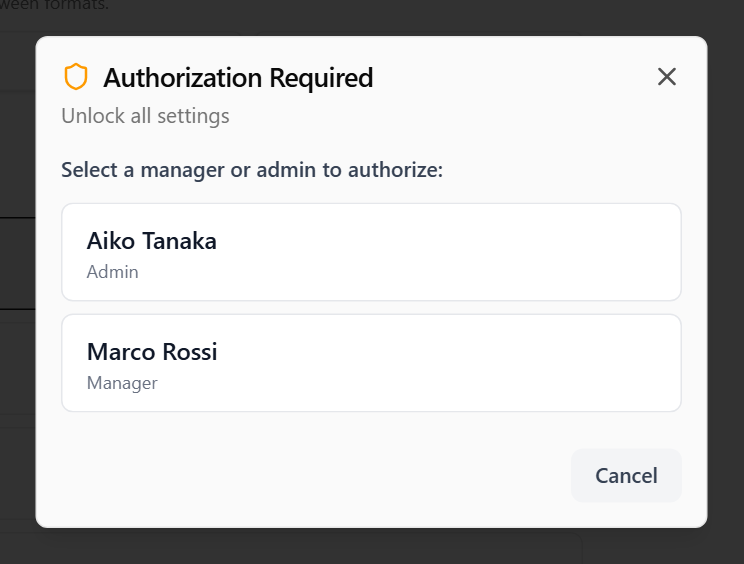
- Open Settings.
- Tap Unlock, the padlock at the top right next to the close button.
- Authorisation Required opens. Pick a manager or admin from the list. If there is only one, their name is already picked.
- Have them enter their PIN and tap Submit.
Done looks like a green label naming who approved, such as Unlocked by Alex (Manager), in place of the padlock, and all seven tabs.
The unlock lasts until Settings is closed, so it does not leave the screen open to changes. Signed in as a manager or admin, you see every tab without unlocking. For adding and removing people under Staff, see Add, change or remove kitchen staff on the display.
If the dialog says No managers or admins on this screen, the display has no manager PINs to check. If it is offline, connect it and try again. If it is online, nobody here is a manager or admin yet: one is added in the back office, or, at a brand-new venue, with Set up the first manager on the sign-in screen.
Actions that ask for a PIN
Signed in as staff, four things need a manager or admin PIN:
- Reject an order
- Void Order
- Refund an order
- Unlock settings
Signed in as a manager or admin, these go straight through without a PIN. For voiding and refunding, see Void an order, or refund it.
Everything else — accepting, preparing, bumping, recalling, striking off items, marking an order as paid — is available to any signed-in user.
A wrong PIN
A wrong PIN shows a message such as Invalid PIN. 2 attempts remaining. When the screen is online, three wrong PINs in a row stop manager approval on this screen for five minutes.
When there is no internet
PIN authorisation still works offline. The display keeps a secure copy of manager PINs for exactly this reason, so a network outage does not stop you voiding an order. The copy is refreshed while the display is online — every minute on the sign-in screen, and as soon as the connection comes back — so a manager added while it was offline is not on it until then.
The one exception is Staff: adding or removing people needs the server to check the manager's PIN. Settings unlocked offline opens every other tab, and Staff asks for the PIN again once the display is online.