Block a customer you don't want to serve again, for example after they were abusive to your staff. You do it yourself from Customers, and you can lift it at any time. Only admin logins can block and unblock.
Block someone
- Select Customers in the top bar and find them.
- Select Actions on their row, then Block from ordering….
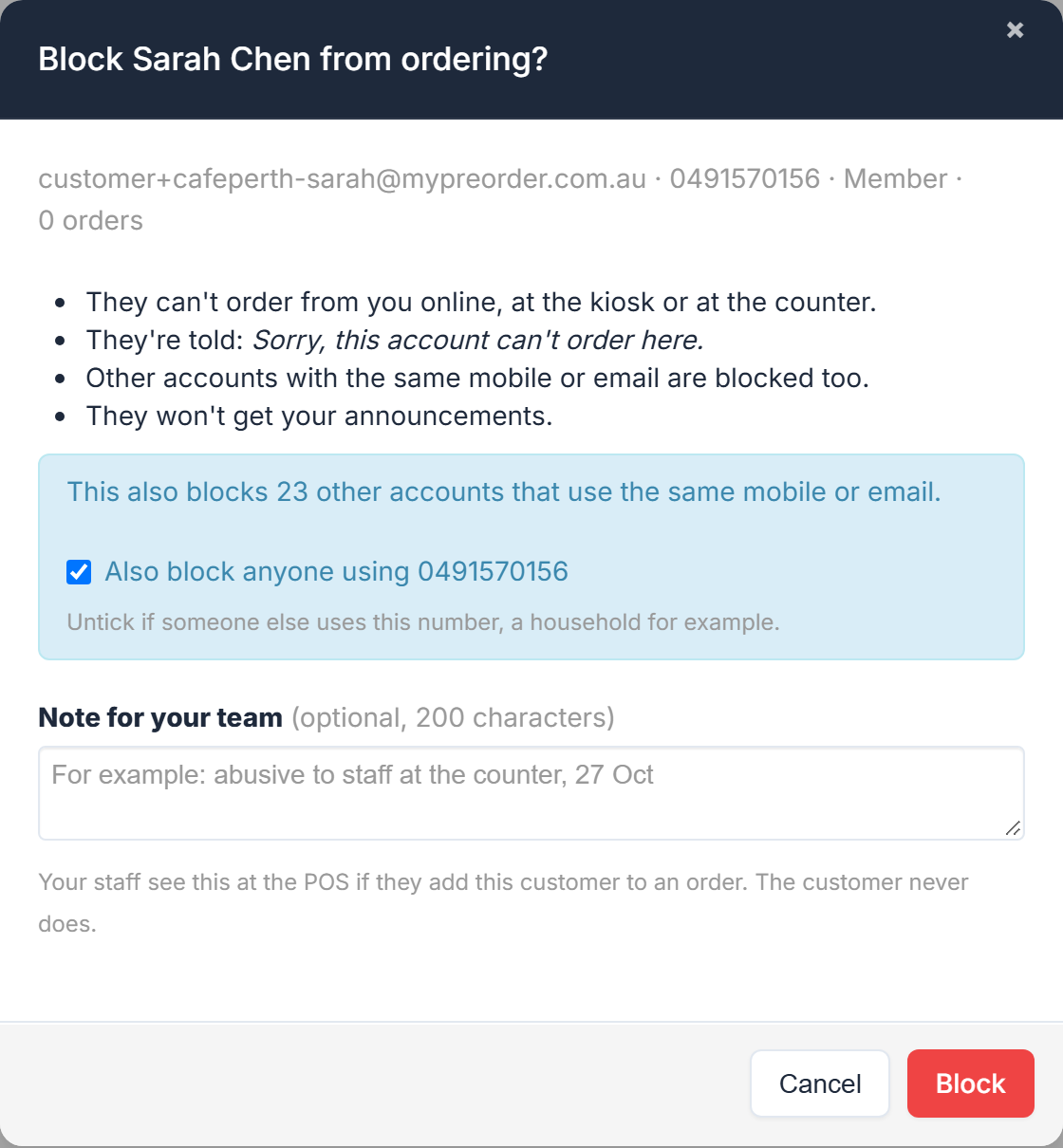
- Read the dialog. It says what a block does, and warns you about anything to sort out first (see below).
- If it says other accounts use the same mobile, and someone else shares that number (a household, for example), untick Also block anyone using their number.
- Leave At all 7 of your stores ticked to block them at every store you run, or untick it to block them at this store only. The box shows your own number of stores, and only appears if you have more than one.
- Optionally add a Note for your team, up to 200 characters.
- Select Block.
Their row now shows a red Blocked label under Member or Guest, and they're listed on the Blocked tab.
What a block does
- They can't order from you online, at your kiosk or at the counter. They're told "Sorry, this account can't order here." They aren't told why.
- Other accounts with the same mobile or email are blocked too, whether they exist already or are made later. The dialog says how many exist now. Those other accounts don't show the Blocked label.
- They don't get your announcements by push, SMS or email.
- Your stores drop out of the Offers list in their app.
Your note
The customer never sees it. Your admins see it on the Blocked tab. Your staff see it on the POS if they add the customer to an order: "This customer is blocked from ordering at your store. Note: abusive to staff. Remove them from the order to continue."
Before you block
The dialog warns you about each of these when it applies:
- Credit. They can't spend credit they hold with you while they're blocked. If they paid for it, refund it first with Refund Credit on the same Actions menu.
- Standing orders. Each one fails, and they're told, until you cancel it in Standing Orders.
- Orders they've already placed aren't cancelled. Cancel any you won't make from the Orders screen.
- Other accounts. If other accounts already use their mobile or email, it says how many. When their mobile is one of the matches, untick Also block anyone using their number to leave the mobile out. Then only their own account, and anyone using their email, are blocked.
See who's blocked
The Blocked tab, below Export on the left of Customers, lists everyone blocked at this store:
- Customer: their name, Member or Guest, email and mobile.
- Where: all your stores or this store. If another of your stores blocked them, it says which.
- Blocked: the date, and who blocked them. A block mypreorder moved over for you, from before you could block customers yourself, says by mypreorder.
- Note: your note, or None.
Unblock someone
Select Unblock on the Blocked tab, or Unblock… on their row's Actions menu, and confirm. A block made for all your stores is lifted at all of them, even if another of your stores made it. They can order straight away.
What a block can't stop
- Someone who signs up again with a new email and a new mobile.
- A walk-up at the counter who isn't looked up and gives no email. Your staff can still refuse to serve them.
- Topping up credit in your app, though they can't spend it with you.
- An order they placed in the seconds before you blocked them.
Their account itself is untouched: they can still sign in and see their past orders and receipts, and you can still message them one to one from their row.