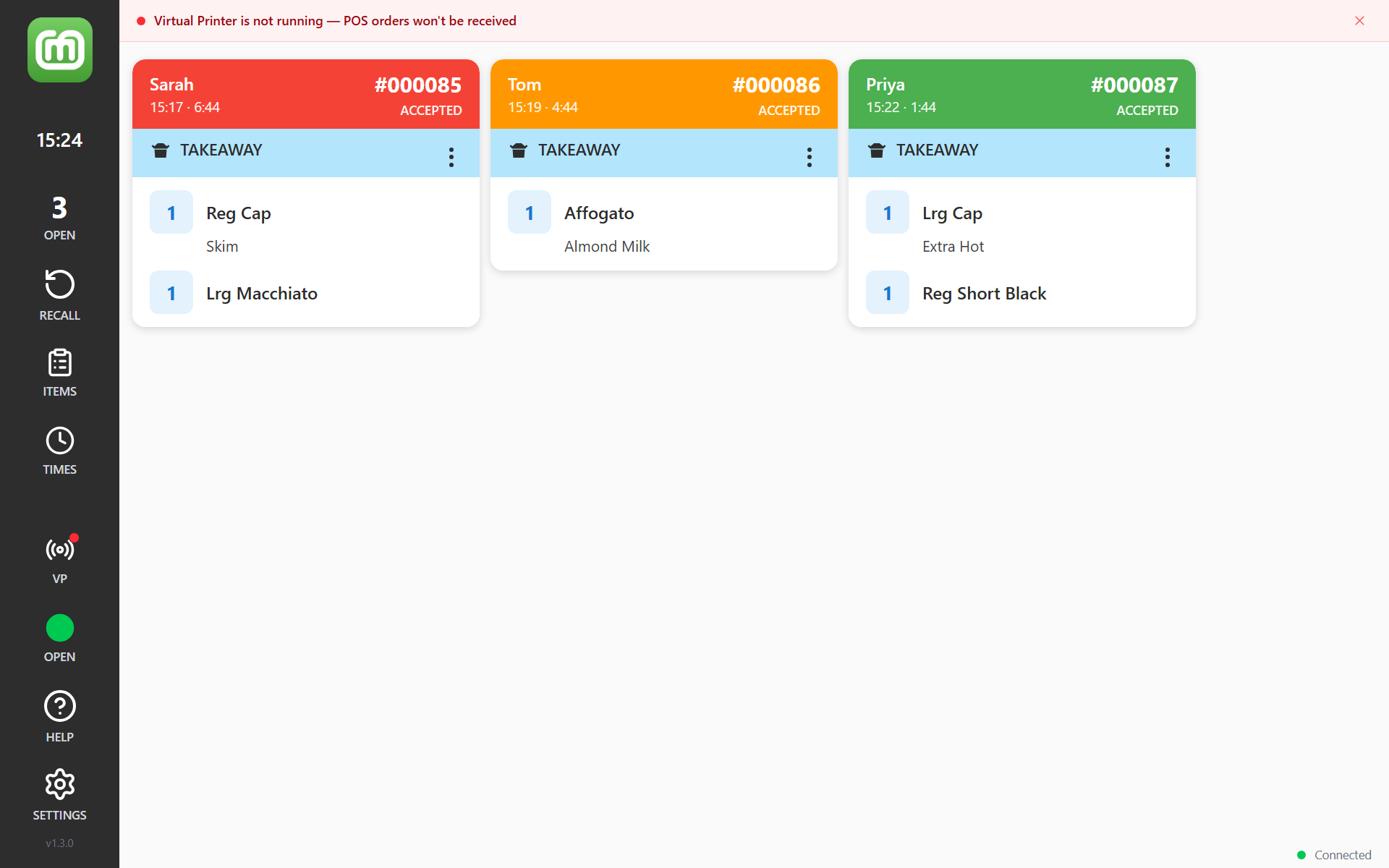
The red banner Virtual Printer is not running — POS orders won't be received means the display has stopped listening. Nothing from the POS will reach the screen until it is running again.
A VP button also appears in the sidebar: its dot is amber while the Virtual Printer is starting, and red once it has stopped. The button disappears when the Virtual Printer is running.
Restart it
- Tap the banner, or the VP button, to open Settings on the Virtual tab. Signed in as staff, the tab is hidden until a manager unlocks it — see Unlock settings that need a manager PIN.
- Turn Enable Virtual Printer off, then on again. A message reads Virtual printer started on port 9100, or your own port number.
- Check that the status box reads Running, with the address to add in your POS underneath.
If it will not start
If the switch turns itself back off, the Virtual Printer could not start, and a message says why. If it failed as the app opened, the message is Virtual printer failed to start.
Another app may be using the port. The Virtual Printer listens on port 9100 unless you change it, and it cannot start if another app on the device already uses that port. Close the other app if you can. Otherwise, with Enable Virtual Printer on, open Advanced Settings and change Port — to 9102, for instance (the Android app already uses 9101 itself). Turn Enable Virtual Printer off and on again, then set the same port in the POS.
Check it is the installed app. Virtual Printer needs the Android or Windows app. In a web browser the setting shows Requires the KDS app and cannot run at all.
Restart the app. Close it completely and reopen it. The Virtual Printer starts by itself, as long as Enable Virtual Printer is on (on a version before 1.3.0, sign in first). If you want us to find out why it stopped, send the diagnostics first — see Send diagnostics to support.
If it keeps stopping
Swiping the app away closes it, and the Virtual Printer with it. Leave the app open — pressing Home or switching to another app is fine. Dockets sent while it was closed are not kept.
Signing out stops it only on a version before 1.3.0: at the sign-in screen it is off until someone signs in again. From 1.3.0 it keeps listening at the sign-in screen. The version is under HELP → Build Information.
After the tablet restarts, the app has to open again. On Android, turn on Auto-start on Boot under Settings → Display. Under the switch the app notes Some Android manufacturers may require you to manually enable auto-start in device settings.
During the day, check the tablet's battery optimisation settings and exclude the app, so the system does not close it in the background. Also turn on Keep Screen Awake under Settings → Display.
Dismissing the banner
Tapping the dismiss cross hides the banner for five minutes, then it returns while the problem persists. It goes away once the Virtual Printer is running, and comes straight back if it stops again.