Select Customers in the top bar, or the Customers tile on the Dashboard.
Find someone
Type into the box at the top right — it searches name, email, mobile — and select Search. Clear puts the full list back. Long lists page with Previous and Next.
At the counter, staff find the customers on this list with Find customer on the POS, by their whole mobile number or email, and add them to the order for their discount, VIP prices and rewards. See Find a customer and add them to a POS order.
Reading the table
Columns are Name, Status, Last order, Orders, Value, Unpaid, Credit and Tags.
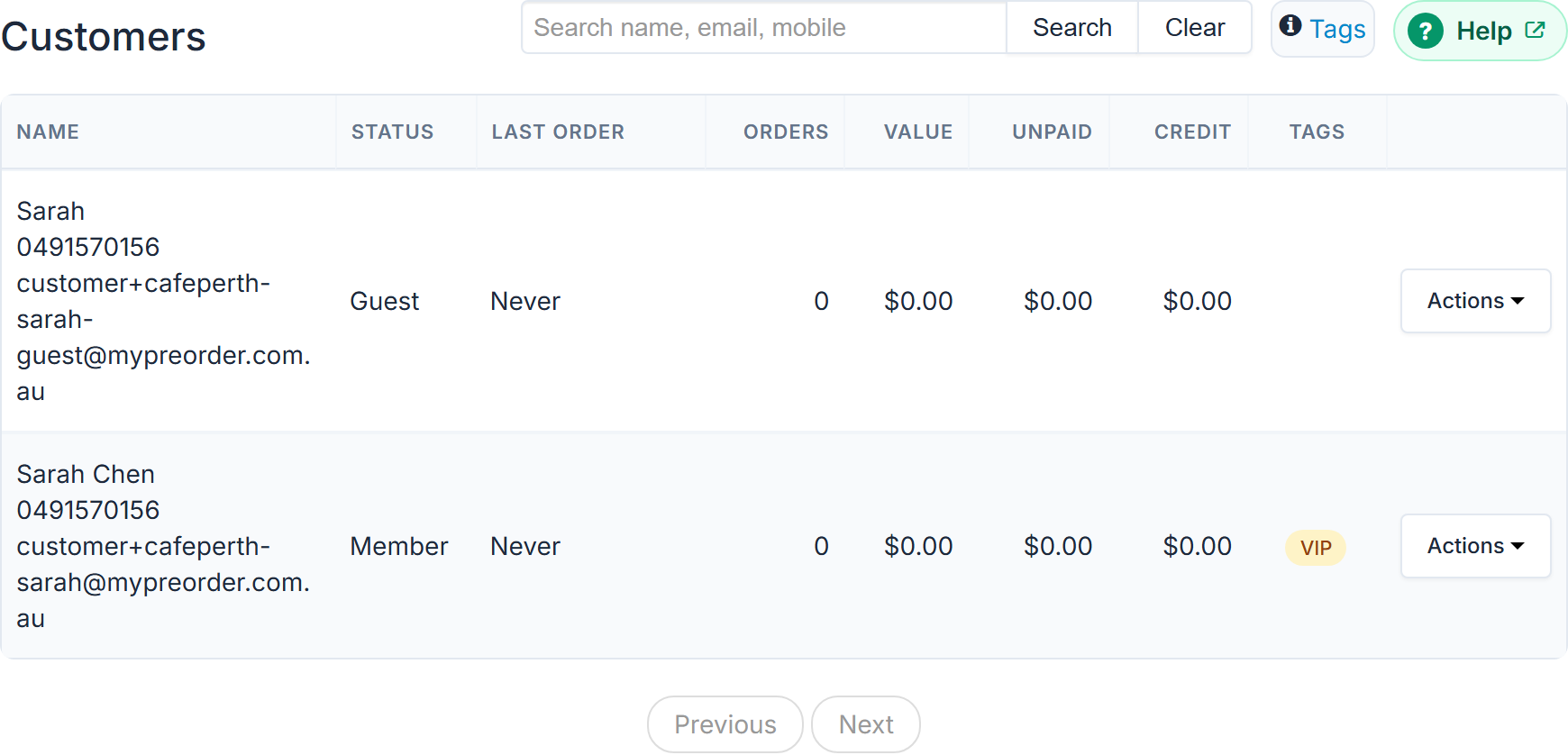
The Tags column uses short badges. Select Tags in the box above the table for the same key:
- VIP — VIP customer
- WS — Wholesale customer
- SO — Standing Orders Allowed
- D% — Discount
- PN — Registered for Push Notifications
- NL — Subscribed to Newsletter
What you can do to a customer
Select Actions on their row:
- Add Credit and Refund Credit
- Toggle VIP Tag, Toggle Wholesale Tag, Toggle Standing Orders Tag
- Resend Invitation — re-sends the set-up-your-account email to somebody who never activated.
- Send Push Notification and Send SMS Notification — to that one customer.
- Remove Customer
Some of these appear only if the matching module is on for your store.
Pending invitations
If invitations are outstanding, a banner appears above the table with a Resend Invitations button that re-sends them all at once.
Add a customer yourself
The Add Customer tab creates an account on somebody's behalf. The screen states the condition plainly: "Use this form to create an account on behalf of a customer having obtained their permission."
Fields are Customer Name*, Email Address*, Mobile Number, Bonus Credit, Bonus Rewards, VIP, Wholesale, Standing Orders, Discount and Send Instructions.
Send Instructions defaults to Yes and emails them a getting-started message. While it is Yes you must also tick I have permission to email this person before the Add Customer button will work; leave it unticked and the hint reads "Tick the permission box above to add this customer."
Choosing No creates the record silently. The screen warns what that means: they will not know the account exists, though they can set a password themselves with Forgot password on the sign-in screen, or you can invite them later with Resend Invitation.
Add Customer is enabled per store, and the screen carries the line "Access to this feature will be blocked without further notice if it is misused."
When they sign up themselves later
Someone you added, who ordered as a guest, or who was made a customer at the counter has an account without a password. If they later sign up on your website or app with the same email, they aren't given a second, empty account. Sign up says "You already have an account with [your brand]: we've emailed you a link to set your password." The link sets a password on the account they already have, so their points, VIP status and credit stay with them.
If a link can't be sent just then, such as when two were sent in the last half hour, it says "You already have an account with [your brand]. Use Forgot password to set your password." instead.
Export
Export → Download Customers CSV. Admin only, and enabled per store.