Add a customer's account to the order at the POS, so the order is priced for them and filed under them: their loyalty points, their VIP or customer discount, and any reward they've earned. Scan the loyalty card in their app, or search by their mobile number or email.
Available in POS version 4.4.0 and later. To see which version you have, select Manager, enter a manager's PIN and select Diagnostics. It's the App version under Build.
Scan their loyalty card
Members have a loyalty card in your app and on your website, under Account › Loyalty card: a QR code, with an 8-character code under it, such as K7Q4 9XMP. In your own app, we switch it on for you. See Tell customers about their loyalty card.
- With a barcode scanner (USB or Bluetooth): scan the card on the menu or at checkout. There's nothing to open first. With a hands-free scanner in a stand on the counter, customers can scan their own card while you take the order. See Choose and set up a barcode scanner for loyalty cards.
- With the tablet's camera: select Find customer, then Scan card, and hold the card up to the camera ("Point the camera at the card in their app"). The first time, allow the camera when the browser asks.
- Type the code: in Scan card, type the 8 characters under the QR in Or type the code under the QR, and select Add. Capitals and spaces don't matter. The code has no O, I or L, so an O you type is read as 0, and an I or L as 1.
Done looks like "Added Sarah Chen", as for a search below. A code works once and for 10 minutes: the customer's card shows a new one straight after a scan, so a screenshot of it won't work again.
A scan while the POS is locked, or while an EFTPOS payment is on screen, adds nobody. Unlock it or finish the payment, then scan again.
Search by mobile or email
- Select Find customer ("Search or scan"). On a tablet or PC it's at the top of the order, above the order type. On a phone it's under the order type at the top of the menu. You can do this before or after adding items.
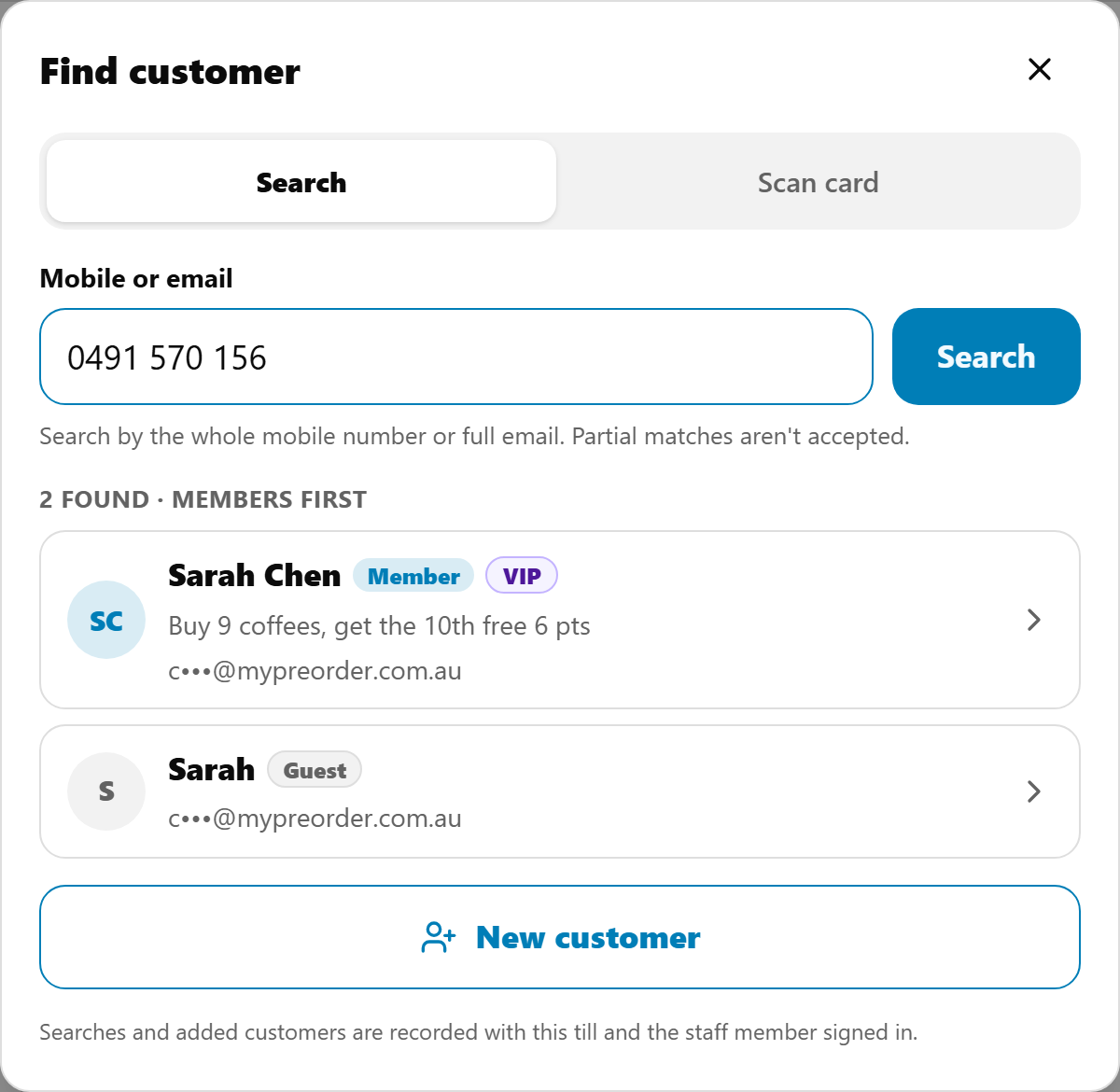
- Ask for the mobile number or email on their account, type it in Mobile or email, and select Search. Type the whole number or the full email: part of one finds nobody, and there's no search by name. A mobile number works either way, 0431 117 724 or +61 431 117 724.
- Select the right customer from the list.
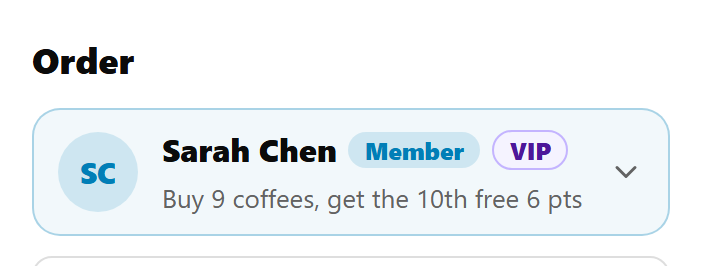
Done looks like "Added Sarah Chen", and the customer in place of Find customer: their initials and name, Member or Guest, VIP if they're in your VIP club, and their points in each of your loyalty rewards, by the reward's name, for example "Buy 9 coffees, get the 10th free 6 pts". With two rewards they sit side by side, as in "Coffee 8 pts · Food 3 pts". On a phone the order bar reads "3 items · Sarah Chen".
Choose from the list
Members come first, then guests. Each one shows:
- their name, Member or Guest, and VIP;
- their points here, for each reward they have points in;
- the contact detail you didn't search by, partly hidden: search by mobile and you see the email as "s•••@gmail.com", search by email and you see the last three digits of the mobile, "••• 724".
A number or email can be on more than one account, such as a guest order from before they joined. Ask the customer which one if you're not sure. "More than 10 found" means more accounts share it than the list shows: search by their other contact detail instead.
Make a new customer
When someone isn't found, or wants to join your VIP club, make their account at the counter and add it to the order straight away. The order then earns their points, and promo codes for one use per customer or a first order work for them.
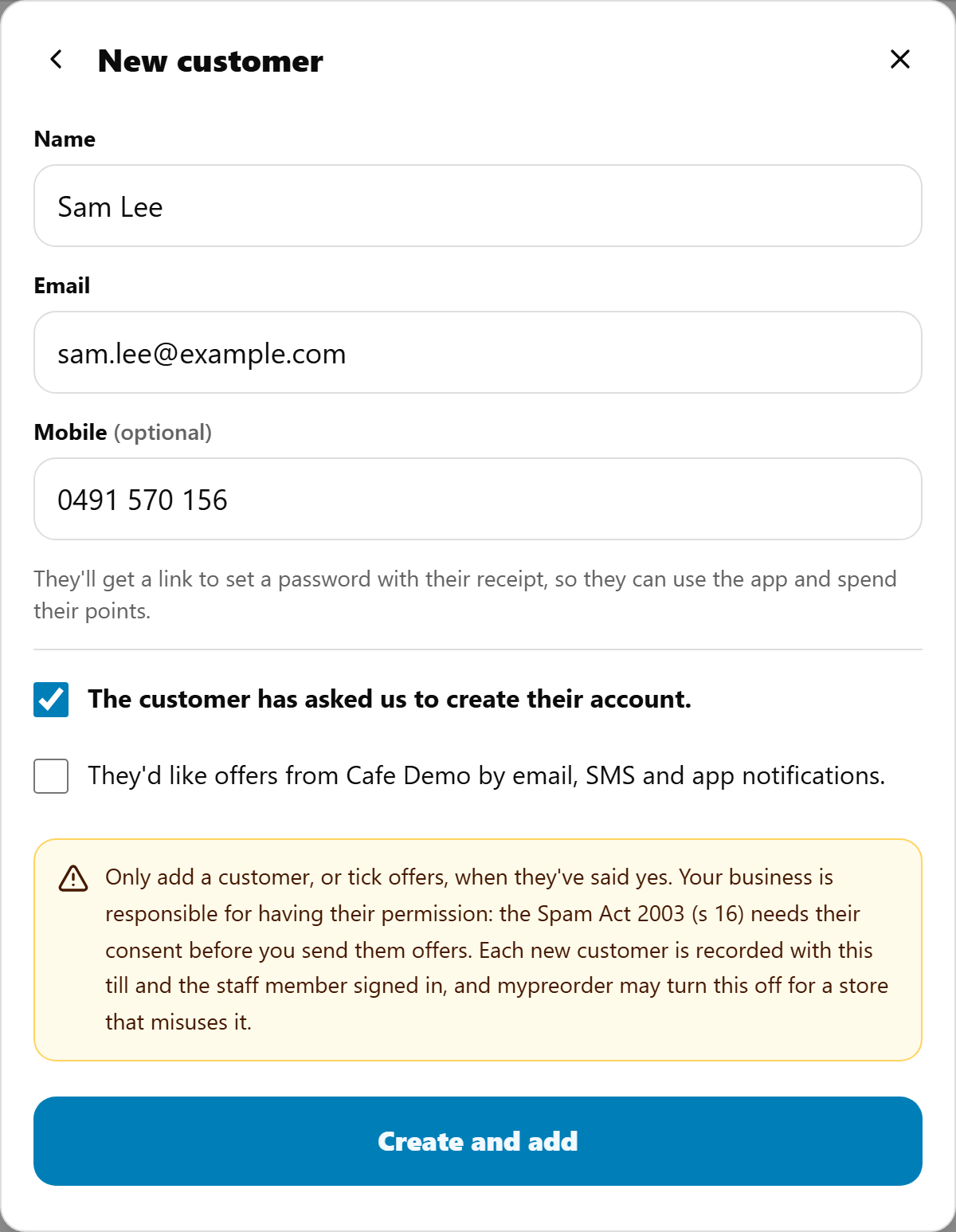
- In Find customer, select New customer. It's under the search box, before or after a search. Whatever is in the search box goes into the form: an email into Email, a number into Mobile.
- Type their Name and Email. Mobile is optional. As the form says, "They'll get a link to set a password with their receipt, so they can use the app and spend their points."
- Tick The customer has asked us to create their account. Create and add stays greyed out until it's ticked.
- Tick They'd like offers from [your store] by email, SMS and app notifications. only if they've said yes to offers. It starts unticked every time.
- Select Create and add.
Done looks like "Added Sam Lee as a new customer", and they're on the order as a Guest who "redeems once a member". They earn points from this order, and can spend them once they've set their password. Their receipt goes to the email you typed.
Their permission
Under the ticks, the form says:
"Only add a customer, or tick offers, when they've said yes. Your business is responsible for having their permission: the Spam Act 2003 (s 16) needs their consent before you send them offers. Each new customer is recorded with this till and the staff member signed in, and mypreorder may turn this off for a store that misuses it."
At a store in New Zealand it names the Unsolicited Electronic Messages Act 2007 (s 9).
- Only make an account the customer has asked for, with their own details.
- The offers tick records their consent to your offers by email, SMS and app notifications, with this POS and the staff member signed in. Leave it unticked unless they've said yes: unticked, nothing is recorded.
- They can change their mind any time: every offer has an unsubscribe link, and they can change their preferences in your app or website.
When they already have an account
- They're already your customer: "Already a customer: Sarah Chen added to the order". Their account goes on the order, as a search would find it. Nothing you typed changes it, and the ticks don't apply.
- The email has an account the POS can't show, such as someone who has only ordered from another business, or a typo that's someone else's email: "There's already an account for that email. The order will go to it." Nobody is added to the order, so their details stay private. The name and email you typed (and the mobile, if you typed one) go into the Customer card at checkout, and the order is filed under that account when you place it, as when you type an email at checkout. Promo codes for one use per customer or a first order can't be used for them at the counter.
- Check the email takes you back to the form to fix a typo.
- Done closes it.
What changes on the order
The order is re-priced for the customer straight away:
- Their VIP or customer discount comes off, as it does when they order online. It shows as Discount at checkout.
- A reward they've earned comes off by itself. The line shows "Reward: free (8 points)" (or "Reward: $4.60 off (8 points)") with its old price struck through, and checkout shows Rewards discount. There's nothing to press. See Set up a loyalty reward.
- Promo codes for one use per customer, or for a first order, are checked against this customer. Under Discounts at checkout they can be tapped once the customer is added: see Apply a promo code on the POS.
- At checkout, the Customer card shows "From Sarah's account. Remove them from the order to type someone else's details." Their name, email and mobile come from their account and can't be edited. You can still add an order note.
When you place the order, it's filed under their account and earns their points. It's in their order history on your website or app, and their confirmation email goes to them, showing any reward they redeemed.
A guest (someone who ordered without setting a password, or joined at the counter and hasn't set one yet) earns points but can't redeem them until they become a member. On the order they show "redeems once a member". In an order that joins your VIP club, with points for joining, it says "joining reward in this order; other points once a member": those points can be spent now. See Sign a customer up at the POS or Kiosk.
Customers can't pay from their account credit at the POS yet. They can spend it when they order on your website or app.
Take the customer off the order
Tap the customer, then select Remove from order. At checkout, select Remove from order on the Customer card. The order goes back to normal prices, and you can type someone else's details.
- Clear order takes the customer off with everything else.
- Placing the order ends it: Next order starts with no customer.
- Lock and Switch keep them. The next staff member's PIN brings back the same order, priced the same way.
Who you can find
Customers of your store, and of your other stores that share customers with it: anyone who has ordered there, signed up at the counter, or is in your customer list in the merchant portal. See Look up a customer and manage their account.
Someone who has never ordered from you isn't found by a search. Their loyalty card still works: scan it. Without the card, select New customer and type their email. If they have an account, the order goes to it (see When they already have an account above), but without their discount or rewards.
Every search, every card scanned and every customer added or made is recorded with this POS and the staff member signed in ("Searches and added customers are recorded with this till and the staff member signed in."). The search isn't a way to browse your customers: it only finds an exact number or email.
If something is not right
| What you see | What to do |
|---|---|
| "No member or guest has …" | Check the number or email with them, or try their other contact detail. You can still take the order without a customer. |
| "That doesn't look like a mobile number" | Check the digits. "Landline numbers can't be searched. Try their email instead." |
| "That doesn't look like an email address" | Check the email for a missing @ or a typo. |
| "Enter a mobile number or email" | The box was empty. |
| "More accounts use this email than are listed. Ask for their mobile number to narrow it down." | Search by the mobile number instead (or the email, if you searched by number). |
| "Too many searches found no one on this till" or "Too many lookups found no one on this till", and "Try again at 2:45 pm. New customer waits too." | After 30 searches, card codes or new customers' emails with an account the POS can't show in an hour, this POS stops searching, scanning and making new customers until the time shown. Take the order without a customer. |
| "That list is out of date. Search again." | A newer search replaced the list you chose from. Search again. |
| "Remove Sarah Chen first" | A customer is already on the order, and you searched for, scanned or made someone else. Remove them, then add the other one. The other card still works. |
| "Enter the customer's name." or "Enter the customer's real name." | Type their name. "Apple User" or "Google User" isn't one. |
| "Enter their email." | A new customer needs an email: it's how they set their password and get their receipt. |
| "That email doesn't look right." | Check the email with them for a typo. It may suggest the right spelling ("Did you mean …?"). |
| "That isn't a mobile number. Leave it empty if they'd rather not." | Check the digits, or leave Mobile empty: it's optional. |
| "There's already an account for that email. The order will go to it." | Nothing to do: the order is filed under that account. Select Check the email if it was a typo. See When they already have an account above. |
| "That customer couldn't be added. Try again." | Select Create and add again. If it keeps happening, take their name and email at checkout instead. |
| "That customer can't be added. Search again." | The account was closed or changed since you searched. |
| "That card code has been used or has run out. Ask them to open their card again." | A code works once and for 10 minutes. Their card shows a new one: scan that. |
| "That card wasn't recognised. Ask them to open it again, or search instead." | Ask them to close and open their card, or search by their mobile number. |
| "That card can't be used here. Search for them instead." | The card is from another business's app, or the account was closed. |
| "That QR isn't a loyalty card. Ask them to open Account › Loyalty card in the app." | The camera read another QR code, such as a table sticker or a payment code. |
| "That isn't a card code. Check it, or search instead." or "Type the 8 characters under the QR code." | Check the code with them: it's 8 letters and numbers. |
| "Camera access blocked. Allow camera access in your browser settings, then try again." | Allow the camera for the POS in the browser's site settings, then open Scan card again. Or type the code. |
| "No camera available. Type the code under the QR instead." | This device has no camera the browser can use. Type the code, or use a barcode scanner. |
| A barcode scanner types into the search box instead of adding the customer | The scanner may not be reading QR codes, or isn't set to work as a keyboard. See Choose and set up a barcode scanner for loyalty cards. |
| A scan adds nobody on the Orders screen | A scan adds the customer only on the menu or at checkout. Go back to the order and scan again. |
| The customer has points but no reward came off | They need enough points for the reward, and a guest can't redeem. A promo code that doesn't allow rewards blocks them too. |
| A customer says they have an account but isn't found | They haven't ordered from you yet, or their account uses a different number or email. Select New customer and type their email: if it has an account, the order goes to it. |