Until you connect your own email service, transactional emails go out through the system default and bulk email is unavailable — no announcements, no customer invitations.
Settings → Email Settings. Admin only.
Pick a provider
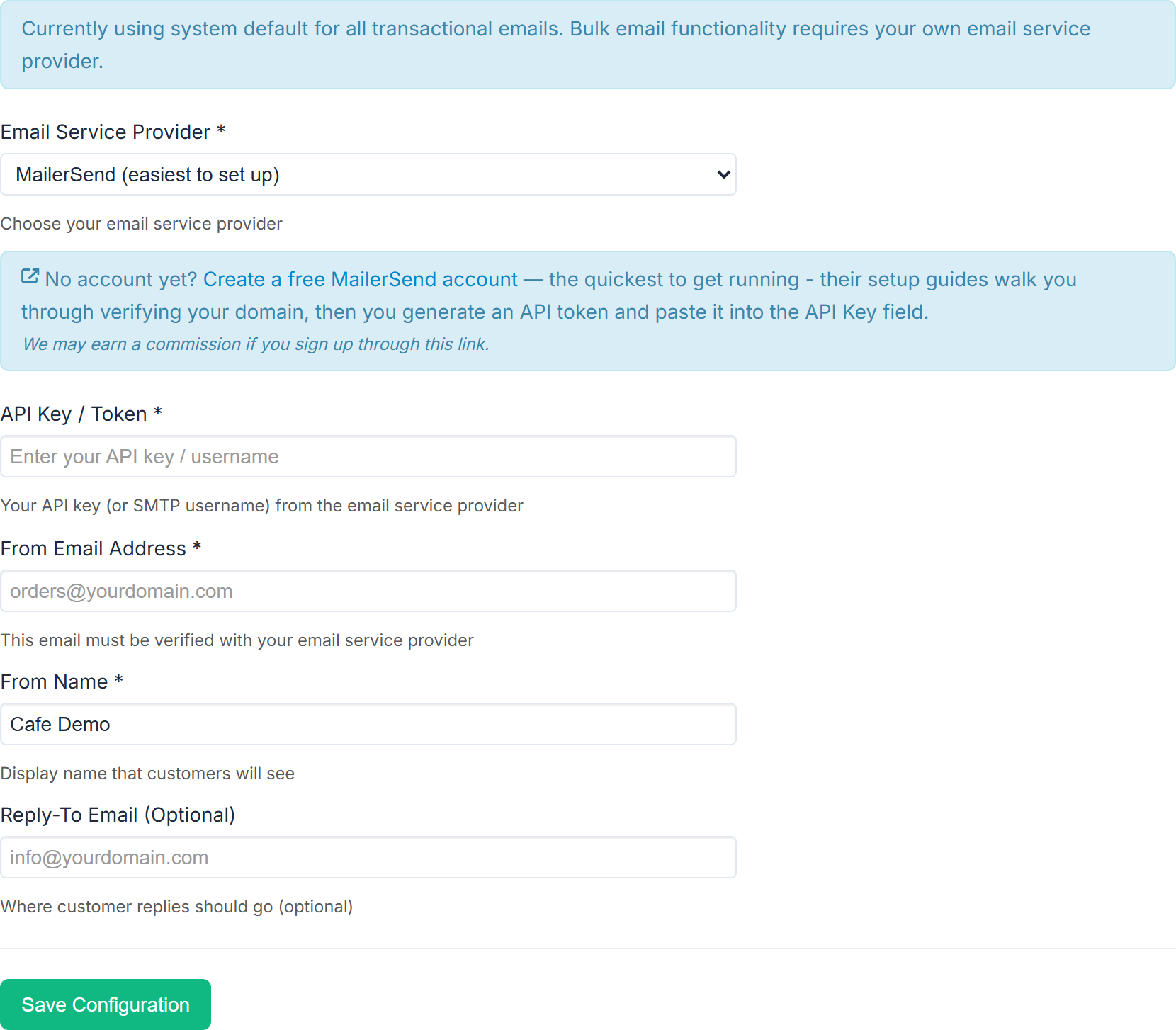
Email Service Provider * offers three:
- MailerSend (easiest to set up) — step-by-step guides, a free tier, and one API token to paste in.
- SMTP (Gmail, Microsoft 365, SendGrid and others) — presets are provided for Gmail, Google Workspace, Microsoft 365, SendGrid, Brevo, Postmark, Resend, turboSMTP and Mailgun, plus Other / custom SMTP server.
- Amazon SES (lowest cost, more technical).
The screen's own advice: MailerSend is the easiest, Amazon SES is the cheapest at any volume, and Gmail, Google Workspace and Microsoft 365 are "fine for low-volume order emails, but their daily and per-minute sending caps make them unsuitable for announcements and bulk invitations."
Fill in the credentials
The credential fields relabel themselves for the provider you picked. Choosing SMTP adds an Email Provider Preset dropdown and then SMTP Host *, SMTP Port * and Encryption *. Choosing Amazon SES adds AWS Region * and asks for your IAM access key ID and secret access key — note SES SMTP credentials are not interchangeable with those.
Then, for every provider:
- From Email Address * — "This email must be verified with your email service provider."
- From Name * — the display name customers see.
- Reply-To Email (Optional)
Select Save Configuration.
Activate it — this step is the one people miss
Saving is not enough. Sending stays off until the settings are proved:
- Select Send Test Email.
- Once the test succeeds, an Activate Service button appears. Select it.
The Configuration Status box below the form shows Provider, Verified, Active and Last Modified. You want Verified: Yes and Active: Yes.
If you have saved settings but never tested them, the Dashboard setup checklist says so: Finish setting up your email service — "Your settings are saved but not switched on yet. Send a test email to activate them."
To stop using the service, Deactivate Service.
What this unlocks
- Email as an announcement channel — see Send an announcement to your customers.
- Customer invitations from Add Customer and the customer import.
- Order emails sent from your address rather than ours.
- Email order notifications — see Get an email or SMS on every order.
Your obligations
You are the sender. You are responsible for who receives your marketing email.
Your business name, contact details and an unsubscribe link are added to every marketing email automatically, and every unsubscribe is recorded and acted on. Section 14 of the merchant terms sets out the rest.