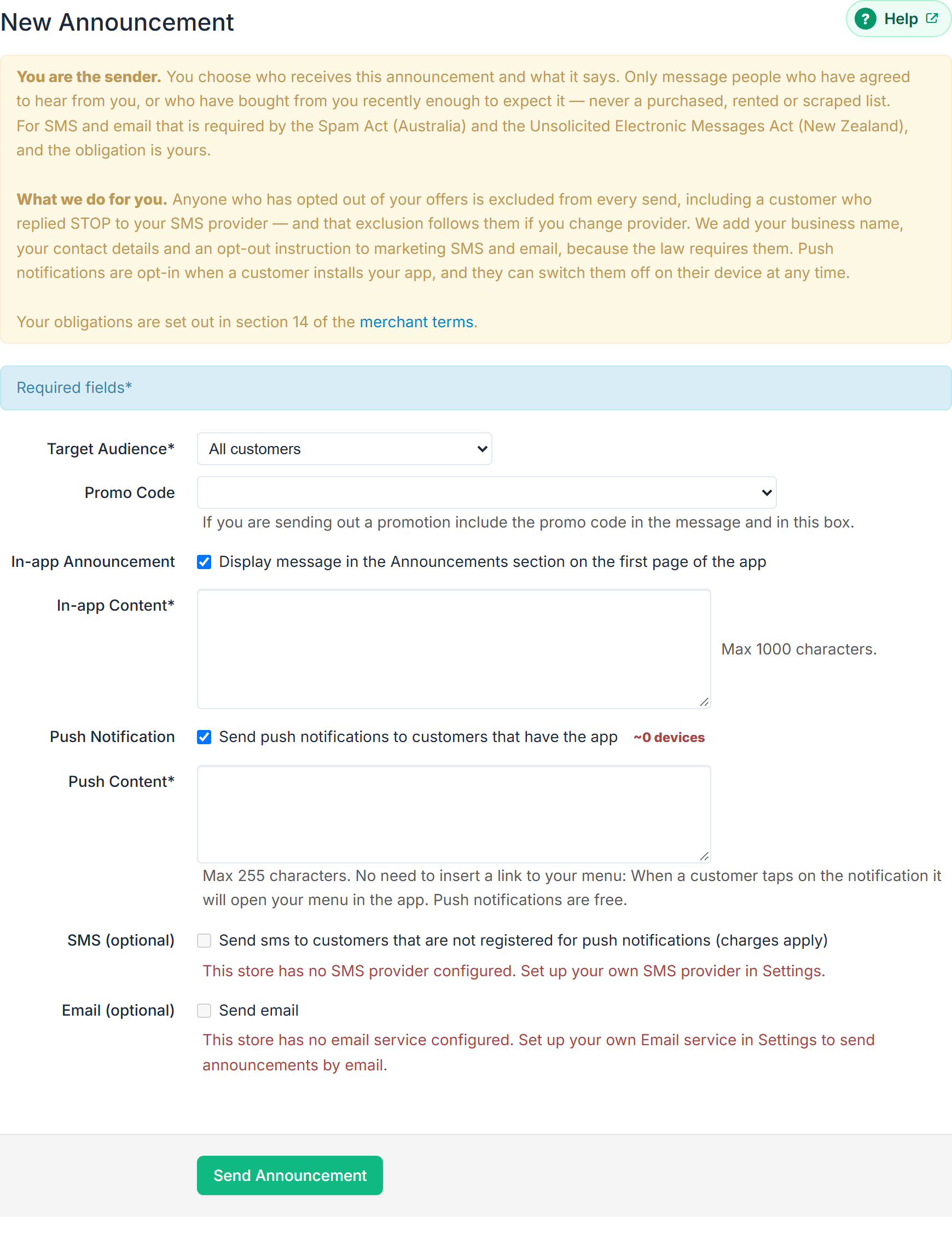
Customer Announcements on the Dashboard, then New Announcement.
Choose who gets it
Target Audience* offers:
- All customers
- Takeaway customers only, Delivery customers only, Dine-in customers only
- VIP customers only, Non-VIP customers only
- Wholesale only, Non-Wholesale only
- Last order 0 – 7 days ago, Last order 8 – 30 days ago, Last order 31+ days ago
- Never ordered before
If you are a multi-store merchant with your own branded app, a Send to* box appears above with This store's customers only and All store customers.
Promo Code attaches one of your promotion codes. "If you are sending out a promotion include the promo code in the message and in this box."
Pick your channels
Tick as many as you need. Each shows a live estimate of how many customers it will reach.
In-app Announcement — "Display message in the Announcements section on the first page of the app." Up to 1000 characters.
Push Notification — "Send push notifications to customers that have the app." Up to 255 characters. "No need to insert a link to your menu: When a customer taps on the notification it will open your menu in the app. Push notifications are free."
SMS (optional) — up to 255 characters, "to keep sms cost to two sms/units per recipient and allow space for the system to insert compliant opt-out text." Note the label changes with your other choices: with push ticked, SMS goes only to customers not registered for push; with push off, it goes to every targeted customer who has a mobile.
A This is what your customers will receive preview appears under the box as you type, showing the final message with the added compliance text and what it will cost.
Email (optional) — tick Send email. It works only once your store has its own verified email service. Until then the box can't be ticked, and the note beside it says why, for example "This store has no email service configured. Set up your own Email service in Settings to send announcements by email." See Send email from your own business address. An email needs an Email Subject* (200 characters) and Email Content* (1000 characters, plain text). "An 'Order now' button and your promo code are added automatically."
Email Recipients chooses between All customers who accept your offers and Only those not reached by push or SMS — pick the second to avoid messaging the same person twice.
Send yourself a test first
Under Send a test, put an address in and select Send test email. "Sends this exact message to you, so you can see it before your customers do. Leave blank to use your store email address."
Send it
Select Send Announcement. Announcement History lists what you have sent, with Content, Target, Created, Delivery and Status. The Delivery column is counted separately per channel; a push counts once the notification service accepts it for a device, which is not a guarantee the handset displayed it.
The rules
The panel above the form is not decoration:
You are the sender. You choose who receives this announcement and what it says. Only message people who have agreed to hear from you, or who have bought from you recently enough to expect it — never a purchased, rented or scraped list.
For SMS and email that is required by the Spam Act (Australia) and the Unsolicited Electronic Messages Act (New Zealand), and the obligation is yours. What the platform does for you: anyone who has opted out of your offers is excluded from every send, including a customer who replied STOP to your SMS provider, and that exclusion follows them if you change provider. Your business name, contact details and an opt-out instruction are added to marketing SMS and email automatically.
If a channel is greyed out
SMS and email both need your own provider connected first. The control stays visible with the reason in red rather than disappearing. See Send email from your own business address and Connect your own SMS provider.
If the whole form is replaced by an information box, the Customer Announcements module is not enabled for your store — contact support.