Members have a loyalty card in your app and on your website. They show it at the counter, staff scan it, and the order earns their points, takes their VIP or customer discount, and redeems any reward they've earned. See Find a customer and add them to a POS order.
Available in POS version 4.4.0 and later. To see which version you have, select Manager, enter a manager's PIN and select Diagnostics. It's the App version under Build.
Switch it on in your own app
The card is always in the mypreorder app and on its website. In your own app and on your own website, it's off until we switch it on, since only a store with the POS can scan it. When your first store has the POS, contact us and we will switch it on. Your app gets it without a new version from the app store.
Until then, staff can still find your members at the POS by their mobile number or email.
Where customers find it
In your app or on your website, they sign in, then go to Account › Loyalty card. There's a Loyalty card button at the top of their profile, and Show my card on Rewards.
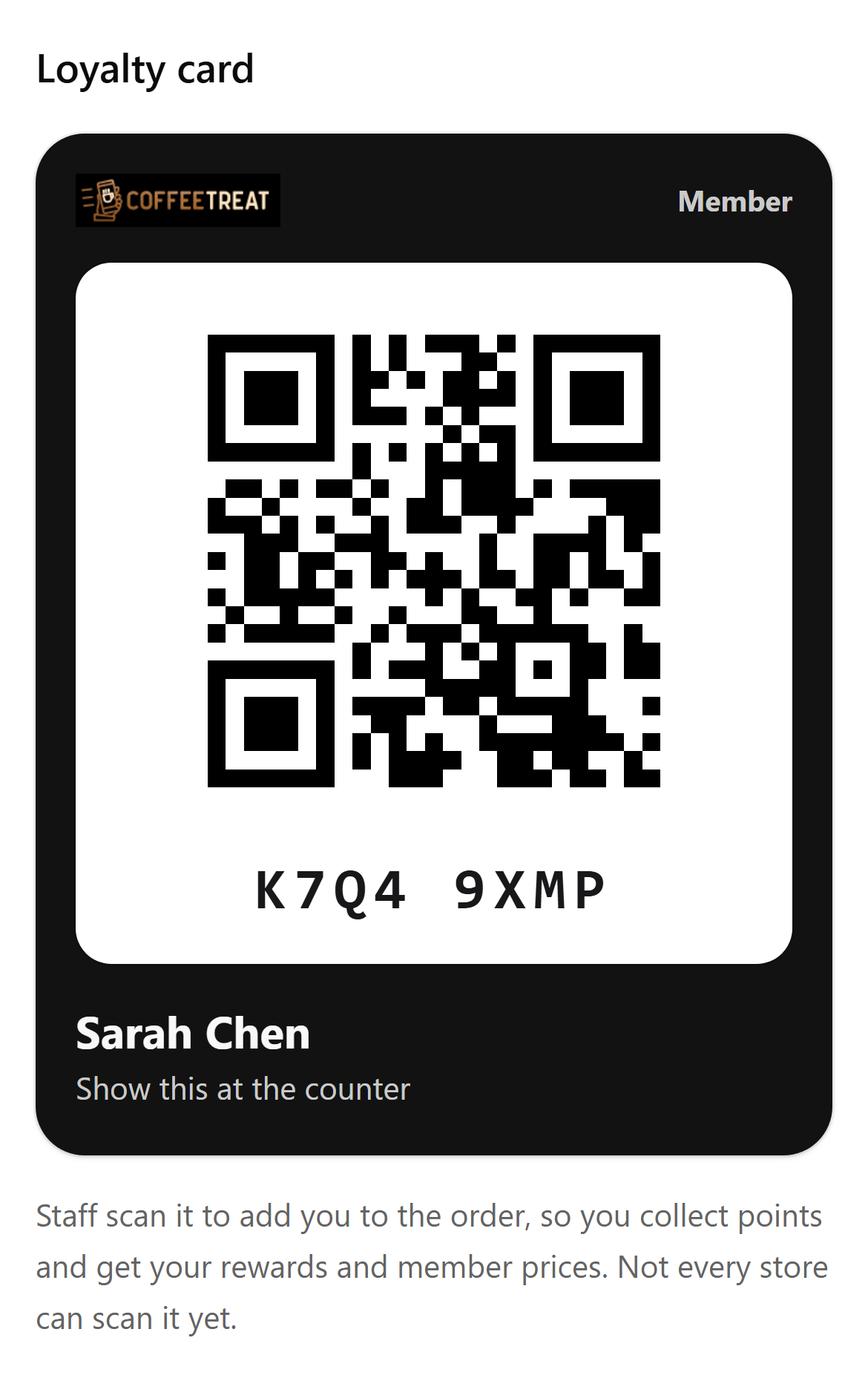
The card shows your logo, their name, a QR code, and an 8-character code under it, such as K7Q4 9XMP. Staff can type that code if the camera won't read the QR.
Under the card it says "Not every store can scan it yet.", so a customer knows a store without the POS can't take it.
Ask for it at the counter
Ask for their card as you start the order, so it's scanned before the payment. With a hands-free scanner in a stand on the counter, customers can scan it themselves: a sign by it, such as "Scan your loyalty card here", tells them it's for them. See Choose and set up a barcode scanner for loyalty cards.
Who has one
Members: customers who have an account with a password. A guest (someone who ordered without an account, or joined at the counter and hasn't set a password yet) has no card until they set a password. Staff can still find a guest by their mobile number or email.
Why the code keeps changing
The code changes after each scan, and every 10 minutes. A screenshot of the card works once at most, so nobody else can use a copy of it. The card updates by itself while it's open: after a scan the customer sees "Added to your order at the counter" and a new code.
The card needs the internet to show. Without it, the customer sees "Connect to the internet to show your card", and staff can search for them by mobile number or email instead.
If something is not right
| What you see | What to do |
|---|---|
| A customer can't find Loyalty card | Check they're signed in, and not as a guest. If none of your customers have it, it isn't switched on in your app yet: contact us. If it's only missing for one customer, ask them to update the app. |
| "Connect to the internet to show your card" | Their phone has no signal. Search for them by mobile number or email. |
| "Your card didn't load" | Ask them to select Try again, or search for them. |
| Staff see "That card code has been used or has run out" | Ask the customer to close and open the card: it shows a new code. |
| A customer shows a screenshot | It won't work, or works only once. Ask them to open the card in the app. |