This is for a third-party point-of-sale system that holds your menu. mypreorder's own POS needs no sync: it sells from your Menu Builder menu, the same one your customers order from.
Settings → POS Integration. Admin only, and the POS Integration module has to be enabled for your store.
Run a sync
The sync button at the top right is named for your point-of-sale system:
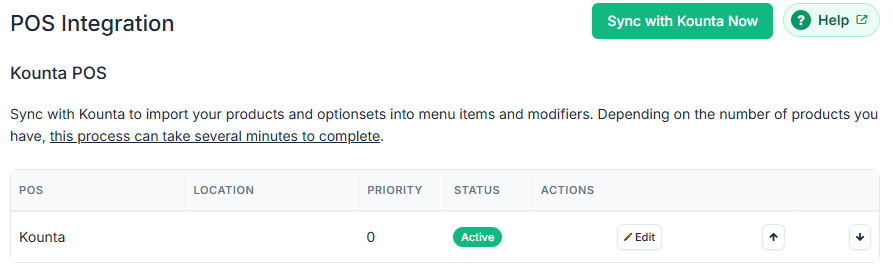
- Sync with Kounta Now
- Sync with Square Now
- Sync with Vend Now
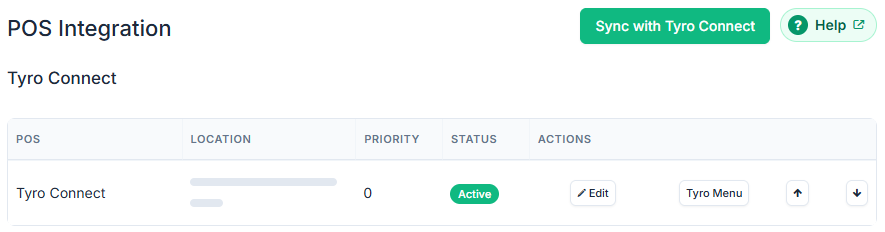
- Sync with Tyro Connect
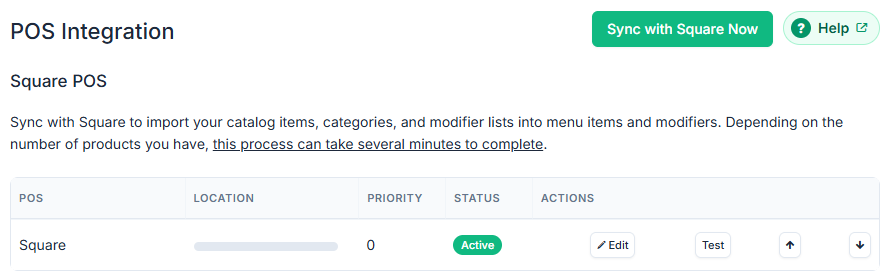
Select it and wait. Both Kounta and Square carry the same warning: "Depending on the number of products you have, this process can take several minutes to complete." The button changes to Syncing (patience)... while it runs.
What comes across
Kounta imports your products and optionsets as menu items and modifiers. Square imports catalog items, categories and modifier lists the same way.
After a sync
Your point-of-sale system is the master of the menu. In Menu Builder you may deactivate items, change their order and edit their settings. The New Menu Item, New Menu Group and New Modifier buttons are hidden on Kounta, Square, Vend and Tyro Connect stores, because a product created here does not exist in your point-of-sale system and would be wiped by the next sync.
See Menu changes are not reaching your customers.
Square: items sold out at the register
Square has two controls that both get called "out of stock":
- Track Inventory keeps a stock count. Items with a count come across with Sync stock levels from Square.
- Mark as sold out is the switch on the item in Square Point of Sale or the Square Dashboard. It needs no stock count.
To have the second one take items off your online menu too, select Edit on your Square row, tick Mark items sold out online when they're sold out in Square, and save.
Both options show only when your store has stock control. If you don't see them, contact us to turn it on.
- An item staff mark sold out in Square shows as out of stock online within a few minutes, and customers can't order it.
- It comes back when Square makes it available again. Square Point of Sale brings a sold-out item back at the end of your business day unless staff choose Reset availability for another time, and mypreorder follows the same time.
- Square keeps sold out per location, so marking an item at one location doesn't take it off your other stores.
- Untick the box to stop. Items mypreorder took off your online menu go back on within a couple of minutes.
If you change an item's status in Menu Builder while Square has it sold out, your change stays until the item is next marked sold out or available in Square.
The list of connected systems
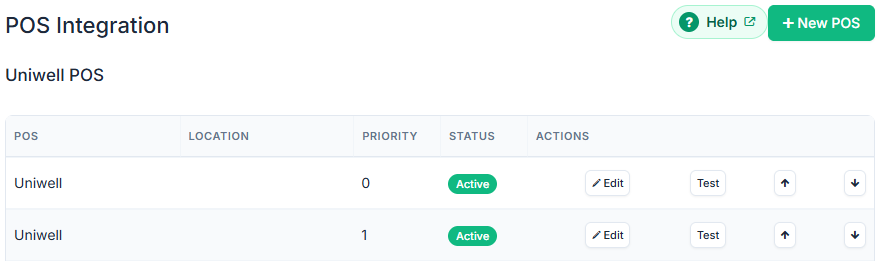
Each connected point-of-sale system is a row showing POS, Location, Priority and Status, with Edit and arrows to move it up or down. Some rows have one more button:
- Test, on Square and Uniwell, checks the connection and prints the result underneath.
- Tyro Menu, on Tyro Connect, opens that location's menu in Tyro Connect's own portal, where its menu is edited.
Uniwell: orders go to your registers
Uniwell has no menu sync: the menu customers order from stays your Menu Builder menu. The tab lists the Uniwell registers that online orders are sent to. New POS adds another.
Priority is the order they're tried in, lowest number first. An order goes to the first register. If that one doesn't take it, for any reason, the order goes to the next. Only Active registers are tried. Use the arrows to change the order, and Test to check a register's connection.
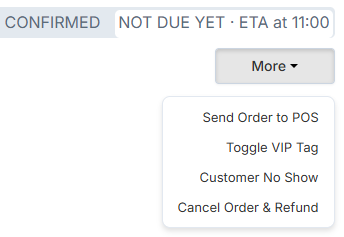
If no register takes an order, mypreorder tries again every few minutes until the order is due. To send it straight away, use Send Order to POS (below).
Reset Menu — read this before you touch it
The Reset Menu button at the bottom of the POS Integration tab is destructive, and the screen says so:
DANGER AREA. This action will reset (delete) your current menu, removing all existing menu groups, menu items and modifiers. By resetting your current menu some historic data will no longer be available to some reports and exports. This action cannot be undone. Consider printing or exporting any historic data prior to resetting your menu.
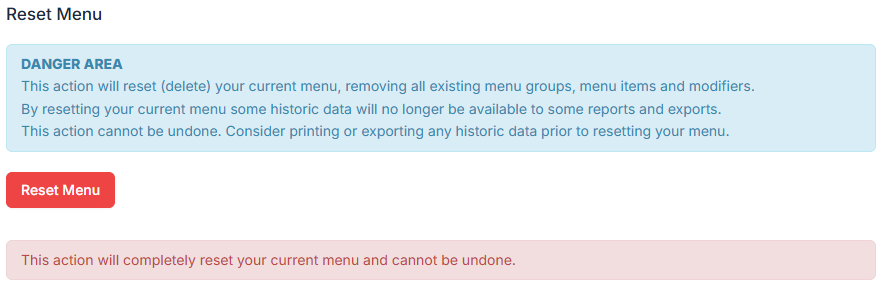
Use it only when support asks you to. Export first.
Sending a single order again
If one order failed to reach your point-of-sale system, you do not need a sync. Open Orders, select More on that order, then Send Order to POS.