Take a product off sale, or put it back, from the POS when you run out. You can also keep a count of how many are left. Any staff member can do it, with no PIN.
Open Products and stock
Select Products in the top bar (on a narrow screen, Staff tools → Products and stock). Choose a category on the left, or type in Search all products to look through every category. Back to the menu returns to the order.
Mark a product sold out
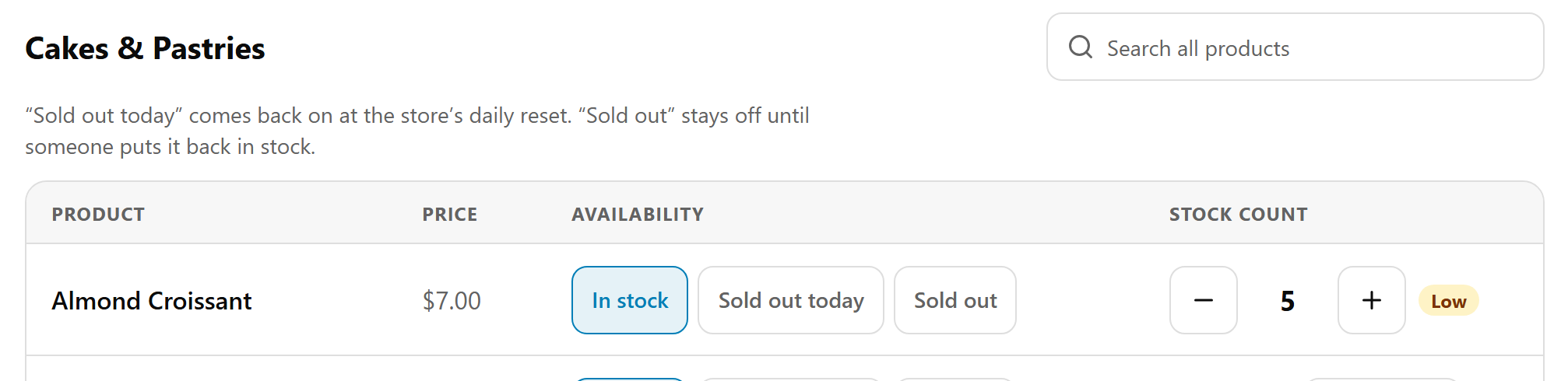
Each product has three buttons:
- In stock: on sale.
- Sold out today: off sale until the store's daily reset, then back on by itself.
- Sold out: off sale until someone puts it back In stock.
Tap the one you want. The change is saved straight away.
Sold out now, at the top of the categories, lists everything that's off sale, with how many. Use it to put things back at the start of a day. When nothing is off sale it says "Nothing is sold out."
Count stock
At stores with stock control, a product that isn't counted shows Not counted and Count stock.
- Select Count stock.
- Type how many are left in How many? and select Save.
Each order then takes from the count, and the product sells out by itself at 0, showing None left. Low shows at 5 or fewer.
- − and + change the count by one.
- Tap the number to type a new count, for example after a delivery.
- Tap the number, then Stop counting, to stop keeping a count.
A counted product with none left can't go back In stock until you add to the count. A counted product marked Sold out today comes back at the daily reset only if it has a Reset Stock Level To quantity in the merchant portal.
Products you can't change here
VIP only, Wholesale only and Staff only products show their setting and "availability is changed in the portal". Change those in the merchant portal: see Mark a menu item sold out.
When customers see the change
- The POS: straight away.
- The website, the apps and your kiosks: the next time they load the menu. A menu page that's already open picks it up within a couple of minutes.
If something is not right
| What you see | What to do |
|---|---|
| "Products and stock are for staff logins." | The browser is signed in with something other than a POS device. Sign in with the POS device's login. |
| No Count stock | Your store doesn't have stock control. Contact us to turn it on. |
| In stock is greyed out | The product is counted and none are left. Add to the count first. |
| "That change could not be saved. Please try again." | Check the internet connection and tap it again. |
| A product still shows on the website | Wait a couple of minutes, or reload the page. |