You do not have to edit an item to stop selling it. The Status label on the menu row is a button.
- Open Menu Builder → Menu.
- Expand the group the item is in.
- Select the coloured Status label on that item's row — Active, Unavailable, and so on.
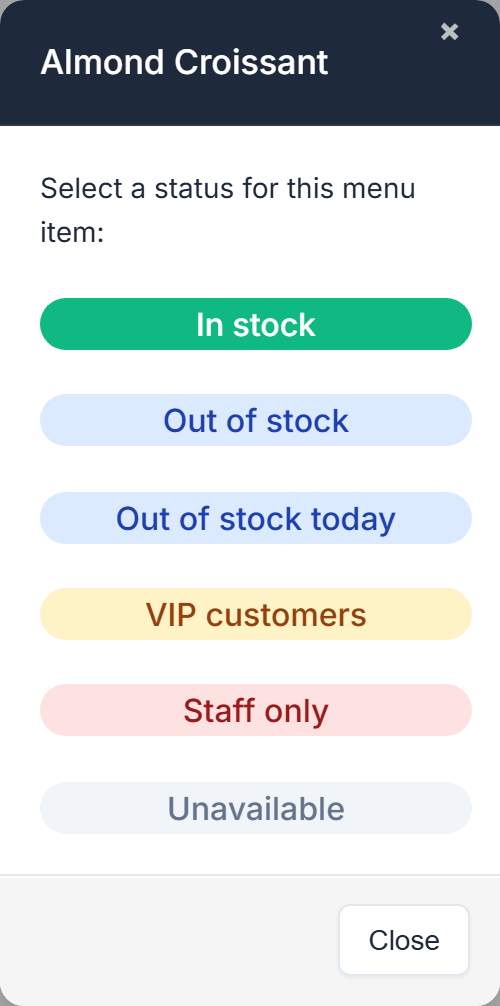
- A small window opens with the item name and Select a status for this menu item:.
- Pick one. It saves straight away.
The choices
Which choices appear depends on the modules switched on for your store.
Every store
- Unavailable — the item stops being orderable and stays that way until you change it back.
With stock control enabled
- In stock
- Out of stock — off the menu until you put it back.
- Out of stock today — off the menu, and back on by itself for the next trading day. This is the one you want for "we've run out of the special".
- VIP customers — orderable only by customers with the VIP tag.
Without stock control, the same modal shows a single Available option in place of In stock.
With other modules
- Wholesale only — wholesale-tagged customers only.
- Staff only — staff ordering only.
Reading the menu list
The Available for column uses short codes. Select Key at the bottom of the menu list to see them:
- TA — Pickup / Takeaway
- DI — Dine-in / Bookings
- DY — Delivery
- SO — Standing Orders
- ALL — all of the above
- N/A — none of the above, so not available
If your menu comes from your POS
Deactivating an item here is exactly what this screen is for, even on a POS-linked store. Changing its price, name or modifiers is not — see Menu changes are not reaching your customers.
On a Square store with Mark items sold out online when they're sold out in Square ticked, mark the item sold out in Square instead, and your online menu follows within a few minutes. See Sync your menu from Kounta, Square, Vend or Tyro Connect.
- A status you set here while Square has the item sold out stays until the item is next marked sold out or available in Square.
- One exception: if Square already has the item sold out and you also choose Out of stock here, the item comes back when Square makes it available. Choose Unavailable to keep it off for good.