Each person signs in to the POS with their own staff PIN, so the POS records who took each order and payment. When you hand over or step away, use Switch or Lock.
This is for stores that use staff PINs. An admin sets them up: see Give staff their own PIN for the POS and Kiosk.
The sign-in screen
On the left: your store's photo, logo, name and address, with the time and date. On the right: a greeting, "Enter your staff PIN to start." and a keypad. The POS device's name is at the top right.
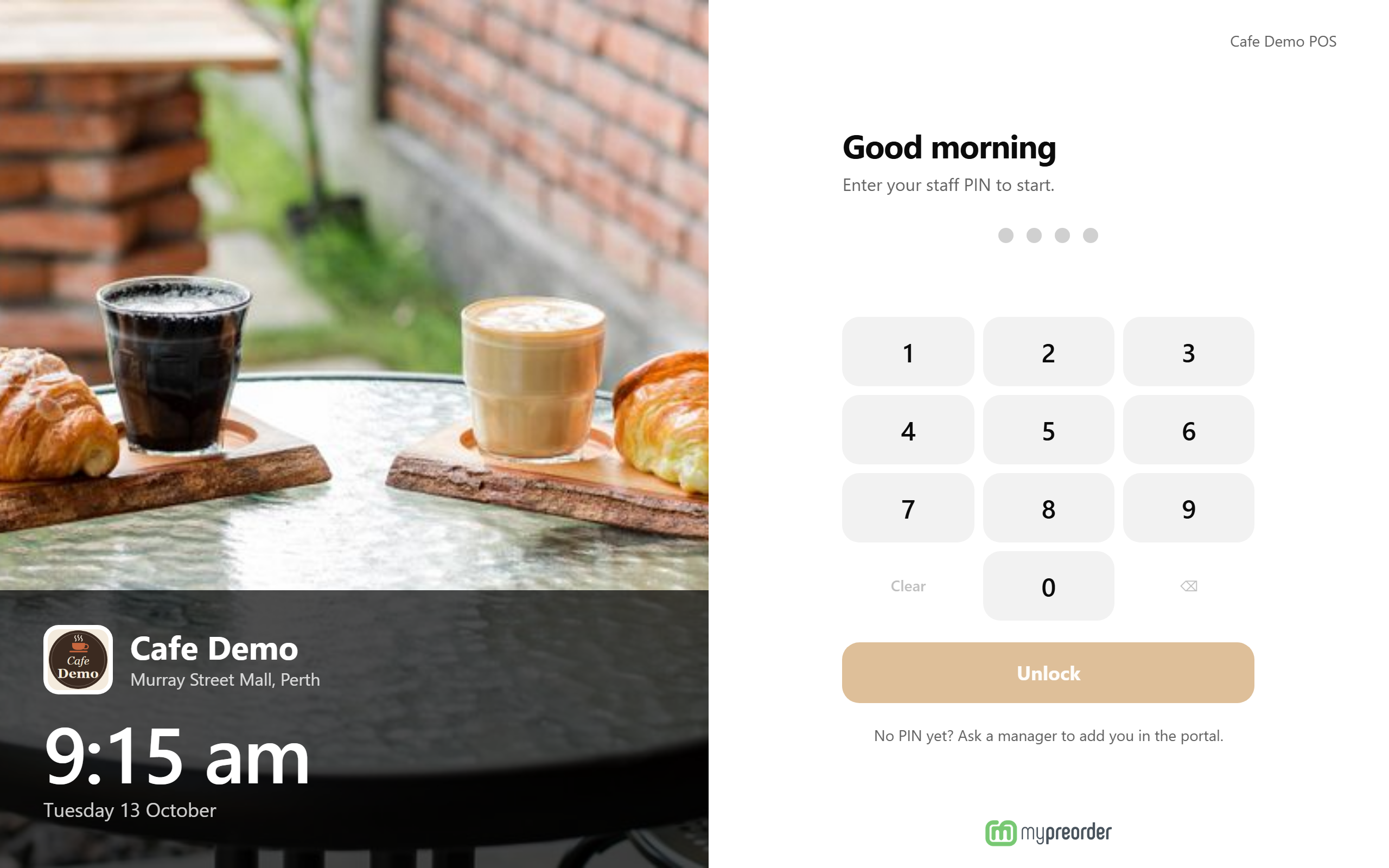
Sign in
- Tap your PIN on the keypad, or type it on a keyboard. The dots fill as you go. Clear starts again and ⌫ deletes the last digit.
- Select Unlock. It never signs you in by itself, so a mis-tap doesn't count as a wrong PIN.
Done looks like the menu, with your name in the top bar beside Switch and Lock. The ? at the far right of the top bar opens these POS help articles in a new browser tab (on a phone: Staff tools → Help).
Staff PINs are 4 digits and managers' are 6. The PIN says who you are, so there's no name to pick. No PIN yet? As the screen says: "No PIN yet? Ask a manager to add you in the portal." An admin adds you under Users → Staff.
Switch: hand over to the next person
Select Switch. You're signed out straight away, and the sign-in screen waits for the next person's PIN.
Lock: step away from the counter
Select Lock. You're signed out, and the screen covers everything, including the order on screen, with "Locked at 3:12 pm. Enter your staff PIN." Whoever comes back unlocks it with their own PIN.
Neither asks first: the next person unlocks with their own PIN, so there's no manager to call over. Both also close Manager if it was open. The POS doesn't lock itself when nobody touches it, so lock it whenever you leave the counter.
On a narrow screen (a tablet in portrait) they're in Staff tools, as Switch user (signed in: …) and Lock this POS.
When the POS signs you out by itself
- The page was reloaded, or the browser closed and opened again.
- 14 hours after you signed in.
- An admin set you to Inactive.
Sign in again with your PIN.
Wrong PINs
A wrong PIN shows "Incorrect PIN." and clears the dots. After 5 wrong PINs in a row the keypad turns off and counts down: "Too many wrong PINs. Try again in 1:00." The next wrong PIN turns it off for 5 minutes, then 15.
- Wrong PINs in Manager access on this POS count towards the same lockout.
- The count starts again after 15 minutes without a wrong PIN, or when a manager signs in. A staff member signing in doesn't reset it.
- Only this POS is locked out. Other POS devices keep trading.
To end a lockout sooner, an admin selects Clear lockout on the device's row under Users → POS devices. Then reload the page on the POS.
Managers
A manager signs in with their 6-digit PIN like anyone else. To open Manager, or approve a refund or a cancel, they enter it again in Manager access: "Enter your manager PIN. Ask a supervisor if you don't have one." A 4-digit staff PIN never opens Manager access.
Stores without staff PINs
Until an admin adds the first staff member, the POS doesn't ask for a staff PIN. Lock asks first: "Lock POS?" "A manager's PIN will be required to unlock it." Select Lock POS. The screen then reads "This POS is locked" and "Locked at 3:12 pm. A manager's PIN unlocks it." The POS device PIN unlocks it, as before.
If something is not right
| What you see | What to do |
|---|---|
| "Incorrect PIN." | Check the PIN and try again. |
| "Enter your staff PIN" | You entered 5 digits. Staff PINs are 4 digits and managers' 6. It doesn't count as a wrong PIN. |
| "Too many wrong PINs. Try again in …" | Wait for the countdown, or ask an admin to Clear lockout. |
| "Too many incorrect PINs. Try again shortly." | The countdown has finished. Enter your PIN again. |
| "Starting the POS" and "Checking how this POS unlocks…" stays on screen | The POS can't reach mypreorder. Check the internet connection. |
| You're back on the sign-in screen mid-shift | The page reloaded, 14 hours passed, or you were set to Inactive. Sign in again, or ask an admin. |