Give each person who uses your POS their own staff PIN. The POS then asks for it to unlock, and records who took each order, payment and refund, and who opened and closed the till. A Manager's PIN also opens Manager access on your POS and kiosks.
Admins only. Staff appears under Users once your store has the POS or the kiosk switched on.
Before you add the first person
Your first staff member changes how every POS device at the store unlocks. The portal says so: "Once you add your first staff member, your POS devices ask for a staff PIN every time they unlock."
- From then on, each POS device opens on a staff sign-in screen, and nobody can take an order until someone enters their PIN. Add everyone who works the counter before the next shift.
- A POS that is already open changes over within 5 minutes, or straight away when its page is reloaded.
- Kiosks have no staff sign-in. Customers order as before.
Add a staff member
- Open Users → Staff.
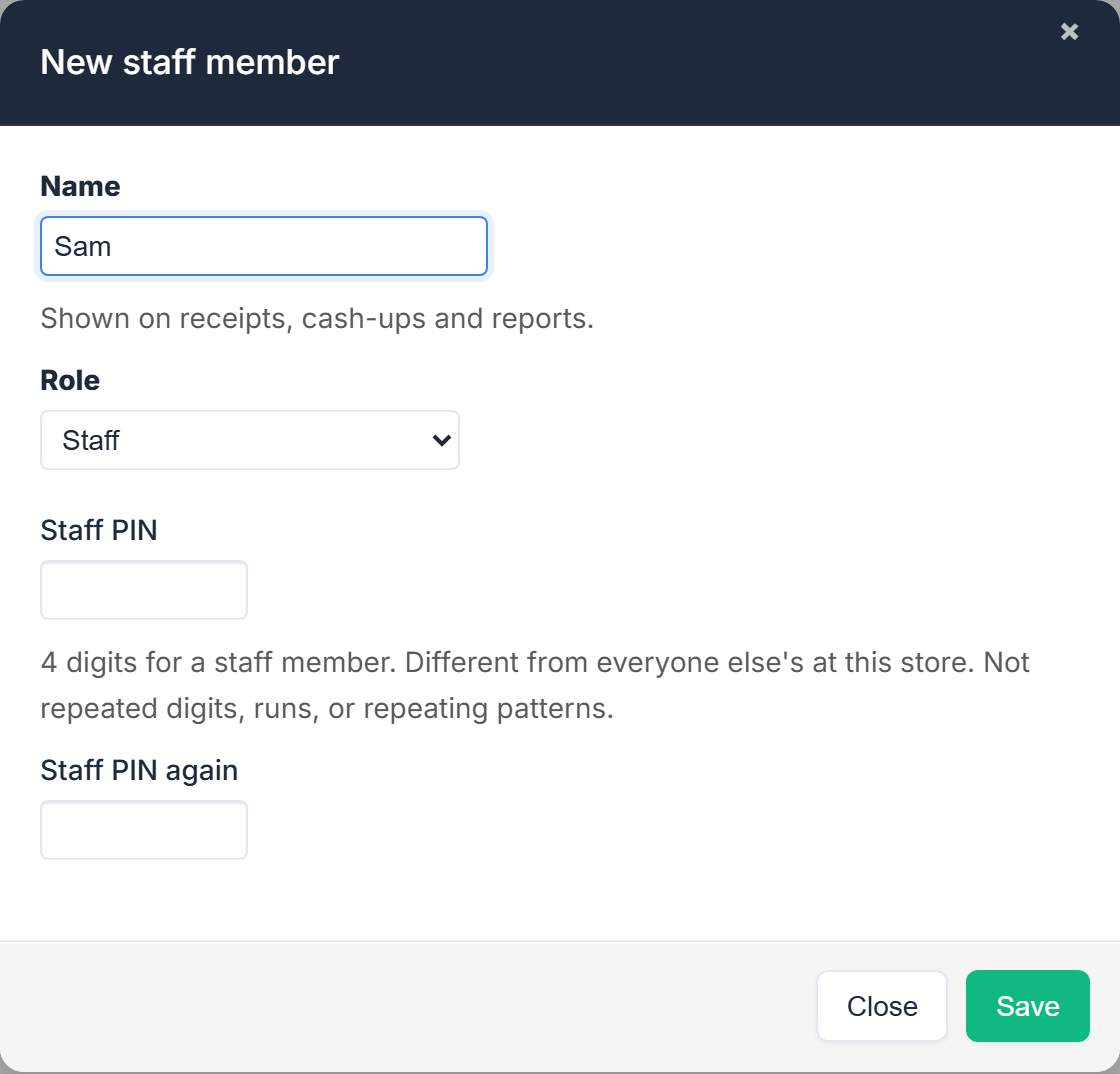
- Select New staff member.
- Enter their Name. It shows on cash-ups and reports, so use the name the team knows them by.
- Choose the Role: Staff, or Manager (also opens Manager access).
- Enter a Staff PIN, and the same again in Staff PIN again.
- Select Save.
Done looks like "Staff member saved" and a new row showing their Role, Staff PIN Set, Status Active and Last active Never. Tell the person their PIN privately: it can't be shown again.
PIN rules: 4 digits for Staff and 6 for a Manager. Different from everyone else's at this store. Not repeated digits (1111), runs (1234 or 4321) or repeating patterns (1212).
What a Manager's PIN opens on the POS and Kiosk
Once the store has an active Manager:
- A Manager's own staff PIN opens Manager access on every POS and kiosk at the store: refunds, cancels, No sale and device settings.
- The device PINs stop working for Manager access. Under POS devices and Kiosk devices their column reads "Not used: managers use their staff PIN". They work again only if no Manager is left.
- A 4-digit Staff PIN never opens Manager access.
Until you add a Manager, Manager access still uses each device's own PIN (Device PIN on its row).
Change someone's details or PIN
Select Edit on their row, change what you need, then Save.
- A new PIN: type it in New staff PIN (leave blank to keep the current one) and again below. Leave both blank to keep the old one.
- A new role: enter a new PIN in the same save, because the role sets the PIN's length.
When someone leaves
Edit their row, set Status to Inactive, and Save. As the screen says: "Inactive signs them out and clears their staff PIN. To bring them back, set a new one." Their name stays on past orders and cash-ups. Staff members are never deleted.
Last active
Last active is when the person last signed in on a POS, in your computer's time. Never means they haven't signed in yet.
A POS or Kiosk locked out by wrong PINs
Five wrong PINs in a row turn a device's keypad off for 1 minute, then 5, then 15. On a POS that stops anyone signing in. The device's row under POS devices or Kiosk devices shows Locked by wrong PINs: 5 min (or however long is left).
Select Clear lockout on that row. You see "Lockout cleared" and the device accepts PINs again. If its screen still shows a countdown, reload the page on the device.
KDS PINs are separate
A Kitchen Display PIN only works on the Kitchen Display, and a staff PIN doesn't work there. See Give kitchen staff a PIN for the kitchen display.
For what staff see on the POS, see Sign in to the POS with your staff PIN, switch and lock.
If something is not right
| What you see | What to do |
|---|---|
| "That staff PIN is already used by someone at this store. Choose another." | Pick a different PIN. Every PIN at a store must be different, because the PIN alone says who it is. |
| "That PIN is too easy to guess. Avoid repeated digits, runs like 1234, and repeating patterns." | Choose a PIN without a pattern. |
| "A staff's PIN must be exactly 4 digits" or "A manager's PIN must be exactly 6 digits" | The length follows the Role. |
| "Changing the role needs a new staff PIN: 6 digits for a manager." | Enter a new PIN for the new role in the same save. |
| "Reactivating needs a new staff PIN: the old one was cleared when it was deactivated." | Set a new PIN when you set Status back to Active. |
| "Enter the staff PIN twice" or "The staff PINs do not match" | Type the same PIN in both boxes. |
| "Only admins can see and manage staff." | Ask an admin to do it. |
| No Staff under Users | Your store doesn't have the POS or the kiosk switched on. Contact us. |