A promo group is a set of menu items that a promotion code can be limited to, such as Food or Coffee. A code for the Food group takes its discount off the food in the order only: "50% off Food" on a toastie and a coffee takes half off the toastie and leaves the coffee at full price.
One group can serve many codes, and an item can be in any number of groups.
Make a promo group
- Open Menu Builder.
- Select Promotion Codes in the left-hand list.
- Select Promo Groups, then New Promo Group.
- Type a Name, such as "Food". Each of your groups needs its own name.
- Tick the Menu groups it covers.
- Add any Extra items, and leave out any items it shouldn't cover (see below).
- Check the number under Covers, then select Save.
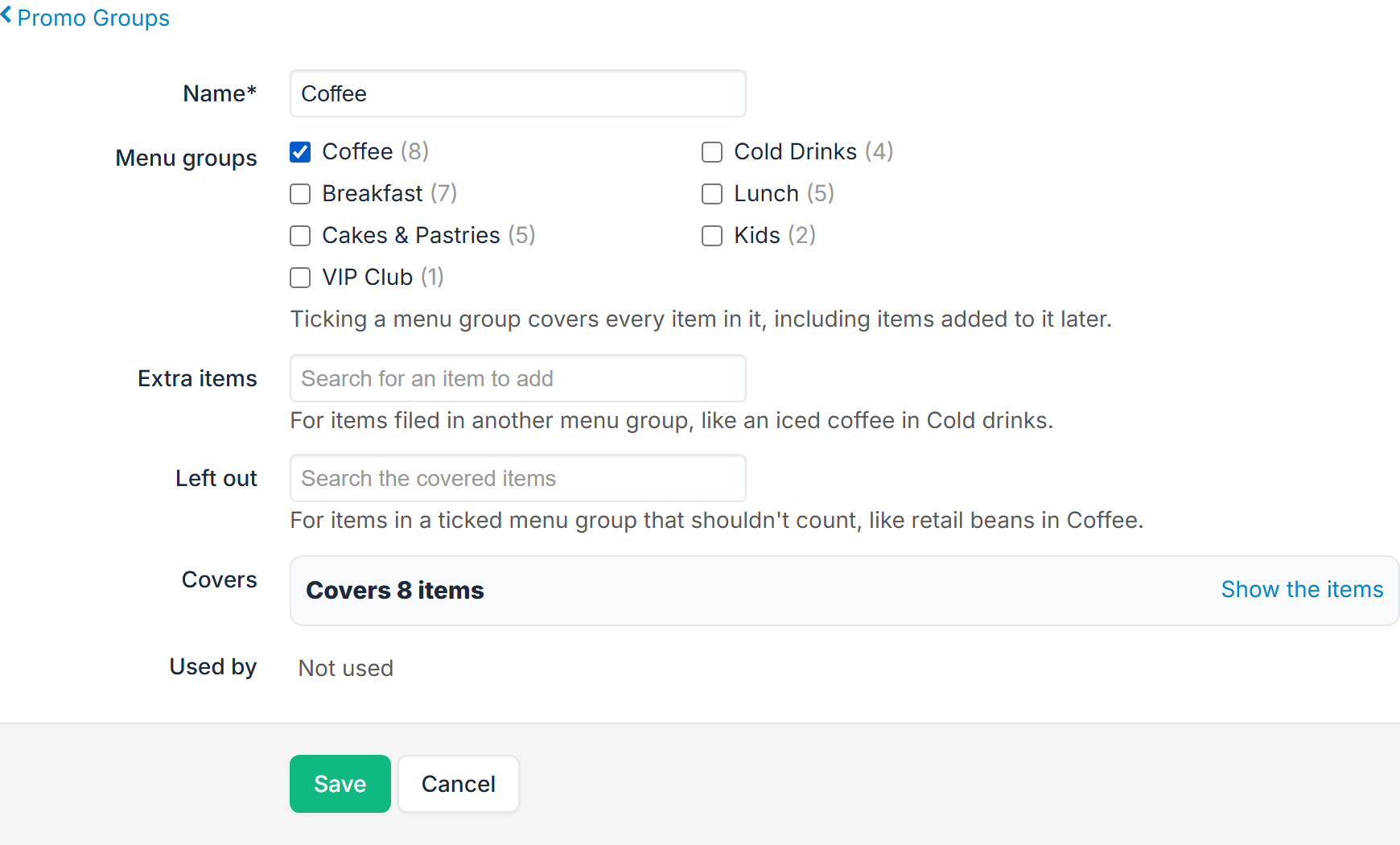
Done looks like your group in the Promo Groups list. Now choose it in a code's Applies to: see Use it on a code below.
Menu groups
Ticking a menu group covers every item in it, including items you add to it later. A new coffee added to your Coffee menu group is covered straight away, without editing the group.
That cuts both ways: retail coffee beans added to the Coffee menu group would be covered too. Leave out anything that shouldn't count.
Extra items
For items filed in another menu group, such as an iced coffee in Cold Drinks. Type part of its name under Extra items and tap it in the list. Select ✕ on an item to take it out again.
Left out
For items in a ticked menu group that shouldn't count, such as retail beans in Coffee. Type part of the name under Left out, which searches the items the group covers, and tap it. Select ✕ to put it back.
Check what it covers
Covers shows how many items the group covers now, such as "Covers 23 items". Select Show the items to see them, listed under their menu groups; an extra item is marked "extra". Check this before you save: it's the quickest way to spot something that shouldn't be there.
Use it on a code
In the code's form (see Create a promotion code), choose the group in Applies to. It's there for these code types:
- Discount amount, and with min. order amount
- Discount amount per item
- Discount percent, and with min. order amount
- Discount percent off one item, such as a free coffee from the Coffee group: see Take a percentage off one item in Create a promotion code
The help line under it says "The discount is worked out on the Food items only." (for a percent off one item code, "The discount comes off the dearest Coffee item in the order.")
- The minimum spend counts only the group's items. A "$5 off Food, min. $10" code on an order with $36 of coffee and $6 of food is refused with "Spend $10.00 or more on Food items to use this code".
- With nothing from the group in the order, the code is refused with "Only for Food items".
- A dollar discount never takes more than the group's items cost. "$1 off each Food item" on three 50c cookies takes $1.50, not $3.
- A code for a promo group can be shown on your menu, where it says "Food only" and "Only on Food." Only the latest version of your app shows it; customers who haven't updated can still type the code. On the POS, staff see the same "Food only".
- A customer on a very old version of your app is asked to update it.
GST: the discount comes off the GST of the items it covers, not the whole order's. "50% off Food" on GST-free food doesn't reduce the GST on a coffee in the same order, and the tax invoice shows it the same way.
Change or delete a group
Select Edit on its row in the Promo Groups list. A change applies straight away to every code that uses the group.
Delete Group is refused while a code uses the group, even an inactive one, because it could be switched back on: "Coffee can't be deleted while a code uses it: FREECOFFEE. Change that code's "Applies to" first."
The list
Promo Groups shows each group's Name, what it's Made of (for example "1 menu group, 2 extra, 1 left out"), how many items it covers now (Items now) and the codes that use it (Used by), with inactive ones marked "(inactive)".
Copying a menu to another store
Copy Menu brings your promo groups along. A group with the same name at the other store gets the copied menu groups and items, so that store's own codes keep working.
If a code's group can't be filled at the other store, because its items weren't copied, the code is switched off there. Copy Menu tells you which, for example "Promo code FREECOFFEE was switched off: its promo group's items weren't found".