- Open Menu Builder.
- Select Promotion Codes in the left-hand list.
- Select New Promotion Code.
Choose the code type
Code Type* decides everything else on the form:
- Discount amount
- Discount amount with min. order amount
- Discount amount per item
- Discount percent
- Discount percent with min. order amount
- Discount percent off one item
- Free delivery
- Free menu item
- Free menu item with min. order amount
- Lowest value menu item free
- Lowest value menu item free with min. order amount
- Loyalty Reward
Fill in the rest
- Code* — what the customer, or your staff, type at checkout.
- Description* — the code's name. Your staff see it on the POS, so make it something they'll recognise, such as "Seniors" or "Service uniforms". Customers see it too when the code is on your menu.
- Free Menu Item* or Loyalty Reward* — shown only for the code types that need them.
- Value — the dollar amount or the percentage, depending on the type.
- Min. Order Amount* and Max. Order Amount. A Discount amount per item code has Max. Discount instead: the most it takes off one order. A Discount percent off one item code has Max. Discount too: the most it takes off the item.
- Applies to — Whole order (Any item for a percent off one item code), or one of your promo groups, such as Food. See below.
- Menu* — All menus, Daily Menu only or Catering Menu only.
- Fulfilment Type* — All fulfilment types, Pickup only, Delivery only, Dine-in only or Bookings only.
- Works on* — where the code can be used. See below.
- One use per customer* — No, or Yes (requires account). The "requires account" wording is literal: a code limited to one use each cannot be enforced against a guest checkout.
- First order only* — No or Yes. The order that joined your VIP club (one with a product with Add VIP Tag) doesn't count, whatever else was on it, so a customer who joins first can still use the code on their next order. Unless they used it on the joining order: it's still one use each.
- Expiry Date — the last day it can be used.
- Display on Menu — Yes shows the code to customers on your menu and at checkout, so they can tap it. No keeps it for people you give it to.
- Terms — shown with the code on your menu.
- Earn Loyalty Rewards — No (default), or Yes to let customers still earn and use their loyalty rewards on an order with this code.
Save when you are done.
Choose where the code works
Tick each place the code can be used:
- Online — your website and app.
- POS — at the counter, on the mypreorder POS. Shown if your store has the POS.
- Kiosk — on the self-order kiosk. Shown if your store has a kiosk.

Every code starts with all of them ticked. Untick Online for a counter-only offer, such as a seniors or uniform discount your staff apply. A code used somewhere it isn't ticked is refused with "Only available in store" online, "Not available at the counter" at the POS, or "Not available on the kiosk".
- At least one must be ticked, or the code can't be used anywhere.
- A code that doesn't work online isn't shown on your menu. Display on Menu is set to No and locked, with "Not shown on the menu: this code doesn't work online."
- One use per customer at the POS needs the customer added to the order with Find customer first. The form reminds you: "At the POS, one use per customer codes need the customer added to the order with Find customer. They can't be used at the kiosk." See Find a customer and add them to a POS order.
Staff pick POS codes from a list at checkout, so they don't need to remember them. See Apply a promo code on the POS.
Limit a code to some items
Applies to limits a discount to a promo group, a set of items you choose, such as Food or Coffee: "50% off Food" leaves the coffee at full price. It's there for the discount amount, discount percent and percent off one item code types. Make the groups under Promo Groups, beside New Promotion Code. See Limit a promotion code to some items with a promo group.
A code for a promo group can be shown on your menu, where it says "Food only". The form notes "Shown on the menu in the latest app. Customers who haven't updated can still type the code.": an older version of your app leaves it off the menu, so it can't read as money off the whole order.
Take a percentage off one item
Discount percent off one item takes a percentage off a single item, such as a free coffee or half price on one meal.
- Percent* — 100 makes the item free.
- Max. Discount — the most it takes off, so a large or fancy coffee isn't free in full. Leave it empty for no limit.
- Applies to — the promo group the item comes from, such as Coffee. Every coffee in the group counts, whatever its size or milk. With Any item, any item in the order counts.
It takes the percentage off one item, never the whole line: with two coffees in the order, one is free. If several items qualify, it comes off the dearest, up to Max. Discount. Items you leave out of the group, and complimentary items, never count.
With nothing from the group in the order, the code is refused with "Add a Coffee item to use this code" (your group's name).
With Earn Loyalty Rewards set to Yes, a customer's loyalty reward goes first. If the reward makes their only coffee free, the code has nothing left to take off and says so. A second coffee lets it work.
These codes can be shown on your menu, in the latest version of your app, as with a promo group code: the offer says "Coffee only" and "One item from Coffee, the dearest in your order." Staff pick them from the list at the POS, where the tile reads, for example, "Free Coffee (up to $6)" or "50% off one Food item".
The list
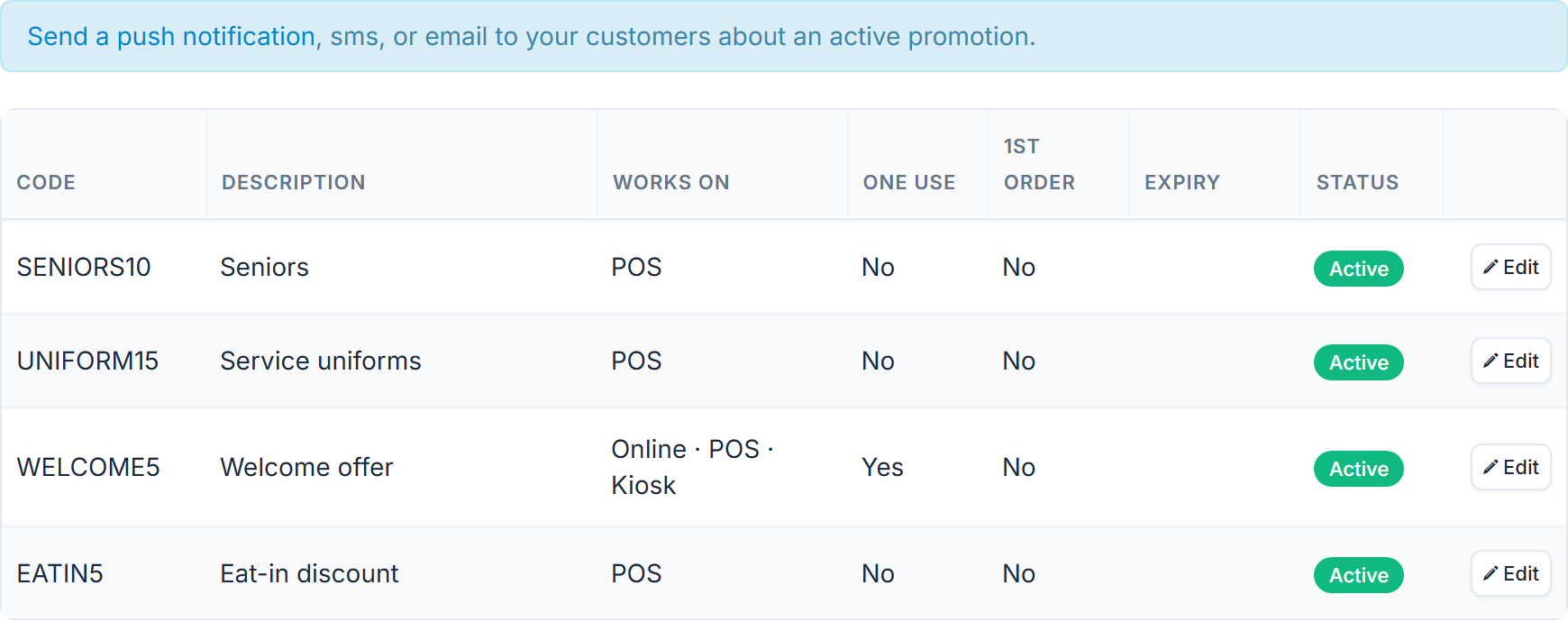
The list shows Code, Description, Works on (for example "Online · POS"), One use, 1st order, Expiry and Status, each row with Edit.
Retiring a code
Select the coloured Status label on the code's row and choose Inactive. Retiring a code rather than deleting it keeps your past orders making sense in reports.
Sending a code out
The New Announcement form has a Promo Code field that picks from this list. Its help text: "If you are sending out a promotion include the promo code in the message and in this box." See Send an announcement to your customers.
You can also bake a code into a QR code — see Create a QR code for a table or a promotion. Both of those Promo Code pickers list only codes ticked for Online, and are hidden unless the promotion codes module is enabled for your store, even though the Menu Builder tab itself is always there.