QR Codes on the Dashboard.
Create one
- Select New QR Code.
- Table Number — optional. "Entering a table number will pre-select the Dine-in option and pre-fill with the table number."
- Promo Code — optional, and only shown if promotion codes are enabled for your store. "Pre-fill checkout with a promo code." It lists the codes that work online: a counter-only code (with Online unticked under Works on) can't go in a QR code. See Create a promotion code.
- Select Create.
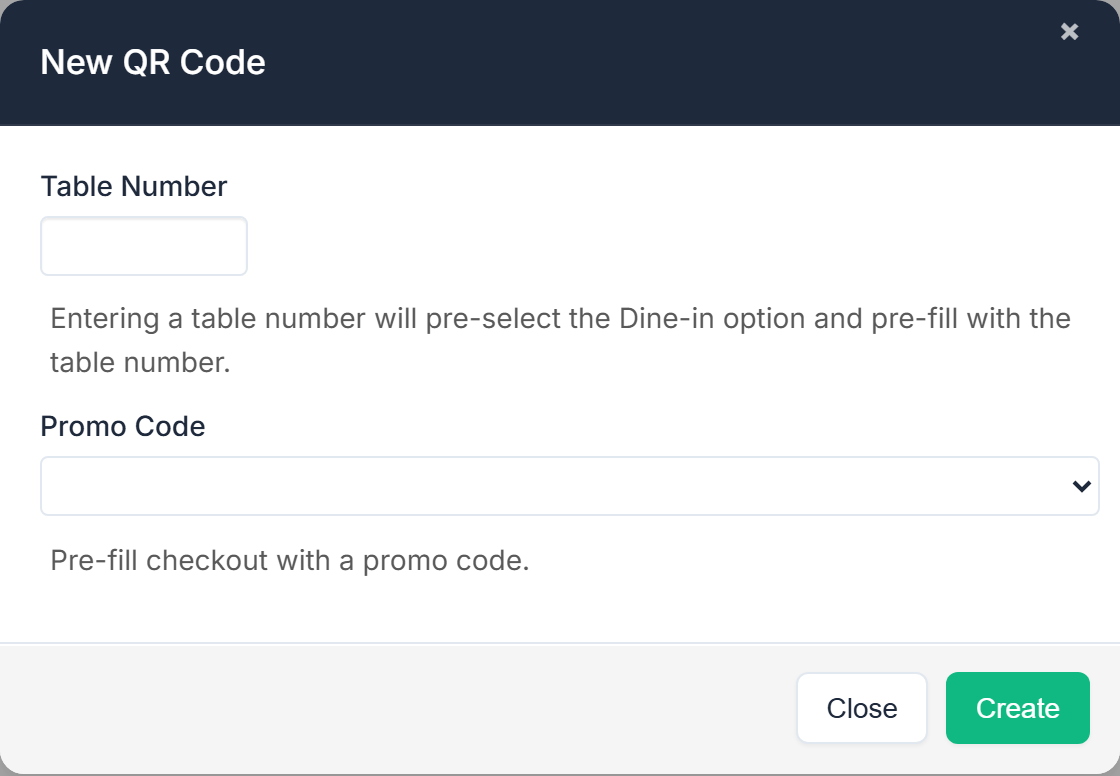
Leave both blank for a plain code that opens your menu.
Download it
The Generated QR Codes table lists each code with Menu, Table, Promo and Link. Select Download on a row to get the image to print.
One code per table
Create a separate code for each table number. A diner who scans it gets dine-in already chosen and their table already entered, so orders arrive at the right table without anyone typing it.
Regenerate
If a row shows a Regenerate button, its link needs replacing. Google stopped supporting Firebase Dynamic Links on 25 August 2025, and codes built on them no longer work. The screen says so directly:
Google no longer supports Dynamic Links as of 25 August 2025. After this date your existing Links and QR codes will no longer work. Use the Regenerate button next to your existing links to generate replacement QR codes.
Regenerate the code, then Download and reprint it. Codes already in the wild will not start working again on their own.
If the screen is empty
QR Codes is a per-store module. When it is off you see "The QR Codes module is not yet enabled on your account." with a contact link.