Do not edit your weekly trading hours for a single day. Use Special Dates, which overrides the grid for that date only.
- Open Menu Builder.
- Select Special Dates in the left-hand list.
- Select New Date at the top right.
- Set the Special Date, Menu Available?, the Available from (24hr clock) and Available until (24hr clock) times, and a Surcharge percentage if you are adding one.
- Select Save changes.
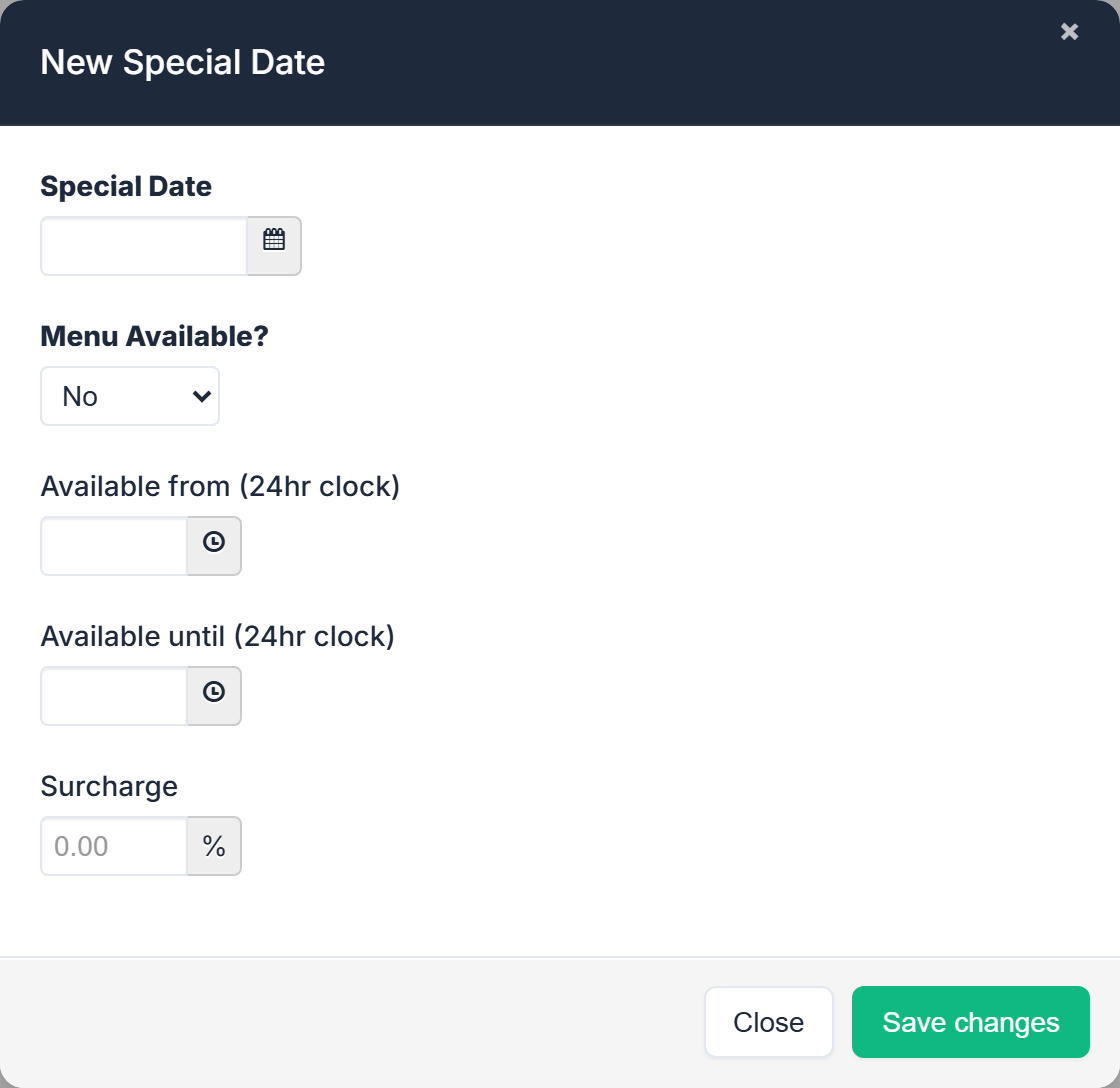
The screen explains its own purpose: "Use this area to enter public holidays or other special dates that affect your normal trading hours. The automatic open / close feature uses these dates to ensure that your online menu is only available when it should be."
Existing entries are listed with Special Date, Available?, Available From, Available Until and Surcharge, each with an Edit button.
The Dashboard reminder
When a public holiday is coming up in the next fortnight and you have not set hours for it, the Dashboard shows an amber banner:
REMINDER! You haven't set your trading hours for the following upcoming public holiday…
It names the holiday and links to Menu Builder → Special Dates. Adding the date clears the reminder. The holidays it knows about are the ones for your state and country.
Closing for the day
Set Menu Available? to No for that date. Your store will not auto-open on it.
A different set of hours
Set Menu Available? to Yes and give the shorter Available from and Available until times. Customers get the reduced window rather than your usual one.
A holiday surcharge
Enter the Surcharge on the special date, as a percentage. It applies to that date only, however the customer pays.
This is still allowed in Australia. Card surcharges ended there on 1 October 2026, but a public holiday or special date surcharge is not a card surcharge. See Card and payment surcharges in Australia and New Zealand.
If there is no Surcharge field, surcharges aren't switched on for your store. Contact us.