When a customer rings to say they'll be late, or the kitchen needs more time, move the order from its card. Signed in as staff, you're asked for a manager's PIN first — see Unlock settings that need a manager PIN.
Change it
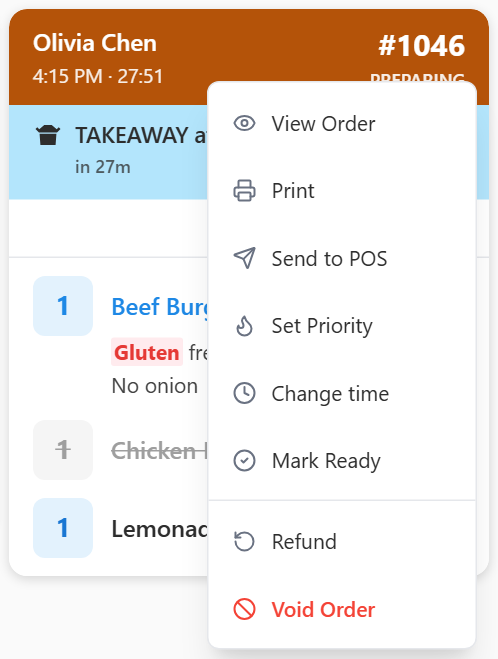
- Tap ⋮ on the order card, then Change time. It's there for an open Takeaway or Delivery order.
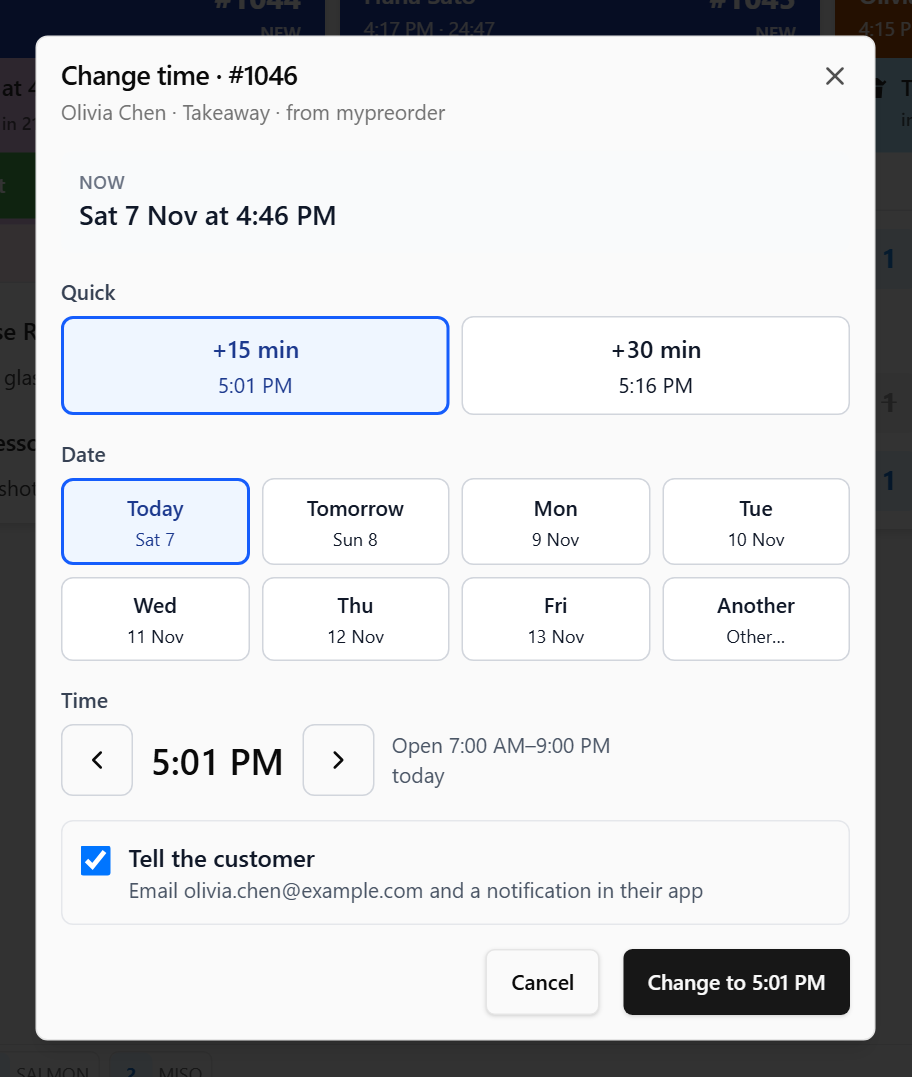
- NOW shows the order's time. Then choose the new one:
- +15 min or +30 min: 15 or 30 minutes after the order's time, or after now if the order is already due. The dialog opens on +15 min.
- Or pick a Date (Today, Tomorrow, the next few days, or Other…) and step the Time with ‹ and ›, 15 minutes at a time. Your hours for that day are shown beside it.
- Tap Change to ….
- If the new time breaks one of your rules, Check before you change it says why. Tap Change anyway if the kitchen can do it, or Back.
A mypreorder order
mypreorder makes the change, so the screen needs the internet. The times are your store's own, the same ones the portal and the POS show.
- Tell the customer is ticked: they get an email, and a notification if they have your app. The line under it says who would be told, or that they've unsubscribed from order emails.
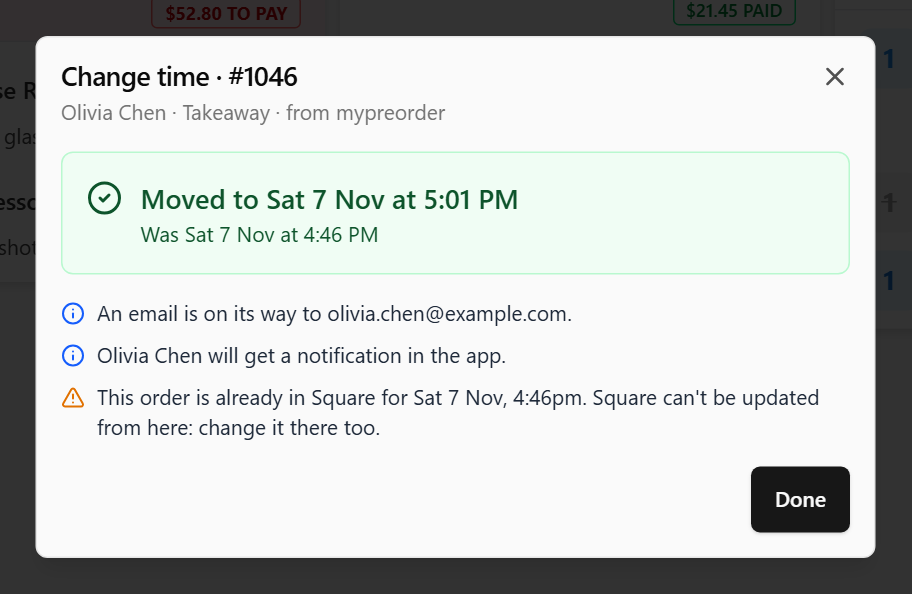
- When it's done, the dialog lists what happened, for example An email is on its way to …, and anything you still need to do, such as This order is already in Square … change it there too.
- Your other kitchen screens, the portal and the POS take the new time within seconds. The portal and the POS show who moved it: Kitchen screen: Sam, approved by Jo.
- An order placed for one of your set pickup times, delivery slots or delivery stops says This order uses set pickup times: change it in the mypreorder portal or POS. There you choose another of your pickup times, slots or stops (Orders → More → Change Date / Time).
A docket from your POS
The screen makes the change itself, with or without the internet.
- Your POS keeps its own time. Change it there too if it matters.
- With sync on, the venue's other kitchen screens move the order too. A screen in Local mode keeps the change to itself, so move the docket on each screen that shows it — see Run more than one kitchen screen.
- On a delivery, If a courier is booked for this delivery, change the booking too.
- Nobody else is told.
What changes on the card
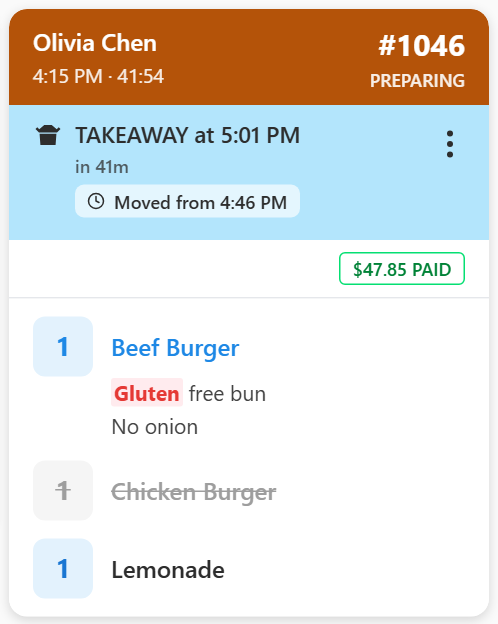
- The time. A docket that showed no time now shows its new one, even on a screen with Show subheader off. An order on another day shows the date: TAKEAWAY Sun 8 Nov at 2:05 PM.
- Moved from under it, with the old time (and its date, if that was another day).
- The timer counts down to the new time, and its colour follows: a late, red order moved later turns green again. A docket that was counting up how long it had waited counts down instead. See Show how long each order has been waiting.
- Its place on the board follows the new time.
- A reprint shows Scheduled for the new time, except a docket the screen couldn't read, which reprints exactly as your POS sent it. A docket printed before the change still shows the old time.
Orders you can't move here
Change time is greyed out, with where to change it, on an order from Uber Eats, DoorDash, Menulog, Deliveroo or another system, and on one from mypreorder's new ordering system. Their time is held there (and by their courier). It isn't on the menu at all for a dine-in order, or one that's already completed or voided.
If something isn't right
| What you see | What to do |
|---|---|
| This screen is offline, and a mypreorder order's time needs mypreorder to agree. Nothing was changed | Try again once the screen is back online. A docket can be moved offline |
| This order was changed a moment ago. It's now … | Someone moved it first. The times are reloaded: choose again |
| The change may have gone through: check the order's time in a moment | mypreorder didn't answer in time. Wait a moment: if it did go through, the card moves on its own |
| Choose a time at least 5 minutes from now | Pick a later time. A time more than 90 days ahead isn't allowed either |