The order timer puts a running clock on every card. It can also colour each header by how long the order has waited.
Both settings are on the Kitchen tab, so a manager must be signed in, or unlock settings first — see Unlock settings that need a manager PIN. They are shared by every screen at the venue.
Turn on the timer
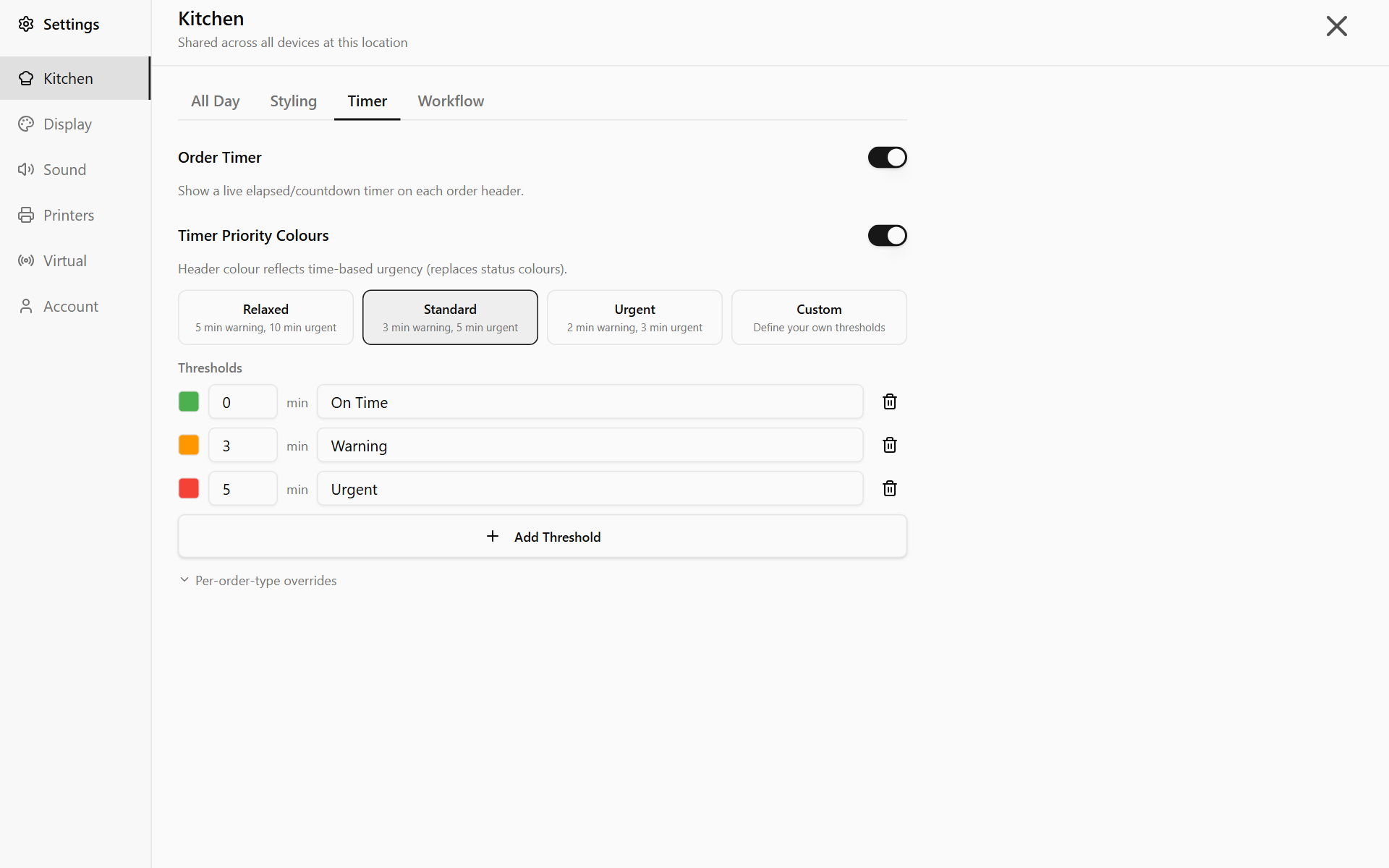
Open Settings → Kitchen → Timer and switch on Order Timer. It is on by default.
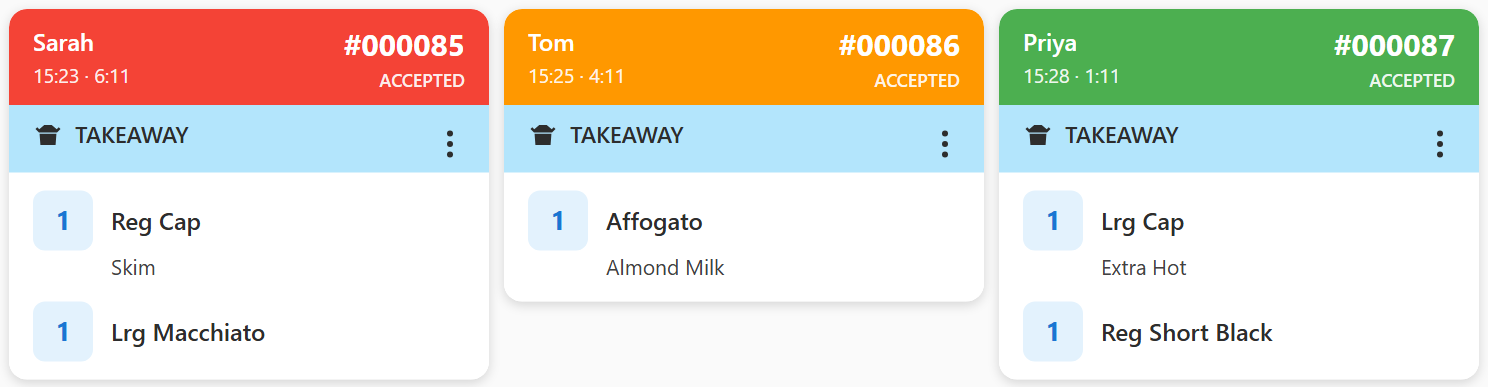
The clock sits in the card header, after the time the order came in — for example "12:04 · 7:32". It counts up from when the order arrived. An order due more than two minutes after it came in counts down to its due time instead, then counts up how late it is. The two look the same, so watch the border: it pulses red once an order is late.
Colour the header by time
- Switch on Timer Priority Colours. It does nothing while Order Timer is off.
- Pick Relaxed, Standard or Urgent. Every header starts green, then changes as the order waits:
| Preset | Orange from | Red from |
|---|---|---|
| Relaxed | 5 min | 10 min |
| Standard | 3 min | 5 min |
| Urgent | 2 min | 3 min |
To set your own times, change the minutes or colours under Thresholds, and the preset switches to Custom. Add Threshold adds a step, up to five. Picking a preset again replaces your times.
Header colours now show time, not the stage. The stage is still written under the order number.
An order due later works differently: its header stays green until it is within the red time of its due time — 5 minutes on Standard — then turns red. At the due time it goes back to green, and steps up again as the order runs late.
Different times for each order type
If your venue takes two or more order types, tap Per-order-type overrides and switch on a type, such as Takeaway. It starts with a copy of your thresholds to change. POS orders use the order type read from the docket, or Takeaway when it names none.
The pulsing border is separate
The pulsing border shows whether or not the timer is on, and its times are fixed: orange in the last 5 minutes before the due time, red once it has passed — see What the colours on an order card mean.
POS orders sent through the Virtual Printer have no due time of their own. Their timer counts up from when the docket arrived, and their border is red as soon as they are accepted. For those orders, the timer is how you see which has waited longest.
Done
Each card shows a running clock after the time it came in. With Timer Priority Colours on, the headers turn from green to orange to red as orders wait.