When the kitchen falls behind, push out the wait time online customers are given, then pull it back when you catch up. Anyone signed in can do it, with no manager PIN.
Change a lead time
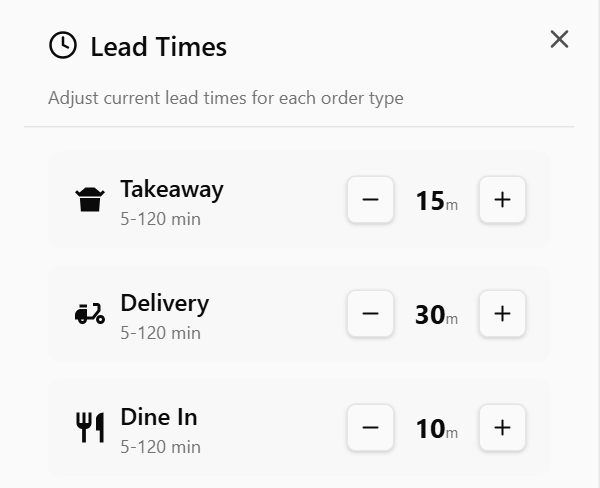
- Tap TIMES in the sidebar, below ITEMS. On a keyboard, press T. The Lead Times panel opens.
- Find the order type. There is one row for each type your venue takes, such as Takeaway, Delivery or Dine In. Under each name is the range it can be set within, such as 5-90 min.
- Tap + to add 5 minutes, or − to take 5 off.
When the board is empty, the same controls also sit under No active orders, so you can change them without opening the panel.
What it changes
From then on, customers ordering online are offered times no sooner than the new lead time. Orders already placed keep their times.
It works both ways. A change made in the back office shows here too, and every screen at the venue shows the same figure.
How long it lasts
The new figure stays until someone changes it, here or in the back office. If your store opens itself on a schedule, Takeaway and Delivery go back to your normal lead time when it opens.
To stop orders altogether rather than slow them down, see Open or close the store from the display.
No TIMES button?
The button shows only when your online ordering takes lead times from the display. It never shows on a screen in Local mode. Without the button, pressing T still opens Lead Times, but changes made there do not reach your customers.
Done
The row shows the new number of minutes, and so does every other screen at the venue. New online orders are offered times no sooner than that.
If something is not right
| You see | What it means |
|---|---|
| Requires internet connection | The screen is offline. Lead times change only while it is connected |
| − or + is greyed out | The lead time is at the bottom or top of its range. The range is set for your venue, not on the display |
| Lead time already at limit | It cannot go any further that way |
| Failed to adjust lead time | The change did not save. Try again. If it keeps failing, see Send diagnostics to support |