The display prints kitchen dockets — items, modifiers and notes, no prices — automatically or by hand. Adding a printer needs a manager. Signed in as staff, unlock Settings first — see Unlock settings that need a manager PIN.
Which connection type
| Connection Type | Works on | You enter |
|---|---|---|
| Star WebPRNT | every device | IP Address |
| Epson ePOS | every device | IP Address. The Android and iOS apps print to it on port 9100 |
| Network (TCP/IP) | the Android, iOS and Windows apps | IP Address, Port |
| Bluetooth | the Android app | tap Scan for Devices |
| Windows Printer | the Windows app | pick it from the list |
Add a printer
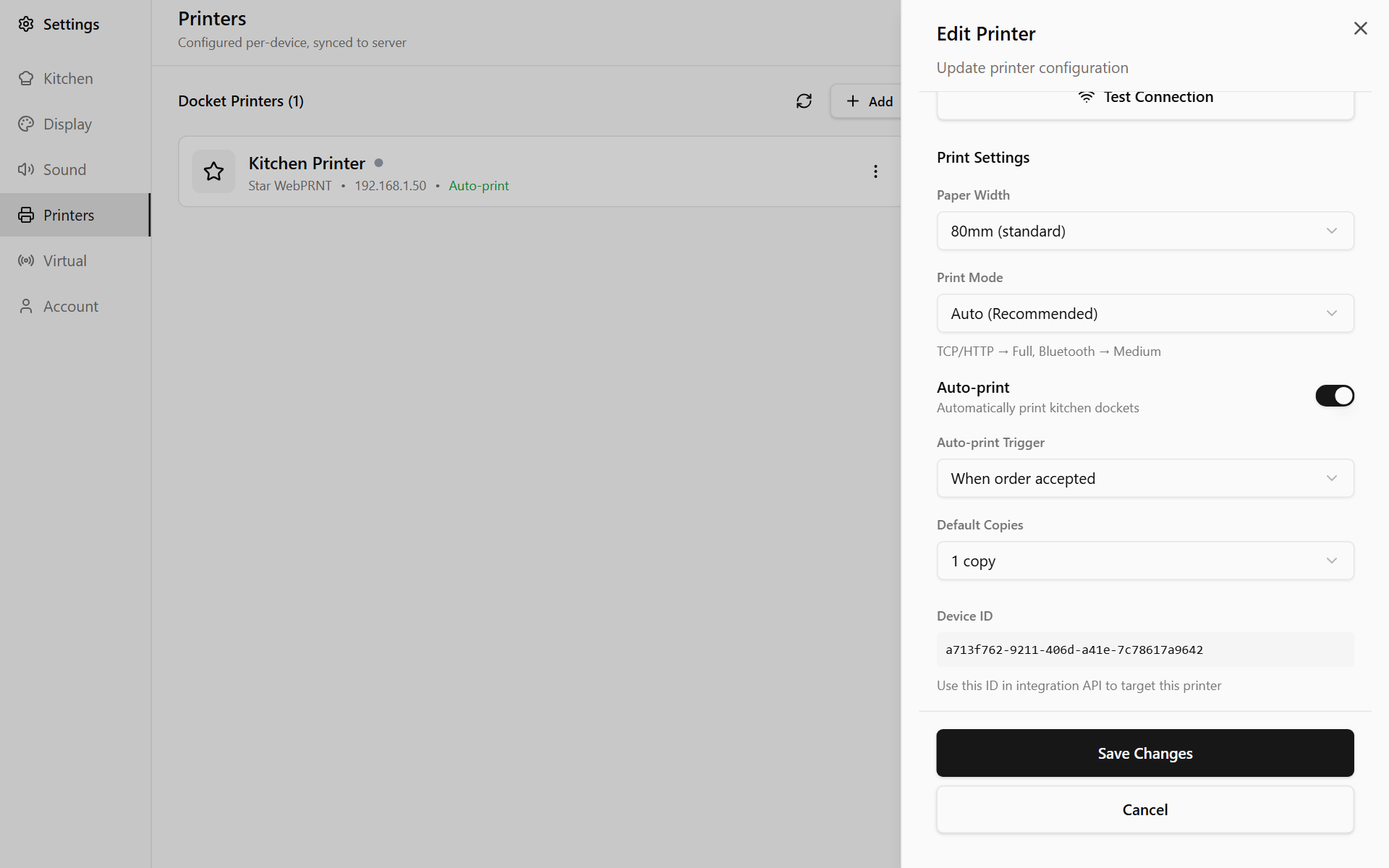
- Open Settings → Printers and tap Add Printer (Add once one is listed).
- Type a Printer Name, such as Kitchen.
- Pick the Connection Type and fill in its details.
- Tap Test Connection. A test page prints and the button reads Connected.
- Choose the Paper Width, and check Auto-print (below).
- Tap Add Printer. This needs internet. On a sign-in made while the screen was offline, adding, changing or removing a printer says Sign in again with the internet on to do this. — sign out and in again once the screen is online.
Every screen at the location lists the printer, although the tab's heading says Configured per-device.
Print automatically
A new printer has Auto-print on, set to When order accepted. Auto-print Trigger offers:
- When order received (NEW)
- When order accepted
- When order preparing
- When order ready
- When order bumped (COMPLETED)
- Manual only
It prints Default Copies each time. With several screens, an online order still prints once.
To print a POS order as it arrives, also switch on Auto-print orders in Settings → Virtual. It starts off.
Later-stage dockets go through the internet. Offline, they print once the screen reconnects. On a screen showing Local mode, they never print.
Print one order
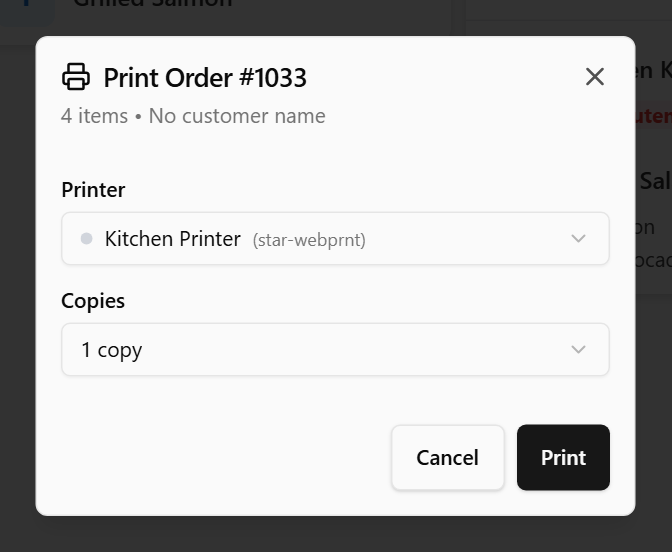
- Tap ⋮ on the order card, then Print. Anyone signed in can.
- Pick the Printer and the number of Copies.
- Tap Print.
Done
The test page prints, and Docket Printers lists the printer with Auto-print beside it. Its dot turns green after a good print and red after a failed one — the only sign an automatic docket failed.
If something is not right
| You see | What to do |
|---|---|
| A type is greyed out, such as Requires Android KDS app | It does not work on this device |
| No named Bluetooth devices found | Turn the printer on and pair it in the tablet's Bluetooth settings |
| Printer appears to be offline. Print may fail. | The last print failed. Check power, paper and network |
| Garbled docket | Edit the printer and set Print Mode to Basic |
| No Print on the ⋮ menu | No printer is set up, or this screen has not loaded the printer list yet. Open Settings → Printers while online and tap the refresh button |
| This screen is blocked, so it is not printing | A licence message is showing — see A licence message covers the screen. Orders that arrive meanwhile are kept. Print any dockets you need by hand afterwards |