The wait time customers are quoted is adjustable from the Orders screen, without opening Settings.
- Select Orders in the top bar.
- Look at the top right of the screen for the minute counters.
- Use + to push the wait out, − to pull it back.
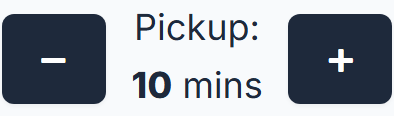
Each change applies immediately to new orders.
The counters
You see one counter for each fulfilment type your store offers:
- Pickup: n mins
- Dine-in: n mins
- Deliver: n mins
A store that only does takeaway sees only Pickup.
When to use it
Push the number up when the kitchen is behind, so customers are given a realistic collection time rather than turning up to wait. Pull it back down as soon as you catch up — nothing lowers it during the day.
Where your store opens itself on a schedule, the counters are reset to your store's normal lead time at that automatic open, so a rush on Friday does not leave you quoting long waits on Saturday morning. That normal figure is not editable in the portal — contact support to change it.
The kitchen can change the same counters from the kitchen display, and a change made in either place shows in the other. See Change lead times for online orders from the display.
If you need to stop taking orders altogether rather than slow them down, see Open or close your store for online orders.