The badge at the top of every portal screen shows whether customers can order right now. It reads OPEN or CLOSED.
Close the store immediately
- Select the OPEN badge at the top of the screen.
- Select Close Store.
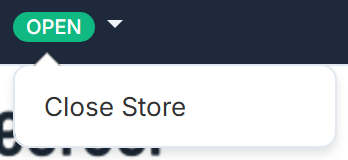
The badge turns red and reads CLOSED. Customers can no longer place an order.
On a phone, open the menu button first — the same control sits at the top of that list.
Open it again
Select the CLOSED badge, then Open Store.
The kitchen display can open and close the store too, with the store button in its sidebar. See Open or close the store from the display.
Let it open and close itself
Most stores never touch the badge, because the trading hours in Menu Builder → Menu Settings do it for them. Under Trading Hours there, beside Online Store:
- Automatically open online store — opens just before the day's From time.
- Automatically close online store — closes just before the day's Until time.
- Online store always open (ASAP orders at any hour) — leave this unticked. While it's ticked, the store never opens or closes by itself, and whenever it is OPEN customers can order ASAP at any hour, even on days you're closed.
The help text under the two automatic boxes says what they do: "Opens and closes your store just before the From and Until times in Trading Hours, early by your standard pickup lead time, so ASAP orders are ready from the From time until the Until time. It's the same as selecting Open Store and Close Store at the top of the page. Without them, your store stays OPEN or CLOSED until you change it."
See Change your trading hours to set the grid, and Close for a public holiday or special date for one-off dates.
Which one wins
Closing by hand stops orders now. It does not change your trading hours, so an automatic open will bring the store back at the next scheduled From time. If you are shutting for tomorrow as well, add a Special Date rather than relying on the badge.