Give a customer a tax invoice for their order from the POS. Open the order, select Tax invoice, then email it, print it at the till or download the PDF. Any staff member can: no manager PIN.
When a customer needs one
A tax invoice isn't needed for every sale, only when the customer asks for one. In short (a summary, not tax advice):
- Australia: a business registered for GST must give a tax invoice within 28 days of a request, for a sale over $82.50 including GST.
- New Zealand: a GST-registered business must give taxable supply information within 28 days when a GST-registered customer asks, for a sale over $200.
The POS offers one on any paid order, whatever the amount.
Many customers already have it. Once your number is set, the order confirmation email attaches the PDF and says "Your tax invoice is attached (PDF)." That covers online orders, and POS and kiosk orders where the customer gave their email. Customers can also select Download invoice on the order in the app once it's ready.
Before you start
If your store is registered for GST, its number must be in the merchant portal: your ABN in Business Number in Australia, or your GST number in New Zealand. Without a valid one the POS won't issue a tax invoice. See Update your store details, ABN, GST number and socials.
Open the order
- Select Orders in the POS top bar.
- Find the order under Open or Completed and select it. For an older order, search for its order number and select Look on other days.
- Select Tax invoice. It shows on any paid order that isn't cancelled, from today or another day.
Right after a sale, the order's confirmation screen has the same Tax invoice button.
The merchant portal can give one for any order too: Reports → Orders by Creation Date, then Actions → Generate Invoice on the order's row.
Email it
The box shows the customer's email on the order. Change it if they want it sent somewhere else.
When the order has no email, the box is labelled Customer’s email and is empty. Ask the customer and type it in. The address is kept on the order for next time. No account is made for them.
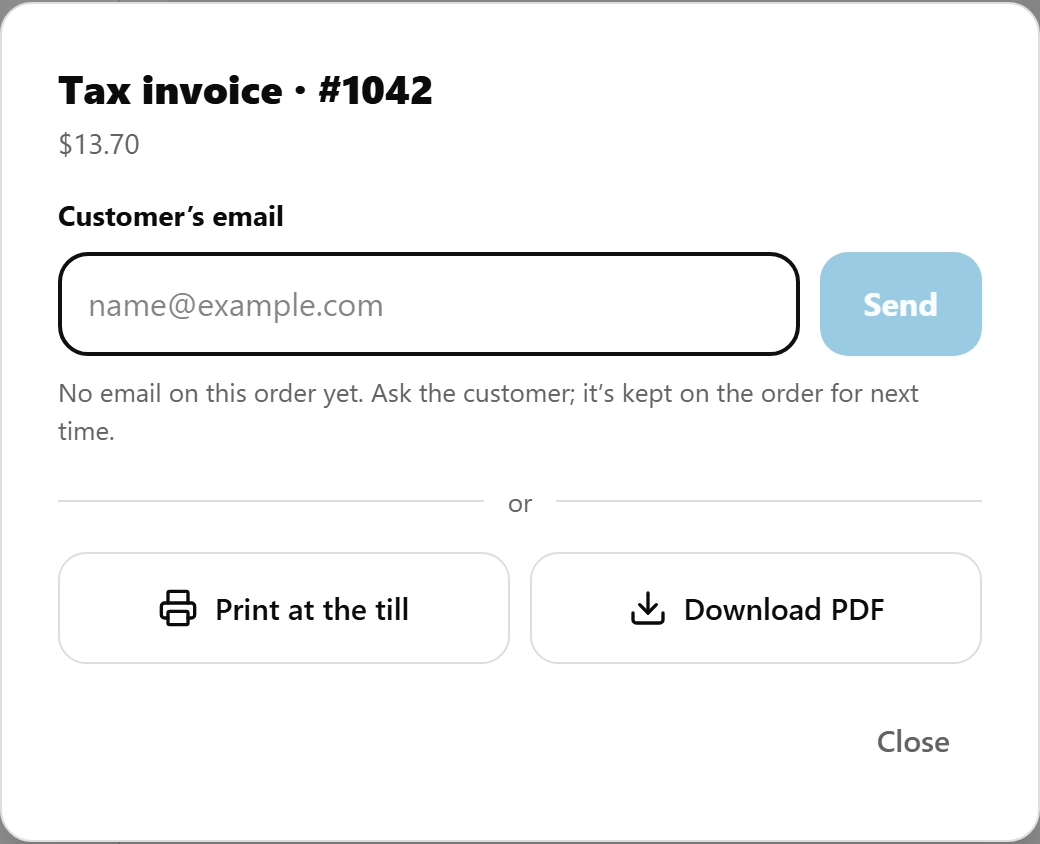
Select Send. Done looks like Tax invoice sent and "Sent to … for order #1234." The email comes from your store, with a subject like "Tax invoice for order #1234 from" your store's name and the invoice attached as a PDF. Replies go to your store's Email Address, if you've set one.
Print it at the till
Select Print at the till. Done looks like "Sent to the receipt printer." It prints on:
- the printer with Cash drawer ticked whose Opens for is this POS device; else
- a printer with Cash drawer ticked that opens for Every POS device; else
- your docket printer named
1, the one that prints every order.
Never a label printer, a KIOSK printer, or a printer with another name such as KITCHEN. When no printer fits, the button isn't shown. See Connect a cash drawer to the POS.
Download the PDF
Select Download PDF to save it, or print an A4 copy from the tablet or PC. The file is Invoice_<order number>.pdf.
What's on it
- TAX INVOICE, your store name, ABN (in New Zealand, your GST number), address and phone.
- The order number as the invoice number, the date, and the name on the order.
- Each item with its GST. GST-free items show no GST. Then the total and the GST it includes.
- A promo code or discount is a line of its own, with the GST it takes off. A code for some items only, such as "50% off Food", takes GST off those items only: on GST-free food it takes none.
- Partly refunded: the sale as it was made, then "Refunded $X on" the date.
For larger sales ($1,000 or more in Australia, over $1,000 in New Zealand) the buyer's details are also needed. The invoice shows the name on the order, but it has no place for the buyer's ABN.
Not registered for GST: when Registered for GST is No in your store details, the dialog says "This store isn’t registered for GST, so it’s an invoice with no GST." The customer gets a plain INVOICE that says "No GST has been charged." The order's button still reads Tax invoice.
If something is not right
| What you see | What to do |
|---|---|
| No tax invoice for #… and "This store has not added its ABN, so it cannot issue a tax invoice yet." | The Business Number is empty, all zeros or mistyped: the POS checks it is a real ABN. The dialog adds "A manager can add it in the merchant portal: Settings › About." Fix Business Number there. |
| "This store has not added its GST number, so it cannot issue a tax invoice yet." | New Zealand: enter your GST number (your IRD number, not your NZBN) in Settings → About. |
| "This order was refunded in full, so it has no tax invoice." | Nothing was sold in the end, so there's nothing to invoice. |
| "Nothing was charged for this order, so it has no invoice." | The order came to $0.00, for example every item was complimentary. |
| "No receipt printer here can print it. Download the PDF instead." | No printer fits the rule above. Download the PDF, or tick Cash drawer on the till's printer. |
| "The email could not be sent. Try again, or download the PDF." | Try again, or print it instead. |
| No Tax invoice button | The order isn't paid yet, or it was cancelled. Take payment first. See Find and take payment for orders on the POS. |