Set up your cash drawer so the POS opens it for cash. The POS opens the drawer through the docket printer it's plugged into, so the set-up is one setting on that printer. Admins only. The kiosk never opens a drawer.
Before you start
- A Star or Epson docket printer at the counter that already prints your POS orders. See Set up a Star CloudPRNT docket or label printer or Set up an Epson receipt printer.
- The drawer's cable plugged into the drawer port on the back of that printer: Cash Drawer / Buzzer on the Star mC-Print3 and MCP30, DK on an Epson and some other Star models. Its plug also fits the LAN port, so check which one you use.
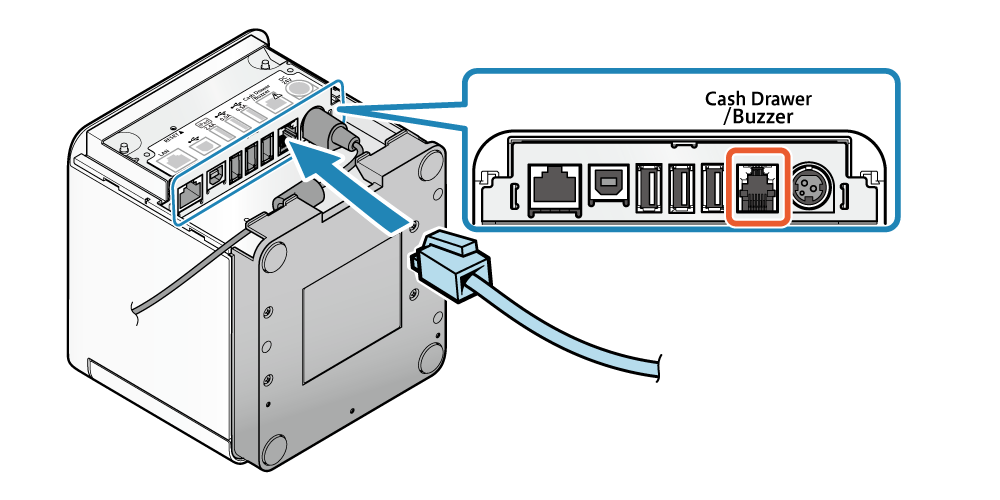
Picture from Star Micronics' manual: Connecting a cash drawer. Other Star models have the same port in a different place.
Keep paper in the printer. It won't open the drawer when it's out of paper.
1. Switch off the printer's own drawer option
Some printers are set to open the drawer on every print. Switch that off in the printer's own settings first. Otherwise the drawer opens for every docket, online orders and reprints included. Not sure how? Contact us or your hardware supplier.
2. Tick Cash drawer in the merchant portal
- Go to Settings → Printers.
- Select Edit on the docket printer the drawer is plugged into.
- Under Cash drawer, tick A cash drawer is plugged into this printer.
- If Opens for appears, choose which POS device opens it (see below).
- Select Save changes.

Cash drawer isn't offered for a Product labels printer, or for a printer named KIOSK.
Opens for: one drawer or two counters
Opens for appears once your store has more than one POS device.
- Every POS device: every POS device at the store opens this drawer. Right when you have one drawer.
- One device by name: only that POS device opens it. With two counters, each with its own drawer and printer, set each printer's Opens for to its own counter's device.
Opens for follows the POS device's sign-in, not the tablet. Two tablets signed in with the same device login open the same drawer. Give each counter its own device: see Add a POS or Kiosk device.
When the drawer opens
- A cash sale on the POS, as its docket prints on this printer.
- Cash taken for an order in Orders (Take payment, paid in cash).
- A cash refund on the POS, including cancelling an order that was paid in cash.
- No sale: open the cash drawer in Manager.
- With the till on: Paid in, Paid out and Close till. See Turn on the till (cash management) for your POS.
It doesn't open for app, kiosk, EFTPOS or Other orders, for Already paid?, for refunds made in the merchant portal, or when a docket is reprinted.
On a Star printing through CloudPRNT it takes a few seconds, because the printer checks for work at its polling time. Set that to 5 seconds on a counter printer: see Set up a Star CloudPRNT docket or label printer. To have it open at once, let the POS print straight to the printer: see Print straight from the POS to your printer. An Epson is always printed straight from the POS, so its drawer opens at once. If it doesn't open, use the key.
A cash sale opens the drawer only within 90 seconds of the sale. If its docket prints later (the printer was off or busy), it prints without opening the drawer: use the key. A drawer popping open long after the sale is worse than using the key.
Where the till's X and Z reports print
With the till on, a POS device prints its X and Z reports on:
- the drawer printer whose Opens for is that device; or else
- a drawer printer set to Every POS device; or else
- your docket printer named
1(the one that prints every order).
A Product labels printer, a KIOSK printer, or a printer with another name such as KITCHEN is never used: it might be in the kitchen. Tax invoices printed at the till, and Reprint at the till in Reports → Cash-ups, go to the same printer.
Test it
- On the POS, select Manager and enter a manager's PIN.
- Select No sale: open the cash drawer. The POS says "Sent. The drawer opens in a moment; if it doesn't, use the key."
- The drawer opens within a few seconds.
- Ring up a small cash sale: the drawer opens once, with the docket. Reprint the docket: the drawer stays shut.
If it doesn't work, see The cash drawer doesn't open, or the till won't print.