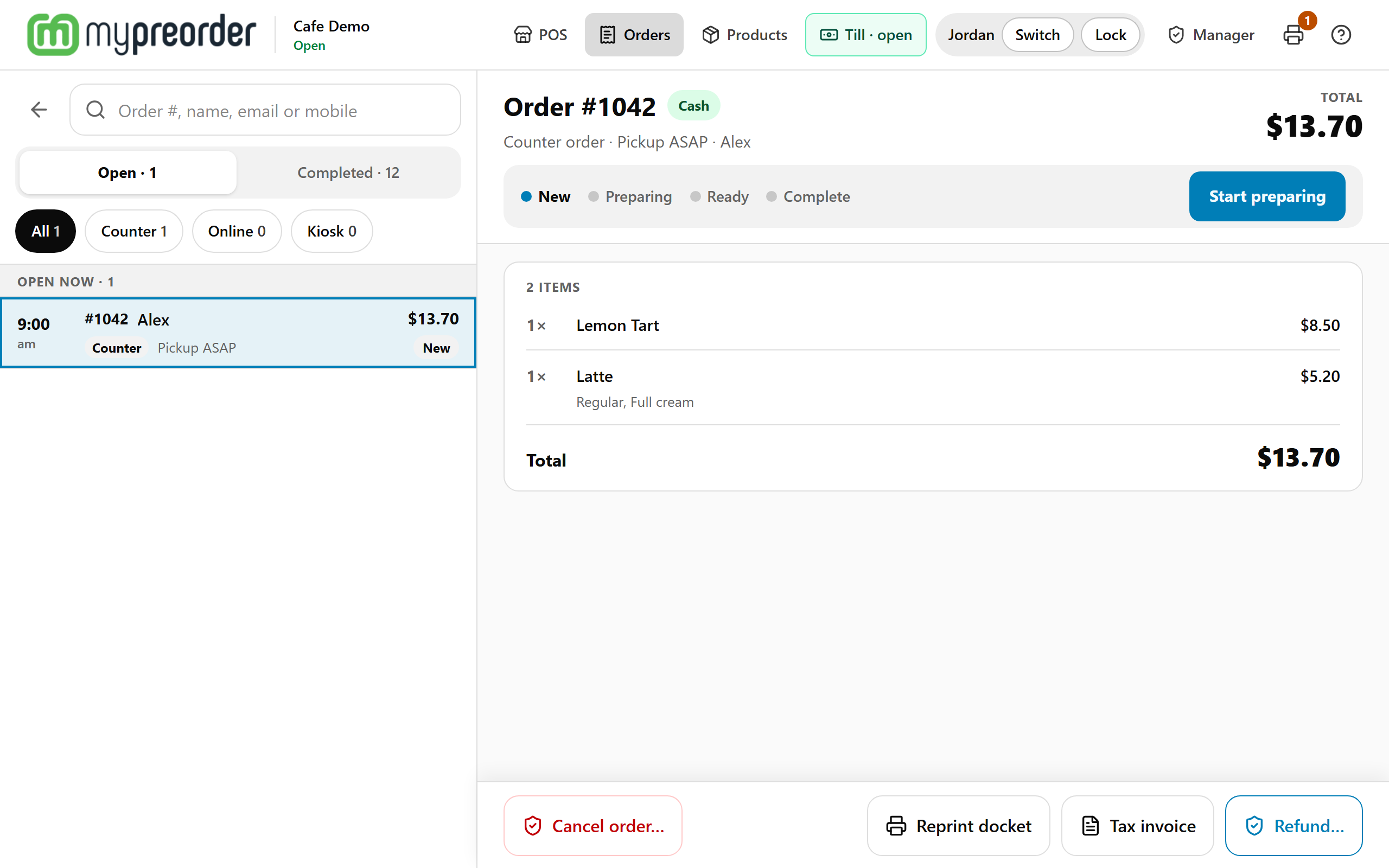
The Orders screen on the POS lists today's orders, from the website and apps, the counter and your kiosks. Use it to take payment for an order that hasn't been paid, and to see where each order is up to. Any staff member can use it.
Open it
Select Orders in the top bar (on a narrow screen, Staff tools → Orders today). Its badge counts the orders waiting for payment now, plus new online orders nobody has opened on this POS yet. The list refreshes itself every 30 seconds.
Find an order
The quickest way is to search. Type into Order #, name, email or mobile at the top of the list:
- An order number, or just its last few digits, for example 307 for #9910307.
- A name: any part of the name the customer gave.
- An email: any part of it.
- A mobile: any part of it, with or without spaces. 0412 345 also finds +61 412 345 678.
The search looks through all of today's orders, open and completed, and marks what matched. When it matched an email or a mobile, the order shows it. Tap the cross, or press Esc on a keyboard, to clear the search. If you had an order open, it stays open.
Or look through the lists. Open has today's orders still to be made or paid for, in three groups:
- Needs payment: unpaid and due now, including ones the kitchen has already finished.
- Open now: due now, as soon as possible or within 30 minutes.
- Later today: due later. An unpaid one keeps its UNPAID tag.
Completed has today's completed and cancelled orders, newest first, under the hour each was due. Each one shows how it was paid. A refunded order shows REFUNDED, or PART REFUNDED and the amount.
Narrow either list, or a search, with All, Counter, Online or Kiosk. Kiosk shows when your store has kiosks. Each order shows its time, its number, the customer's name (or Walk-up customer), NEW if it's an online order nobody has opened here yet, Counter, Online or Kiosk, its total and its status.
A long list shows 25 orders a page. Previous and Next are under the list, with which orders you're looking at and the times they cover.
An order from another day
The lists hold today's orders. To find an older one, search for its order number. When there's no such order today, select Look on other days. It shows the order with "From Mon 12 Oct, not one of today's orders", and you can refund it or give a tax invoice for it. Only your store's orders are found.
Open an order
Select an order to see its items, total, status, how it was paid, and the customer's email and mobile if they gave them. An unpaid order says why, for example "Ordered online to pay at the counter", "Ordered at the kiosk to pay at the counter" or "Put through as Other on the POS".
The order's number, total and status stay at the top, and its buttons (Take payment, Reprint docket, Refund… and the rest) stay at the bottom of the screen. Only a long list of items scrolls in between. On a phone, or a tablet held upright, the order takes the whole screen: select All orders to go back to the list.
Take payment for an unpaid order
- Select Take payment · $X.
- Choose EFTPOS ("Sends $X to the terminal", when this POS has a paired terminal) or Cash.
- For cash, tap Exact $X or the note amount handed over (or type it in Other amount), then select Cash received.
Done looks like "#1234 is paid" with "Cash · $X change" or "EFTPOS · approved on the terminal". For cash, the drawer opens in a moment. If it doesn't, use the key.
Cash shows only when Cash is on for the POS in Menu Builder → Order Types & Payments. See Choose how POS and Kiosk customers order and pay.
Card (keyed) shows when it's switched on for the POS: type the customer's card details, for a phone order. See Take a card over the phone (keyed card).
Reprint docket
When your store has a docket printer, an open order has Reprint docket. It sends the order's docket to your printers again, as it printed the first time. Done looks like "Sent to printer". A reprint never opens the cash drawer.
Already paid?
When the money was taken another way, select Already paid?, choose Cash, Card on another terminal or Other, then Mark paid. It's recorded with the order. The drawer doesn't open.
Move an order on (stores without a kitchen display)
At a store with no kitchen display (KDS), the order's next step is one button: Start preparing, then Ready (Ready · tell the customer for an online order, which tells them it's ready), then Complete. Complete waits until the order is paid, with "Take payment first" beside it.
At a store with a KDS the kitchen moves orders on, and the POS shows "Moved on the kitchen screen". An order that never reached the kitchen screen says "This order didn't reach the kitchen screen. Make it from the items below and move it on here." and gets the buttons.
New online orders
When an online order arrives, a panel pops up on any POS screen with "New online order · #1234", the name and the pickup time, and one chime. Select View to open it in Orders, or the cross to dismiss it. Opening the POS never chimes for orders already waiting. Browsers play sound only after the screen has been tapped once, so tap it at the start of the day.
To turn the panel or the sound off on one POS, see Use manager mode on the POS.
Refunds, cancels and tax invoices
Refund… and Cancel order… need a manager: see Refund or cancel an order on the POS. For Tax invoice, see Give a customer a tax invoice from the POS.
If something is not right
| What you see | What to do |
|---|---|
| "#1234 was already paid" and "Hand the cash back to the customer." | Someone else recorded a payment first. Give the cash back. |
| "This order was already paid. Refund $X to the customer's card on the terminal now." | The card was charged but the order was paid already. Refund it on the terminal while the customer is there. |
| "The card was approved" | Recording it didn't get an answer. Check the connection and select Try again: it can't be recorded twice. |
| "#1234 had already moved on" | Someone moved it on first. Nothing to do. |
| "Orders are for staff logins." | The browser is signed in with something other than a POS device. Sign in with the POS device's login. |
| An order from yesterday isn't listed | The lists hold today's orders. Search for its order number and select Look on other days. |
| "No order #1234 at this store" | There's no order with that number at your store. Check the number on the customer's receipt or email. |