Trading hours live with the menu, not with your store details.
- Open Menu Builder.
- Select Menu Settings in the left-hand list.
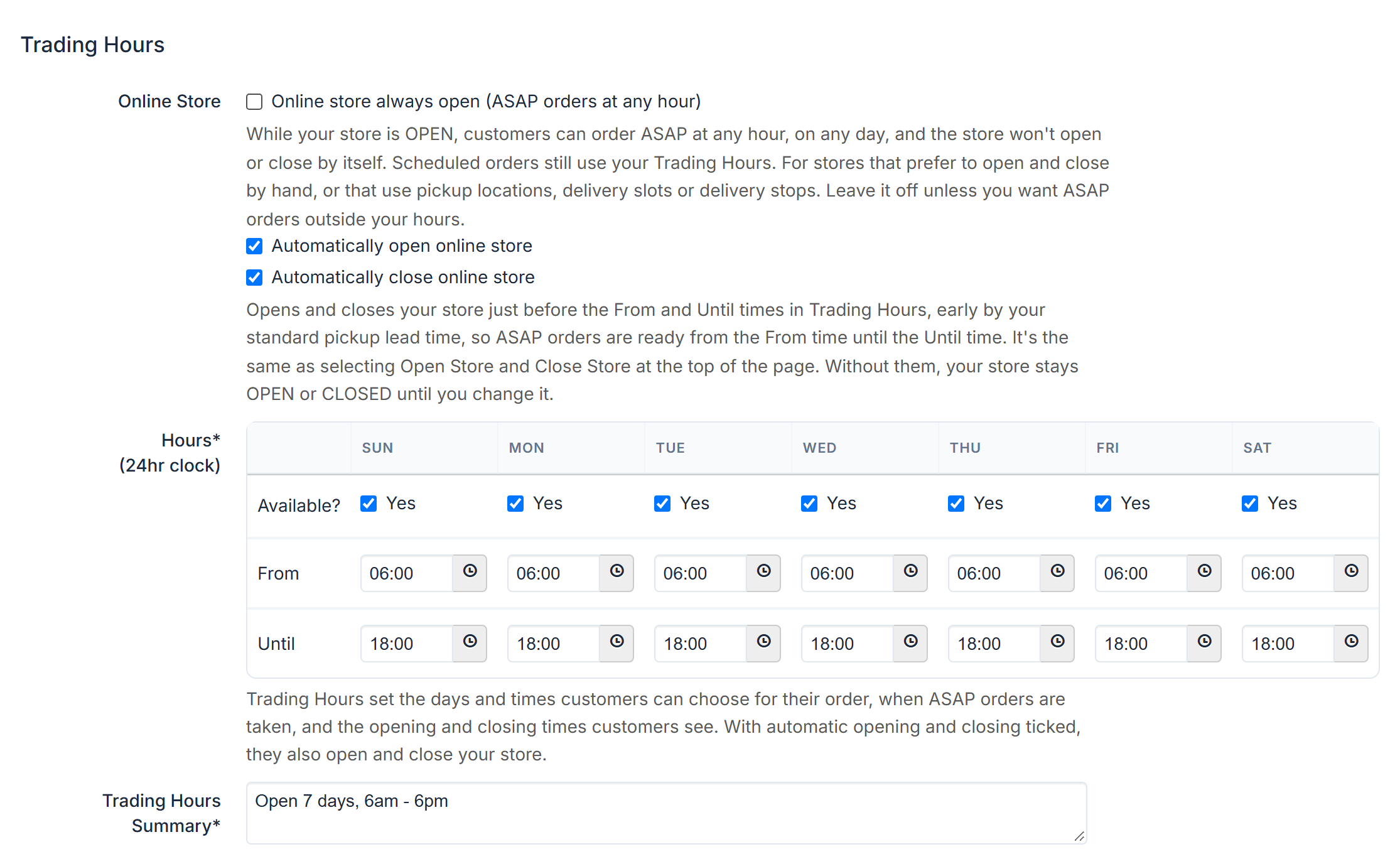
- Scroll to Trading Hours, and its Hours* (24hr clock) grid.
The grid
Three rows across the seven days:
- Available? — tick Yes for each day you trade.
- From — the opening time, 24-hour clock, e.g.
07:30. - Until — the closing time, e.g.
14:00.
Select Save Settings at the bottom of the tab.
The help text under the grid says what the times do: "Trading Hours set the days and times customers can choose for their order, when ASAP orders are taken, and the opening and closing times customers see. With automatic opening and closing ticked, they also open and close your store."
When customers can order
There's a difference between when an order is placed and the time it's for:
- ASAP orders come in only while your store is OPEN and inside today's hours.
- Scheduled orders are for a day and time inside your hours. If you take them, customers can place them at any time, even while the store is CLOSED.
Open and close by itself
The Online Store checkboxes sit just above the grid.
- Automatically open online store opens your store just before each day's From time.
- Automatically close online store closes it just before the Until time.
"Just before" is your standard pickup lead time: the Pickup minutes your Orders screen starts the day on. With a 15-minute lead time and hours of 07:00 to 14:00, the store opens at about 6:45 and closes at about 1:45, so ASAP orders are ready from 7:00 until 2:00. Changing the minutes on the Orders screen during the day doesn't move these times.
Opening and closing this way is the same as selecting Open Store and Close Store on the badge at the top of the portal. Without them, the store stays OPEN or CLOSED until you change it. See Open or close your store for online orders.
Online store always open (ASAP orders at any hour)
Leave this unticked unless you mean it. It is not about your store being online.
While it's ticked:
- Whenever the store is OPEN, customers can order ASAP at any hour, including on the days you've set as closed.
- The store never opens or closes by itself, even with the automatic boxes ticked. Only Open Store and Close Store change it.
- Customers see your store as open, with no closing time.
- Scheduled orders still use your hours.
A yellow note under the checkboxes says so while the box is ticked: "Online store always open is ticked."
It suits a store that prefers to open and close by hand, or one that uses pickup locations, delivery slots or delivery stops, where those set the dates and times. A cafe or restaurant whose ASAP orders should only come in during its hours should leave it unticked.
What customers actually read
The grid decides the days and times customers can order for. It is Trading Hours Summary* — a free-text box just below the grid — that customers see. Its help text: "Trading Hours Summary is displayed to your customers on-screen when they choose a pickup or delivery time (not shown for dine-in). Try to keep brief."
Change the grid and the summary together, or the two will disagree.
Three more message boxes sit under it, each shown at a different point:
- Menu Information — while the customer browses your menu.
- Checkout Information — during checkout.
- Order Confirmation* — on screen after checkout.
A one-off closure
Do not edit the weekly grid for a single day. Use Menu Builder → Special Dates instead — see Close for a public holiday or special date.