Settings → Account shows who is signed in, this screen's licence and whether it syncs its orders. Tap SETTINGS in the sidebar, then Account.
Everyone can open it. Sync to Server shows only to managers, or once settings are unlocked — see Unlock settings that need a manager PIN.
What is on it
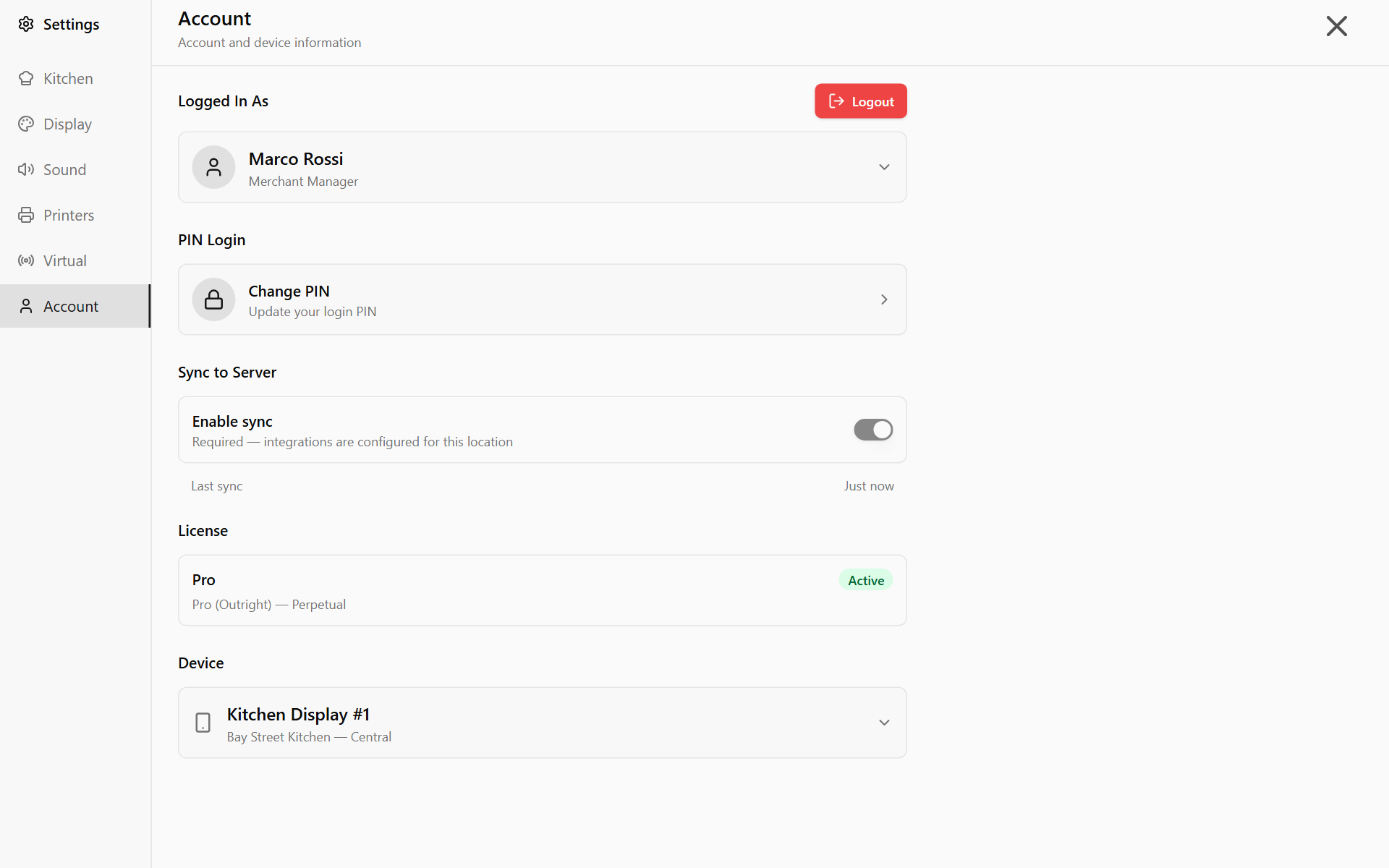
- Logged In As: your name and role, and Logout.
- PIN Login: Change PIN — see Change your PIN on the display.
- App Updates (tablet app only, not Windows or a browser): Check for updates looks for an update now. One that is found downloads in the background, and a banner offers Install now once no orders are in progress.
- Licence: Pro or Standalone, a status such as Trial, Active or Expired, and a line such as Trial — 12 days remaining or Pro (Recurring) — licence period ends in 20 days. No licence on this screen yet. means it has none.
- Device: this screen's name and location. Tap it for the Merchant ID, Location ID and Device ID support may ask for.
The app version is on HELP, under Build Information.
Sync to Server
The Enable sync switch decides whether this screen sends its orders to the server and shows orders from other screens. The line under it reads:
- Orders sync to server automatically: on.
- Local mode — orders stay on this device: off. The bottom-right corner of the board reads Local mode.
- Required — integrations are configured for this location: it cannot be turned off, for example where online orders come in.
- Standalone licence — orders stay on this device: a Standalone licence never syncs.
Before turning it off, see Run more than one kitchen screen.
Failed sync items
Queue shows changes still to send, such as 2 pending, 1 failed. A try that gets no answer — no internet, or the server down — does not count: changes made offline wait, and go once the screen is back online. A change is marked failed only when the server turns it down, after five tries at most. Tap the failed count to see each one and its error.
A Standalone screen shows Queue too, under Sync to Server: its orders stay on the screen, but docket-template changes and diagnostic captures still go to the server.
- Retry All sends them again.
- Clear Failed throws them away, so they never reach the server. Failed items are also cleared after 7 days.
Done
Last sync reads Just now or a few minutes ago, and Queue has gone: everything this screen changed has reached the server.
If something is not right
| Message | What it means |
|---|---|
| Server sync is required — this location has integrations configured | Sync must stay on here. |
| No licence information available. Licence details will appear after the next sync. | The screen has not heard from the server yet. Connect it to the internet. |
| Update check failed. Check the internet connection, then try again. | Check for updates could not reach the update server. |
If a message covers the whole screen, see A licence message covers the screen.