Your POS prints straight to an Epson receipt printer over your shop's network: the docket, and the cash drawer, the moment you take the sale. While a POS is open it also prints your online orders as they come due, within about 30 seconds. A kiosk can print its customers' receipts the same way. Admins only.
Available in POS version 4.4.2 and later. To see which version you have, select Manager, enter a manager's PIN and select Diagnostics. It's the App version under Build.
An Epson has no CloudPRNT, so it prints only while a POS (or, for a kiosk's printer, the kiosk) is open. Online orders that arrive while every POS is closed print when one opens, up to 30 minutes after their pickup or delivery time; later than that they aren't printed. To print online orders with no POS open, use a Star printer: see Set up a Star CloudPRNT docket or label printer.
Before you start
- An Epson with ePOS-Print: TM-m30II or TM-m30III, TM-m50, TM-T82III, TM-T88VI, TM-T88VII, TM-T20III, or a TM-i model such as the TM-T82II-i. Older models (TM-T70, TM-T88IV, TM-T88V) need Epson's UB-E04 network board.
- The printer on your shop's network, by LAN cable (or Wi-Fi, on a Wi-Fi model).
- The POS tablet or PC on the same network: an Android tablet or a Windows PC with Chrome or Edge. An iPad can only reach the printer over HTTPS, with the printer's certificate installed on the iPad: contact us first. The TM-T20III has no HTTPS.
- An Epson prints order dockets, not product labels. For labels, use a Star mC-Label3.
1. Give the printer a fixed address
The POS reaches the printer by its IP address, so the address must never change. Ask whoever looks after your network to give the printer a DHCP reservation on your router.
To find the address, hold the small status sheet button on the back of the printer for about three seconds (on some models, hold Feed while you switch the printer on). The sheet it prints shows the IP address.
2. Check ePOS-Print, and find the device ID
- On a computer on the same network, type the printer's IP address into a browser. If it shows Forbidden, add
/webconfigto the end, for examplehttp://192.168.1.60/webconfig. - Sign in with the printer's administrator name and password. On many models both are
epson; on newer ones the password is the printer's serial number, on the label underneath. - Make sure ePOS-Print is enabled. It usually is.
- Find the printer's device ID:
- A TM-i model: open Registered printers. The Device ID on the line that says (Local printer) is the one, for example
local_printeror a name someone gave it, such asCounter. - Other models: it's
local_printer.
- A TM-i model: open Registered printers. The Device ID on the line that says (Local printer) is the one, for example
Write the device ID down exactly as shown. The printer answers only to its own device ID.
3. Add the printer in the merchant portal
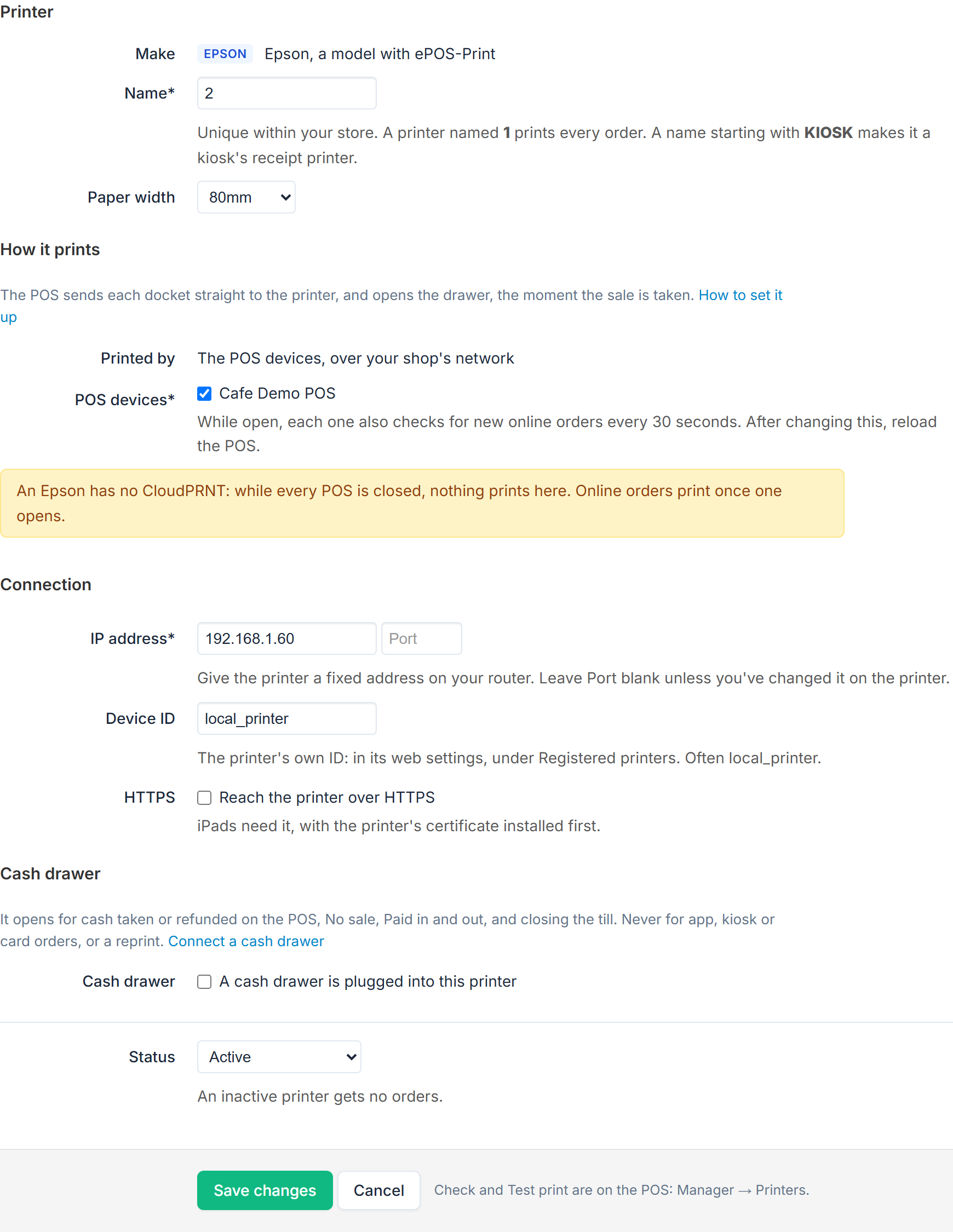
- Go to Settings → Printers, select Add printer, then Epson.
- Printer section:
- Name* — unique within your store. A printer named
1prints every order. For a kiosk's printer, start the name withKIOSK. See Choose which items print where in Set up a Star CloudPRNT docket or label printer: names work the same for both makes. - Paper width — 80mm or 58mm, to match the roll in the printer.
- Name* — unique within your store. A printer named
- Kiosks section, a
KIOSKprinter only: Prints for — tick the kiosk that prints here. See A kiosk's Epson below. - How it prints section: Printed by is always The POS devices, over your shop's network. Under POS devices, tick each POS device that prints here.
- Connection section:
- IP address* — the printer's, from step 1. Leave Port blank unless you changed it on the printer.
- Device ID — from step 2.
- HTTPS — leave it off for Android tablets and Windows PCs.
- Cash drawer section, if a drawer is plugged into the printer: see Cash drawer below.
- Status — Active. Select Save changes.
In the printer list, an Epson shows EPSON, its IP address, the POS devices that print it, and Active, with Printed by the POS under it. It never polls, so there's no paper or cover state to show here: the POS says when something didn't print.
4. Reload the POS and test it
- On the POS, reload the page (or sign out and back in), so it picks up the printer.
- Select Manager, enter a manager's PIN, and find Printers. The printer's tile shows its address and device ID.
- Select Check: "Reached it. Ready to print."
- Select Test print. The first time, Chrome asks to let the POS reach devices on your local network: select Allow. A slip saying Test print comes out.
- Ring up a small cash sale: the docket prints, and the drawer opens, straight away.
Cash drawer
Plug the drawer's cable into the printer's drawer port, marked DK. Its plug also fits the LAN port, so check which one you use. Then, on the printer in Settings → Printers:
- Cash drawer: tick A cash drawer is plugged into this printer.
- Opens for: Every POS device, or one POS device. It only appears when your store has more than one POS device.
It opens for cash sales and cash refunds on the POS, No sale, Paid in, Paid out and closing the till. The POS's X and Z reports and tax invoices print on this printer too. See Connect a cash drawer to the POS.
When a docket doesn't print
The Printer status button at the top of the POS, beside Help, shows how many didn't print, and why. What the POS says, and what to do:
| The POS says | What to do |
|---|---|
| "The printer cover is open." | Close the cover, then select Print again. |
| "The printer is out of paper." | Load a new roll, then select Print again. |
| "The printer doesn’t know this device ID." | The Device ID in the portal doesn't match the printer's own (step 2). Correct it, save, reload the POS, then Print again. |
| "That address isn’t an Epson printer with ePOS-Print on." | Check the IP address in the portal, and that ePOS-Print is enabled on the printer. |
| "The printer isn’t answering." | Check the printer is on, and on the same network as the POS. If its address changed, give it a fixed one (step 1). |
| "The printer didn’t answer in time." | Check whether it printed before you print it again. |
A docket the printer turned away for a fault (cover open, out of paper) never prints later by itself, so Print again prints it once. A cash sale's drawer opens with Print again only within 90 seconds of the sale; after that, use the key. For more on Print again, Open the drawer and Not confirmed, see Print straight from the POS to your printer.
Use Check in Manager → Printers to see what the printer reports right now, such as "Reached it. The paper is running low."
A kiosk's Epson
A kiosk prints its customer's receipt, with their card receipt, straight to its own KIOSK printer as they finish paying.
- Name the printer
KIOSK(orKIOSK2for a second kiosk's). - Under Prints for, tick the kiosk that prints here, or both kiosks if two side by side share it. Printed by reads The kiosks ticked above, over your shop's network.
- Save, reload the kiosk, then in the kiosk's Manager → Printers select Check and Test print, and Allow when Chrome asks.
The kiosk never shows a print problem to the customer: Manager → Printers → What didn't print lists it. A kiosk's printer never opens a cash drawer. While the kiosk is closed, its printer prints nothing.
Replace or retire a printer
There is no delete. Set Status to Inactive, and the printer gets no more orders.
Other makes
Other receipt printers, such as Rongta or Xprinter, can't be reached from a web browser, so mypreorder can't print to them.