Settings → Printers. Admin only.
The tab lists every printer on your store, and you can add as many as you need — a docket printer in the kitchen, another at the bar, a label printer for cups and bags, a printer for your kiosk, a docket printer with a cash drawer for the POS.
Supported models
The following Star Printers have CloudPRNT capability:
- Star mC print series: Star mC-Print2, Star mC-Print3, Star mC-Label3, Star MCP30.
- Star TSP654II and Star TSP100IV
The printer must be using an ethernet connection for CloudPRNT to work. Star Micronics does not support CloudPRNT over USB. Plug a LAN cable into the printer's LAN port and into your router.
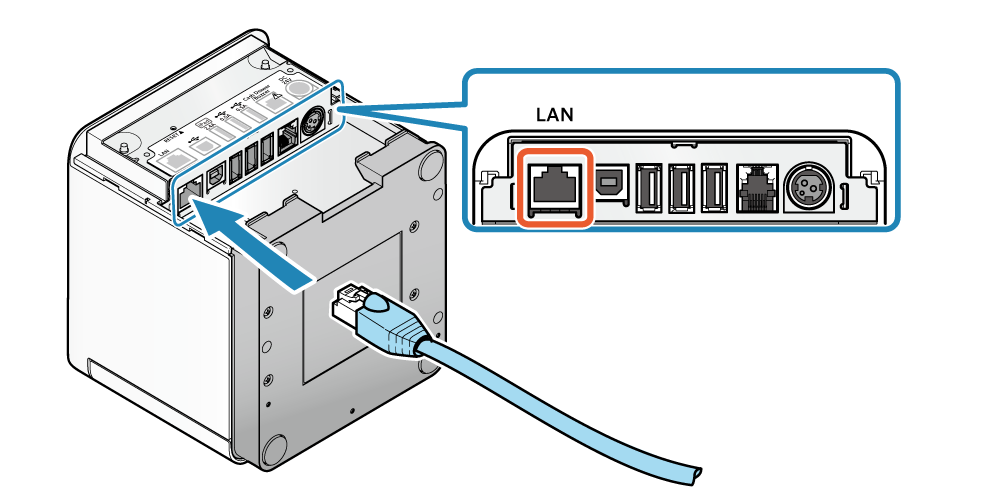
Pictures in this article are from Star Micronics' mC-Print3 / MCP30 manual. Other Star models have the same ports in a different place.
For product labels, use a label printer such as the Star mC-Label3 with a liner-free (sticky) label roll.
Find the printer's IP address
Type the printer's IP address into a browser to reach the Star Intelligent Network Utility.
If you do not know it, print it:
- Turn the printer off.
- Hold down the Feed button, press the power button, and let go of the power button.
- Let go of Feed when it starts printing. After about a minute a second test print shows the IP address in use.
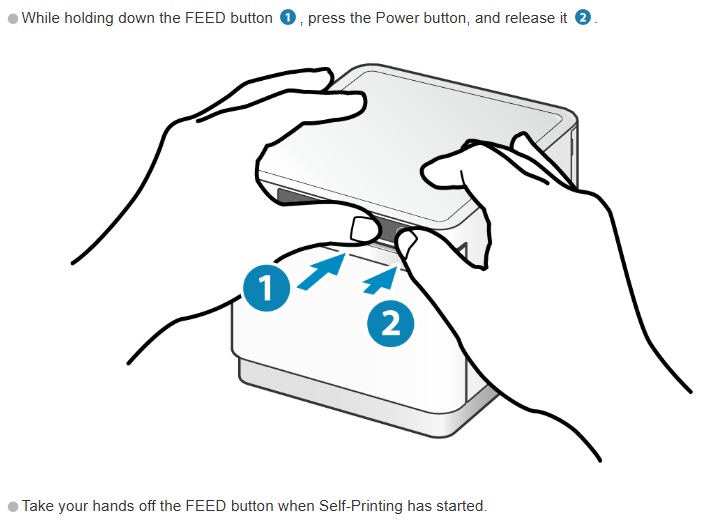
Star's manual: Test print.
Configure the printer
In the Star Intelligent Network Utility:
- Enable the CloudPRNT Service.
- Set the Server URL to
https://merchant.mypreorder.com.au/services/s/starprint.php - Set the polling time: 5 seconds for a printer at a POS counter, 10 seconds for a kiosk printer, and 30 seconds for any other printer.
- Username and password can be ignored.
- Note the MAC Address shown on the same page.
Repeat for each printer. Every printer has its own MAC Address.
Add the printer to the portal
In Settings → Printers, select Add printer. The editor is in sections; fill in:
- Printer section:
- Name* — must be unique within your store. To print all orders to a single printer, set to
1. For a kiosk's printer, start the name withKIOSK(KIOSK,KIOSK2). Otherwise pick a short name such asKITCHEN,BARorLABELS— see Choose which items print where below. - Prints — Order docket prints the whole order on one docket. Product labels prints one label per item, for attaching to cups, bags and containers. A
KIOSKprinter doesn't ask: it prints the kiosk's customer receipts. - Paper width — 80mm or 58mm. Match the roll loaded in the printer. Most receipt printers are 80mm.
- Name* — must be unique within your store. To print all orders to a single printer, set to
- Kiosks section, a
KIOSKprinter only: Prints for — tick the kiosks whose customers' receipts print here. See Kiosk printers below. - How it prints section: Printed by — leave it on CloudPRNT. With a POS at the counter, or a kiosk beside its printer, the device can print straight to the printer instead, which is faster: see Print straight from the POS to your printer.
- Connection section: MAC address* — in the form
XX:XX:XX:XX:XX:XX, exactly as the printer reports it. Each printer gets its own entry — do not enter the same MAC address twice. - Status — Active. Inactive printers are ignored — they receive no orders.
Select Save changes. To change a printer later, select Edit on its row.
The printer list
Each row shows the printer's name, STAR and its MAC address (or its IP address, when the POS or kiosk prints it), what it prints — for example Product labels, 58mm — who prints it, and its status:
- Ready — it checked in within the last few minutes and has paper.
- Out of paper, Cover open, Busy — what it last reported. 2 orders waiting means it still holds those orders.
- Not checking in — no check-in for over 3 minutes; it shows when it last did. Turn the printer off and back on again.
- Has never checked in — check the CloudPRNT settings on the printer (above) and its MAC address here.
- Active, with Printed by the POS (or the kiosk) under it — the device prints it straight, with no CloudPRNT to fall back on, so the POS or kiosk lists what didn't print. The POS's Printer status calls it Printed by the POS.
- Inactive.
These are the same states as Printer status on the POS.
Cash drawer
Plug the drawer's cable into the printer's drawer port: Cash Drawer / Buzzer on the mC-Print3 and MCP30, DK on some other models. Its plug also fits the LAN port, so check which one you use.
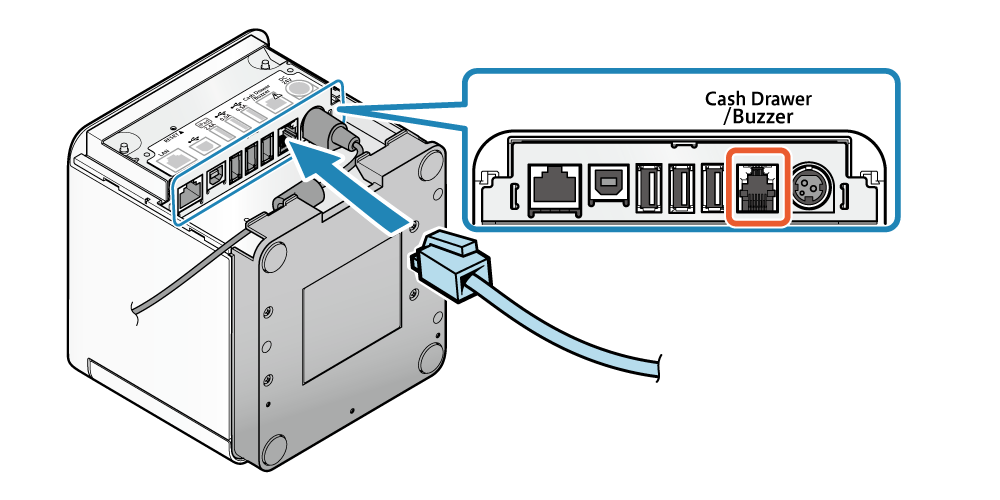
Star's manual: Connecting a cash drawer.
If a cash drawer for the POS is plugged into an order docket printer, tell the portal in that printer's Cash drawer section:
- Cash drawer: tick A cash drawer is plugged into this printer.
- Opens for: Every POS device, or one POS device. It only appears when your store has more than one POS device.
It opens for cash sales and cash refunds on the POS, No sale, Paid in, Paid out and closing the till, and never for app, kiosk, EFTPOS or Other orders. Label printers and KIOSK printers don't offer it.
A drawer plugged into a printer without Cash drawer ticked never opens. Since October 2026 mypreorder no longer pulses the drawer port with every docket, so a drawer that used to open with each docket, or a Star buzzer that beeped for each one, stays shut and quiet.
The POS's till slips (X and Z reports) and tax invoices print on the drawer printer for that POS device, or else on the printer named 1. See Connect a cash drawer to the POS.
Choose which items print where
Every menu item has a Printer(s) setting, and it starts as 1. That is why one printer named 1 prints every order without any menu changes.
To send items somewhere else, open the item in Menu Builder, select Show advanced settings, and under Printing enter the printer names in Printer(s), separated by commas — for example 1,LABELS. Upper or lower case does not matter. If you cannot see Printer(s), contact us and we will switch it on for your store.
How each kind of printer uses it:
- A docket printer prints the whole order whenever at least one item on it names that printer. It does not split the order into just its own items.
- A label printer prints labels only for the items that name it. The editor reminds you: "This printer only labels products assigned to it."
- A
KIOSKprinter prints only orders placed on your kiosks: the customer's receipt, their card receipt and any reprint. Online orders never go to it, and you do not need to change any menu items.
Common set-ups
| You want | Printers | Menu items' Printer(s) |
|---|---|---|
| One docket printer | 1 — Order docket |
Leave as 1 |
| A docket, plus labels for drinks | 1 — Order docket, and LABELS — Product labels |
Drinks: 1,LABELS. Everything else: leave as 1 |
| Separate kitchen and bar dockets | KITCHEN and BAR — both Order docket |
Food: KITCHEN. Drinks: BAR |
| Kiosk receipts | Add KIOSK — Order docket |
No change |
| Two kiosks, a printer each | KIOSK and KIOSK2, each with its own kiosk ticked under Prints for |
No change |
Two traps:
- Keep
1in the list when you add a label printer. An item set to justLABELSgets a label, but if every item on an order is set that way, no docket prints. - An item still set to
1prints nowhere once no printer is named1. If you rename your only printer toKITCHEN, update every item.
With separate kitchen and bar dockets, an order with food and drinks prints in full at both.
Kiosk printers
A kiosk's customer gets their receipt at a KIOSK printer. Prints for on that printer says which kiosks print there:
- One kiosk, one printer: leave Prints for empty. A
KIOSKprinter with no kiosks ticked prints for every kiosk that isn't ticked on another printer. - Two kiosks side by side, sharing a printer: leave it empty, or tick both.
- Two kiosks, a printer each: tick each printer's own kiosk. Otherwise both printers print every kiosk order.
A kiosk prints at one printer at most: tick it on a second and the portal asks you to untick it on the first. A kiosk that isn't ticked anywhere, at a store where every KIOSK printer has its kiosks ticked, prints no receipt: the customer sees their order number on screen.
What a label shows
One label per item, so three coffees print three labels. Each label shows your logo, the customer's name, the order number, the item and its modifiers, and the item's price — or REWARD if it was paid for with a loyalty reward. Below that come the pickup, delivery or dine-in table and time, paid or UNPAID, and the time the order was placed.
On an order of more than one item, each label also shows Item 2 of 5 and the order total. The numbering counts the whole order, so if some items print elsewhere the numbers skip — labels 1, 2 and 5 mean the rest are coming from another printer.
A customer's order note prints on its own label at the front of the run, so staff see it before making anything. On a single-item order the note goes on that item's label instead.
The customer's phone number is never printed on a label. A menu item's Copies setting applies to dockets only — labels always print one per item.
Replace or retire a printer
There is no delete. Set Status to Inactive and the printer stops receiving orders. An inactive printer does not hold on to its name or MAC Address, so you can add a replacement that reuses them.
If Save changes shows an error
- "Printer Name '…' is already used by another printer in this store. Give each printer a unique name." — Two active printers cannot share a name. Rename one, or set the old one to Inactive.
- "MAC Address '…' is already registered to another printer in this store. One physical printer is one entry." — This printer is already in your list. Edit that entry instead of adding a new one.
- "MAC Address '…' is already registered. Please check the address, or contact us for assistance." — The address belongs to a printer on another store. Check it for a typo, then contact us if it is right.
Buying one
The Star MCP30 is sold by Officeworks. Star's own manuals: the mC-Print3 / MCP30 manual (models MCP31L, MCP31LB, MCP31C, MCP31CB, MCP30 and their variants), and Star's other manuals. Contact us for other models, or use your existing hardware supplier.
An Epson with ePOS-Print works too, printed by the POS: see Set up an Epson receipt printer. Other receipt printers, such as Rongta or Xprinter, can't be reached from a web browser, so mypreorder can't print to them.