Make one item on the current order free, for a reason, such as the free coffee on a customer's paper loyalty card. You do it on the order before you check out.
Make an item complimentary
- Add the item to the order as usual.
- Tap the item's line on the order, on its name or price. The line highlights and Comp appears under it.
- Select Comp.
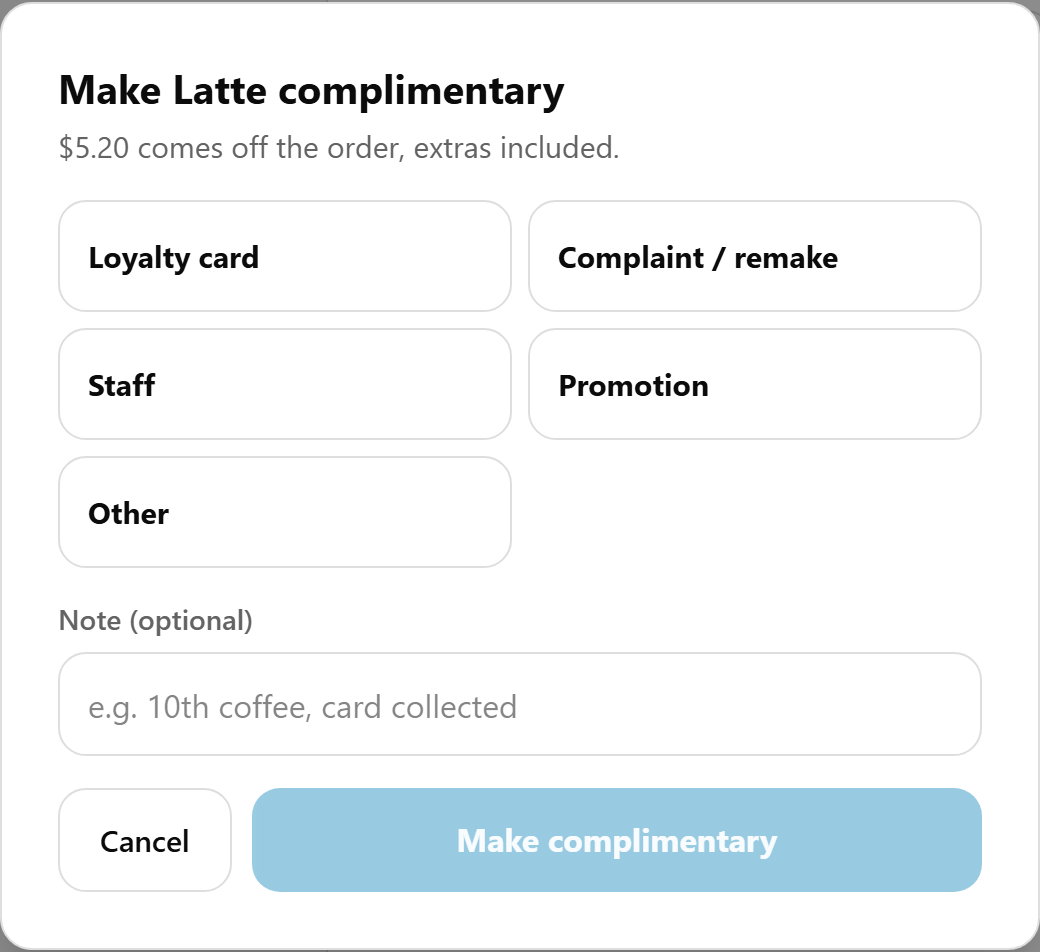
- Choose a reason: Loyalty card, Complaint / remake, Staff, Promotion or Other.
- Add a note if you like, for example "10th coffee, card collected". Other needs a note.
- Select Make complimentary.
Done looks like the line showing Comp · Loyalty card (or the reason you chose), with its price struck through and $0.00. The total drops by the item's price.
Tap the line again, or another line, to close its actions.
How it works
- One at a time. On a line of 3, one is split off as its own free line. The dialog says so, for example "$5.50 comes off the order, extras included. The other 2 stay at full price." To give two away, comp the line twice.
- As many per order as you need.
- Full price, extras included. Milk, extra shots and other choices are free too.
- No manager PIN. Any staff member can.
- Before the order is placed. A placed order can't be comped. If the customer has paid, refund the item instead: see Refund or cancel an order on the POS.
- Discounts apply to what's paid for. A promo code or percentage discount leaves the free item alone, and a free item doesn't count toward a minimum order. It earns no loyalty points.
- Everything free? The total is $0.00 and there's no payment to take.
A free line has no − and +. Its bin takes it off the order.
Undo it
Before you place the order, tap the free line and select Remove comp. The item goes back to full price, back in its line.
Use a tablet or PC
Comp is on the order down the left of the menu screen, which a tablet or PC shows. A screen as narrow as a phone shows the order as a bar instead, with no Comp.
Where it shows
- On the POS: Comp · and the reason on the line, at checkout, on the confirmation and on the Orders screen. A Complimentary (1) line above the total shows the amount given.
- The customer's confirmation email, if they gave one: the line says "Complimentary – Loyalty card" and the note, and the totals have a Complimentary items line.
- Tax invoices: the item at $0.00, marked (complimentary).
- Printers: a label printer prints COMP in place of the price. The kitchen docket doesn't change: it has no prices.
- The till: the X and Z reports show Complimentary under SALES and the items given under COMPLIMENTARY. See Check the till during a shift: the X report.
- Reports → Sales Summary: a row per reason under Rewards / Discounts, such as "Complimentary: Loyalty card (3)", then Complimentary Total, and Total Complimentary under Summary. See Find your sales figures for a date range.
Each comp is recorded with the order, its reason and the POS device it was made on.
If something is not right
| What you see | What to do |
|---|---|
| No Comp when you tap a line | The item is already $0.00, account credit or a VIP tag, or the screen is too narrow. |
| "Add a note to say why." | You chose Other. Type a note. |
| "This item is sold in multiples and can't be made complimentary." | One on its own isn't a valid order line. Leave it at its price. |
| "This item can't be made complimentary." | Account credit, VIP tags and a promo code's free item can't be given away. |
| "This item is already free." | It's $0.00 already. Nothing to do. |
| The order is already placed and paid | Refund the item instead. See Refund or cancel an order on the POS. |