Select Reports in the top bar. Sales Summary is the first item in the left-hand list and opens by default.
Run a Sales Summary
- Set the From and To dates at the top right.
- Select View.
- Select Print to print it. The printed copy carries your store name, suburb, the date range and when it was generated.
The report is broken into Products, Rewards / Discounts, Totals, Payments and Summary.
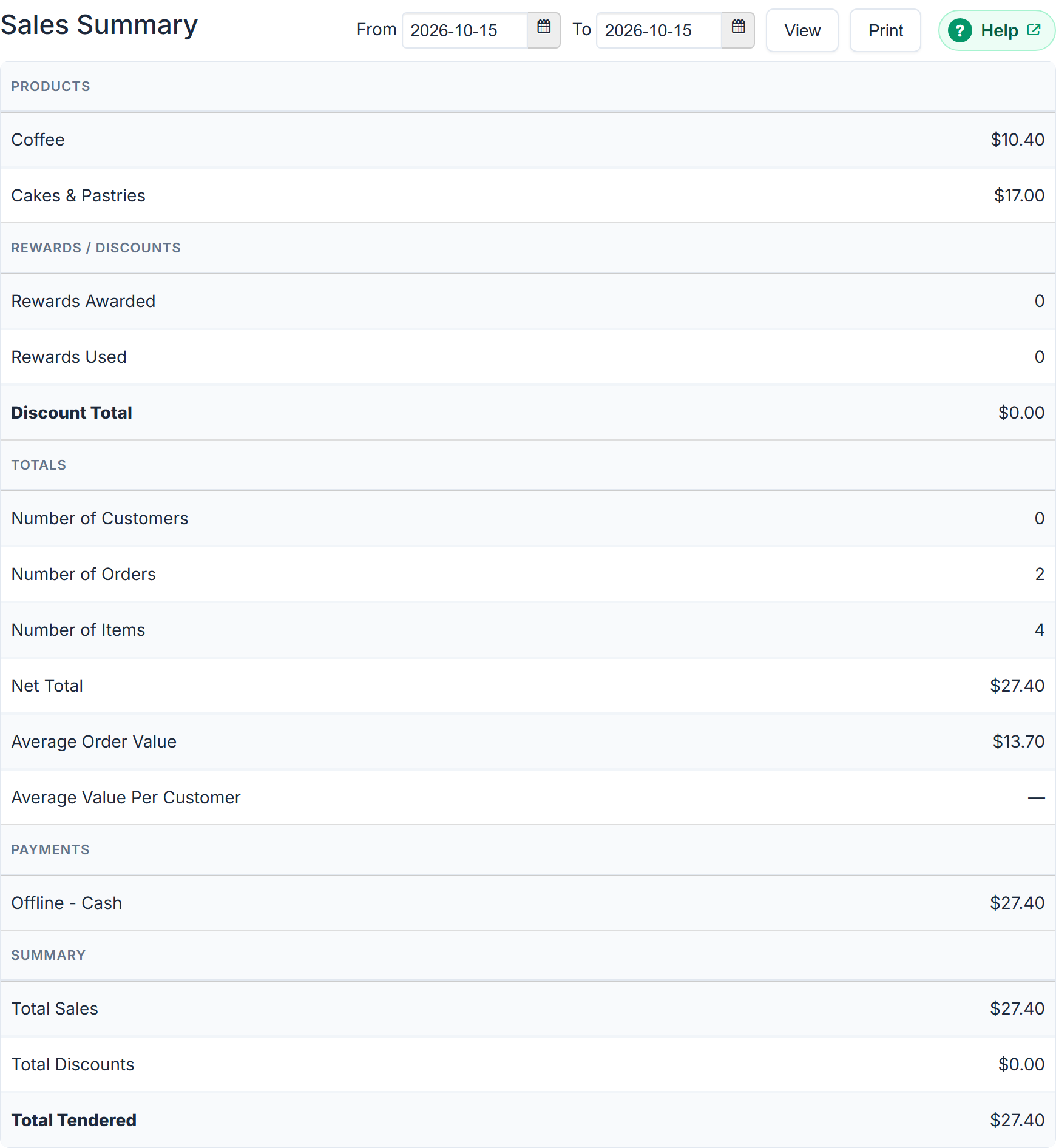
If there is nothing in the range you get No data for the selected date(s).
Complimentary items given on the POS appear on days that had some. Under Rewards / Discounts there is a row per reason, such as "Complimentary: Loyalty card (3)", then Complimentary Total. Summary adds Total Complimentary. They are not in Discount Total, and Products still counts them at full price: they were made and given away. See Make an item complimentary on the POS.
The other reports
Down the left-hand list:
- Orders Summary
- Orders by Creation Date: when the order was placed.
- Orders by Fulfilment Date: when it was due. These two disagree for preorders, which is the point of having both.
- Orders by Customer: search by name, email or mobile first.
- Transactions: payments and refunds, admin only. See Cancel or refund an order.
- Cash-ups: each POS till's close, with its Z report, float, counted cash and over or short. See Find or reprint a past cash-up.
- Orders Matrix
- Deliveries By Area, Deliveries By Stop, Deliveries By Pickup Location: each appears only if you use that delivery style.
- Contact Tracing
- Merchant Invoices: your invoices from us, admin only.
Exporting
On an order report, the Download button offers:
- Export (CSV)
- Export Itemised (CSV): a row per line item rather than per order.
- Orders Summary (PDF)
- Export (Route4Me)
Delivery reports add Delivery Sheet (PDF).
In Export (CSV), three columns help with the POS:
ordered_by: the staff member who rang the order up, when staff sign in to the POS with their own PIN. Otherwise it says Staff or Customer. See Give staff their own PIN for the POS and Kiosk.compsandcomp_reasons: the value of the order's complimentary items, and why they were given.
Reports that appear for some stores only
Orders Matrix and the three delivery reports are per-store modules. Cash-ups appears once the till is turned on: see Turn on the till (cash management) for your POS. Transactions and Merchant Invoices are admin-only. If a report you were told about is not in your list, that is why.