Refund an order, in full or in part, or cancel it, from the Orders screen on the POS. A manager approves each one, and the money goes back the way it was paid.
Before you start
- A manager's PIN. Once your store has a Manager under Users → Staff, that's the Manager's own staff PIN. Before then, it's the POS device's PIN (Device PIN on its row under Users → POS devices). If manager mode is already open on this POS, it doesn't ask again. See Give staff their own PIN for the POS and Kiosk.
- The customer, with their card, for an EFTPOS payment. A card refund is made on the terminal, like the payment.
- An older order? In Orders, search for its order number and select Look on other days: it can be refunded there too. See Find and take payment for orders on the POS. Or refund it in the merchant portal: see Cancel or refund an order.
Refund an order
- In Orders, open the order and select Refund….
- Manager access asks for the PIN: "Enter your manager PIN. Ask a supervisor if you don't have one." Enter it and select Enter.
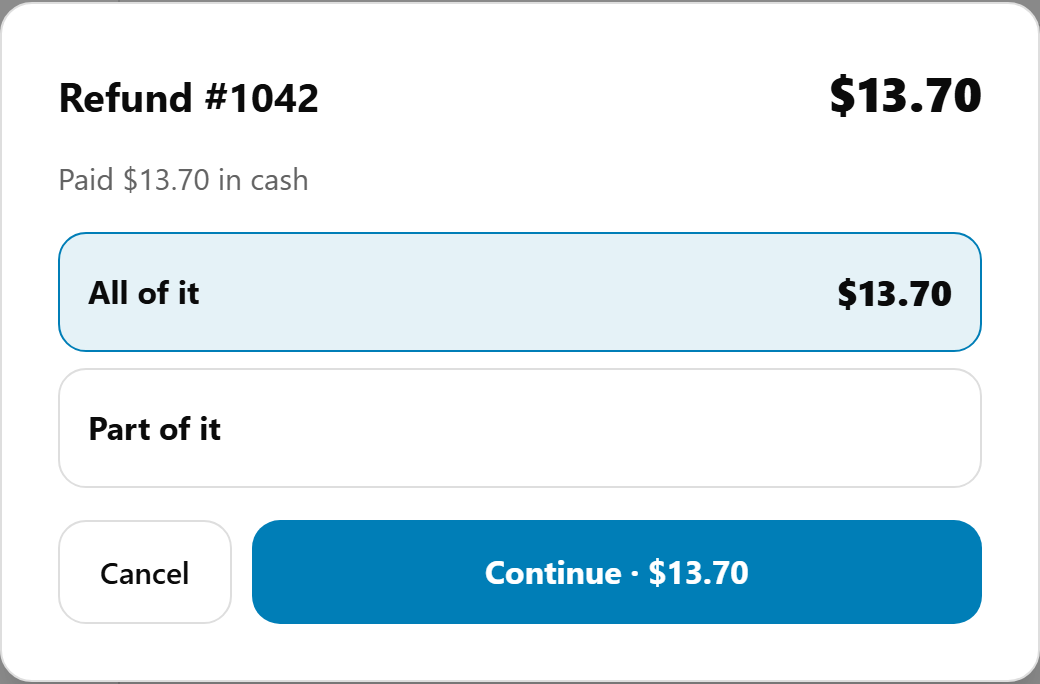
- Choose All of it (or All that's left), or Part of it and type the amount.
- Select Continue · $X, check the next screen, and confirm.
Done looks like Refunded $X. A refunded order shows REFUNDED or PART REFUNDED in Orders.
How the money goes back
- Cash: "Refund $X in cash". When you confirm, the POS says "Give the customer $X from the till" and the cash drawer opens. With the till on, the refund comes off Expected in drawer as Cash refunds.
- EFTPOS on a Linkly pinpad: select Start the refund on the terminal. The customer taps or swipes their card on the terminal that took the payment, and mypreorder refunds it. It can take up to a minute: keep the screen open. A Linkly payment can be refunded once, so choose the full amount you need.
- EFTPOS on a Tyro terminal: the refund runs on this POS's terminal. Enter the Amount to refund (or select Full amount) and Continue. Check "The customer must be here with their card", then select Refund $X. It goes back to whichever card they present, so it can't be finished after they leave.
- Card on another terminal: refund it on that terminal, then select Refunded on that terminal.
- Other (a voucher, a transfer or an account): refund it the same way, then select Record the refund.
- Paid online by card: Refund to the card. It can take a few days to show on their statement.
- Card (keyed): "Refund $X to the card", then Refund to the card. It goes back to the card that was typed in, through your online payment gateway. See Take a card over the phone (keyed card).
- Paid from account credit: Refund to account credit.
Cash, card on another terminal and Other can be refunded in several parts. Online, keyed card, EFTPOS and account credit payments are refunded once. After a part refund of an EFTPOS or keyed card payment, the POS says what's still on the card: refund that on the EFTPOS terminal, or for a keyed card in your payment gateway's dashboard. Cancel order then goes ahead without a second refund, and says the same.
Refund a kiosk order
Kiosk orders are in Orders too, tagged Kiosk. A Linkly refund runs on the terminal that took the payment, so for a kiosk sale that's the kiosk's pinpad. The POS names it, for example "they tap or swipe their card on the Kiosk 1 terminal, the terminal that took the payment, not this one". Take the customer to that pinpad. A Tyro kiosk payment is refunded on this POS's own Tyro terminal. You can also refund it at the kiosk: see Refund a card payment at the kiosk.
Cancel an order
- Open the order and select Cancel order…. It's on any of today's orders that isn't already cancelled, completed ones too. An order from another day (found with Look on other days) can be refunded but not cancelled.
- Enter a manager's PIN in Manager access.
- An unpaid order: "Cancel #1234?". Select Cancel the order, or Keep the order.
- A paid order: "Cancel #1234 and refund $X?". Select Cancel and refund $X. It's refunded the way it was paid, in the same step, as above.
The customer is told it's cancelled, and it leaves the kitchen's list. A cancelled Tyro payment offers Refund it on the terminal now.
If something is not right
| What you see | What to do |
|---|---|
| No Refund… on a paid order | Nothing is left to refund, or the POS has no record of how it was paid. Refund it the way they paid, or in the merchant portal. |
| "How it was paid wasn't recorded, so the POS can't refund it." | Cancel it, then refund the customer the way they paid. |
| Kept as account credit | The card refund failed, so the amount went on the customer's account. They can spend it on their next order. |
| "The refund didn't go through, so nothing was refunded. Try again." | Nothing was refunded. Try again. |
| "The refund didn't go through on the terminal, so nothing was refunded" | The terminal declined or stopped it. Try again with the customer at that terminal. |
| "This order has changed since it was opened. Check the amount and try again." | Someone else refunded part of it. Check the amount left. |
| "The POS couldn't reach mypreorder, so it isn't known whether that went through." | Check the order in Orders before trying again. |
| "This payment was taken on the Eftpos terminal and must be refunded there." | It was a Tyro payment and this POS has no Tyro terminal. Refund it on a device that has one. |
| "Incorrect PIN." | Check the PIN. A 4-digit staff PIN never approves a refund. |