Give the customer one of your promo codes at checkout, such as a seniors or uniform discount. Your staff pick it from a list, so nobody has to remember the codes.
Available in POS version 4.4.0 and later. To see which version you have, select Manager, enter a manager's PIN and select Diagnostics. It's the App version under Build.
Apply a code
- Add the items, then select Checkout · $X (on a phone, Review order).
- Select Discounts. On a tablet or PC it's in the order column, above the total. On a phone it's above the total near the bottom of the checkout.
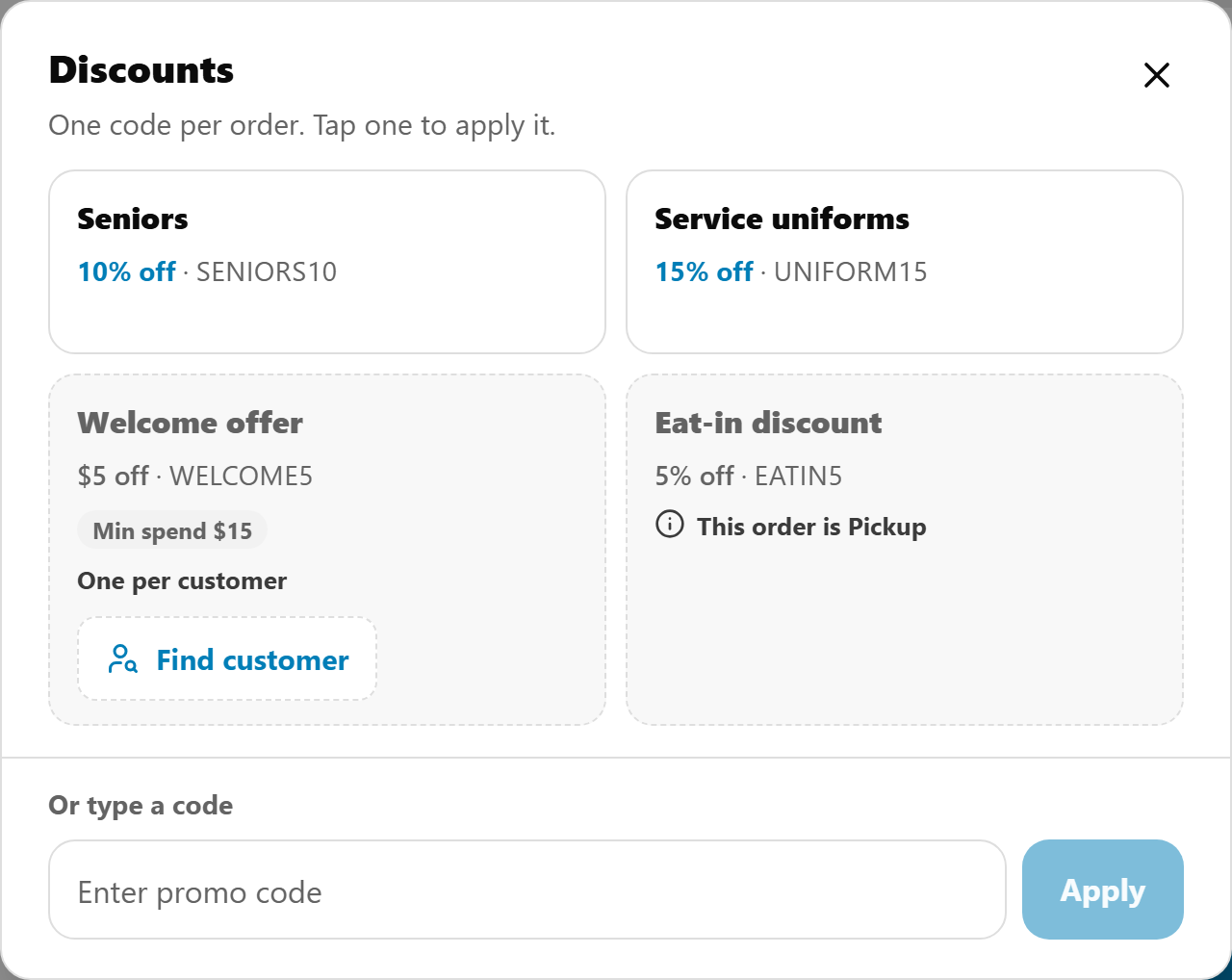
- Tap the code. Each one shows its name, what it's worth and the code, for example "Seniors" and "10% off · SENIORS10", with its rules underneath, such as Food only (a code for some items), Pickup only, Min spend $10 or Ends 31 Oct.
Done looks like "SENIORS10 applied" with "Seniors · 10% off" under it, and the discount in the total.
One code per order. To use a different one, select Change and tap it.
A free coffee, or a percentage off one item
A code that takes a percentage off one item says what it's worth and which items, for example "Free Coffee (up to $6)" or "50% off one Food item". It comes off one item only, the dearest one from its group in the order, up to its limit. With two coffees in the order, one is free. Add the coffee to the order first: with none, the code says "Add a Coffee item to use this code".
Which codes are listed
Every active code that works at the POS, whether or not it's on your menu for customers. Make a code for the counter only by unticking Online under Works on: see Create a promotion code.
The codes your staff can use straight away come first. If you have none for the POS, checkout shows the usual Enter voucher or promo code field instead.
Greyed codes
- One use per customer, or a first order only. The code needs to know who the customer is. It says "One per customer" or "For the customer's first order", with a Find customer button. Find them by their mobile or email and add them to the order, then tap the code. Someone who isn't your customer yet can still use a first-order code: select New customer in Find customer, make their account with their permission, then tap the code. See Find a customer and add them to a POS order.
- Another order type or menu. A code for dine-in only on a pickup order says "This order is Pickup", and can't be used.
"Replaces the customer's free item"
A customer you've added may have a free item on the order from their loyalty points. A code with Earn Loyalty Rewards set to No stops rewards for that order, so their free item goes back to full price. That code is marked "Replaces the customer's free item".
You can still use it: ask the customer which they'd rather have. Their points aren't spent, so the reward waits for their next order.
Type a code
For a code that isn't listed, type it under Or type a code at the bottom of Discounts and select Apply.
Take a code off
Select ✕ next to the applied code.
When a code isn't applied
The code shows "not applied" with the reason, with Change and Remove. For example:
| Message | What it means |
|---|---|
| "Not available at the counter" | The code isn't ticked for the POS. |
| "Code is invalid or expired" | It's mistyped, inactive, or past its expiry date. |
| "Code already used" | This customer has used their one. |
| "Applies to your first order only" | The customer has ordered from you before. The order that joined your VIP club doesn't count. |
| "Pickup orders only" | The code is for another order type. |
| "Only for Food items" | The code covers some items only (a promo group), and none of them is on the order. |
| "Spend $10.00 or more on Food items to use this code" | The code's minimum spend counts only the items it covers. See Limit a promotion code to some items with a promo group. |
| "Add a Coffee item to use this code" | A free-item code (a percentage off one item) has nothing from its group on the order, or the customer's loyalty reward has already made it free. Add one. |
| "Add another item to use this code" | A "lowest value item free" code gives one item free with another, so the order needs two. |
| "Promo codes aren't turned on for this store" | Promo codes are switched off for your store, so no code works. Contact mypreorder support to turn them on. |