Open orders line up across the screen, the one due soonest on the left. Each order moves through a set of stages until you bump it off the screen. This article covers the whole path.
The stages
| Stage | What it means |
|---|---|
| New | Just arrived. Not yet accepted |
| Accepted | You have acknowledged it, but not started |
| Preparing | Being made |
| Ready | Finished and waiting to go out |
| Completed | Handed over. Leaves the screen |
Two other outcomes exist: Rejected, for a new order you turn down, and Void, for one cancelled after it was accepted. Both ask for a reason. If you are signed in as staff, a manager must also enter their PIN.
Accept a new order
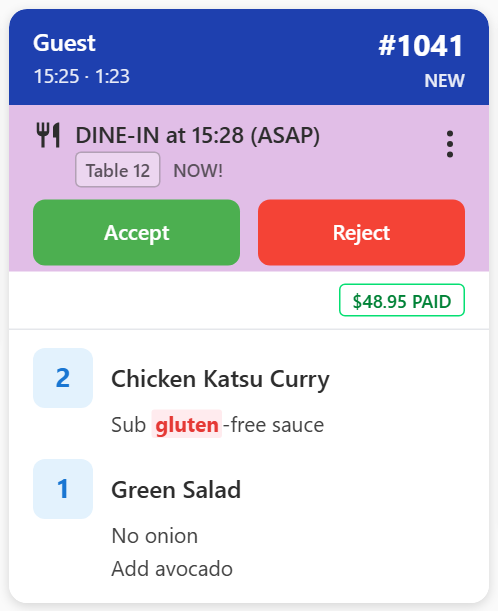
A new order shows a green Accept button and a red Reject button in the coloured band under the header. Tap Accept to take it on. Tapping the header does nothing until the order is accepted.
Some orders skip New and arrive as Accepted, with no Accept and Reject buttons. POS orders sent through the Virtual Printer do this unless a manager switches off Auto-accept orders in Settings → Virtual. An online ordering system can also send its orders already accepted.
Move an order forward
Tap the coloured header at the top of the card. Each tap moves the order on one stage — Accepted to Preparing, Preparing to Ready, Ready to Completed. This is called bumping.
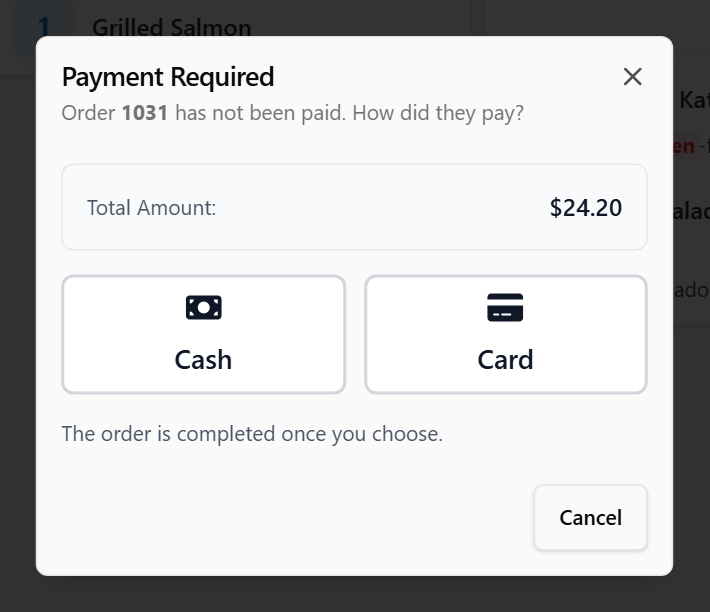
If the order has not been paid in full, the last bump opens Payment Required, which asks How did they pay? Tap Cash or Card, and the order is marked paid and completed. Cancel leaves it on the screen. An order with nothing to pay skips this.
Change how many taps it takes
Three taps from Accepted to Completed is the default, Full Workflow, but it is a setting. If your kitchen bumps a lot of orders quickly, One-Tap Bump completes an order in a single tap with a five-second undo. See Change how many taps it takes to clear an order.
More actions
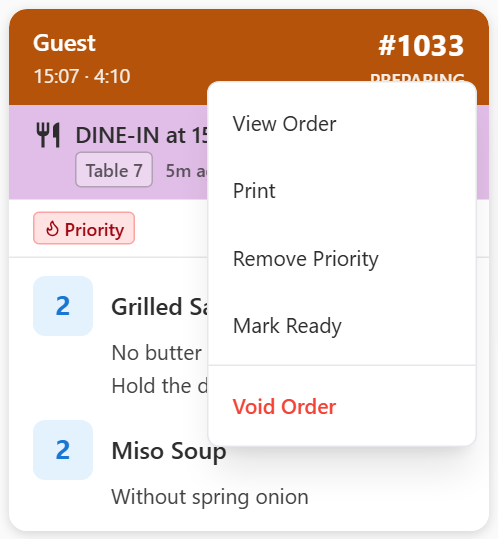
Tap the ⋮ button at the right of the coloured band under the header. The list changes with the stage the order is in:
- View Order — the whole order: customer, items, prices, payment, notes and status history
- Print — send it to a printer. Shown once a printer is set up. See Print dockets from the display
- Send to POS — for an online order that has not reached the POS yet
- Mark as Paid — for an unpaid order. Asks whether they paid by Cash or Card
- Set Priority — adds a red Priority tag so the order stands out. It does not move the card. Remove Priority takes it off
- Accept and Reject — on a new order
- Start Preparing, Mark Ready and Complete — move the order on one stage
- Return to Kitchen — take a Ready order back to Preparing
- Refund — for a paid online order
- Void Order — cancel an order that has been accepted
If you are signed in as staff, Reject, Refund and Void Order ask a manager to enter their PIN. See Void an order, or refund it.
Done
The order disappears from the board once it reaches Completed. It is not gone — see Bring back an order you have already cleared.