The kitchen display can pretend to be a network receipt printer. Your POS adds it the same way it would add a kitchen printer, and dockets appear on the screen instead of on paper. There is nothing to integrate and no menu to sync.
Before you start
- The display and the POS must be on the same network.
- Virtual Printer needs the installed app on an Android tablet or a Windows PC. It does not work in a web browser, which is why the setting shows Requires the KDS app there.
- It does not work on an iPad or iPhone either. The switch is there, but turning it on shows an error and the switch turns itself off again.
- You will need a manager PIN, because Virtual Printer is a manager-level setting.
Step 1: Switch on the Virtual Printer
- Tap SETTINGS in the sidebar.
- Open the Virtual tab.
- Turn on Enable Virtual Printer.
The screen confirms Virtual printer started on port 9100. The status box at the bottom of the tab
reads Running, with a green dot, and shows the address to use: Add as printer in your POS:
followed by the display's IP address, such as 192.168.1.50.
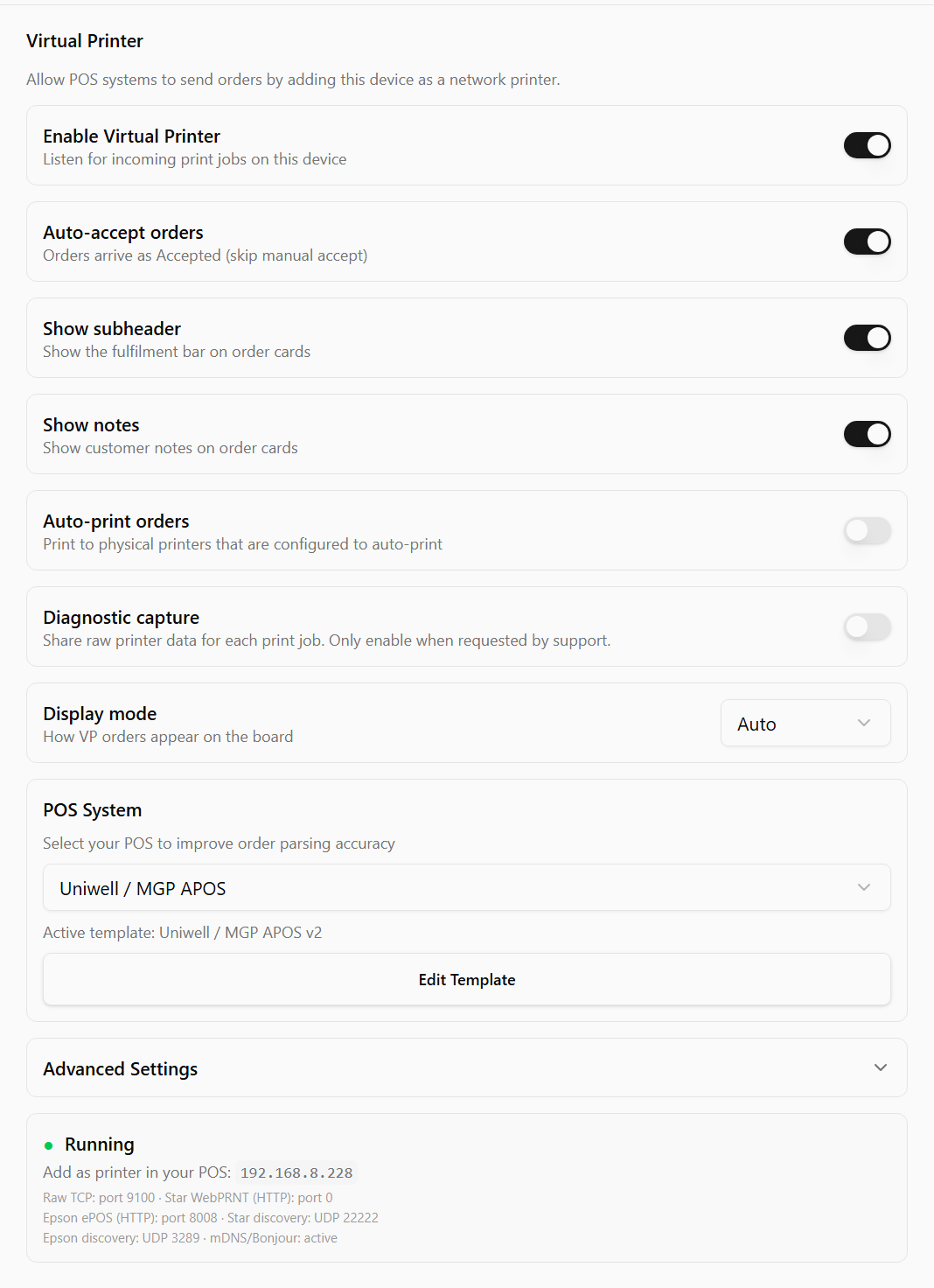
If you cannot see the Virtual tab, you are signed in as staff. Tap Unlock at the top of Settings and have a manager enter their PIN. See Unlock settings that need a manager PIN.
Step 2: Add it in your POS as a printer
Add a new printer in your POS with these details:
| Setting | Value |
|---|---|
| Type | Network / Ethernet / Wi-Fi printer |
| IP address | The address shown in the status box |
| Port | 9100 — the port after Raw TCP: in the status box |
Then route the kitchen categories to it, exactly as you would for a physical printer.
Detailed steps for particular POS systems:
Step 3: Send a test order
Ring up a test order and send it to the kitchen. It should appear on the display.
It arrives already accepted, because Auto-accept orders is on by default in the Virtual tab. Turn it off if you want to accept each order by hand.
To print each POS docket on paper as well, turn on Auto-print orders in the same tab. See Print dockets from the display.
If nothing arrives, see Orders are not arriving on the display.
Step 4: Tell the display which POS you use
This step is optional but strongly recommended.
In Settings → Virtual → POS System, pick your POS from the list. The display can read many dockets without it, but with your POS selected it reads order numbers, table numbers, items and modifiers far more accurately. Under the list it then shows Active template: and the name of your POS. Leave it on Auto-detect (no template) if your POS is not listed.
Systems marked (image only) send their dockets as pictures rather than text. Those still display correctly, but individual items cannot be pulled out of them.
Give the display a fixed address
The POS finds the display by its IP address, so that address must not change. Give the tablet or PC a static address, or a DHCP reservation on the router — the same discipline as a network printer. If it changes, the POS quietly stops being able to reach it.
Keep the app running
The display receives POS dockets only while its app is open.
- In the background is fine. Pressing Home or switching to another app does not stop the Virtual Printer. Dockets keep arriving and are on the board when you come back. While it listens, Android shows a Virtual Printer Active notification.
- Closed is not. Swiping the app away from the recent apps list, force-stopping it, or restarting the tablet stops the Virtual Printer. The POS cannot reach the display, and dockets sent in that time are not kept — they never appear. Set your POS's printer fallback, if it has one, so they print somewhere else. On Uniwell MGP that is Route rules if NA — see Connect a Uniwell MGP POS.
- On a Windows PC, minimising the app is fine; closing its window quits it.
Online orders are different: they wait for the display and appear when the app opens again, without the new-order sound.
To have the app open by itself after the tablet restarts, see Virtual Printer is not running.
Done
Orders appear on the screen as quickly as they would have printed. The Virtual Printer starts by itself whenever the app opens, so there is nothing to switch on again.
While it is running, there is no VP button in the sidebar. If a VP button with a red dot appears, or a red banner reads Virtual Printer is not running — POS orders won't be received, see Virtual Printer is not running.