The POS reports a successful print, but nothing reaches the screen. Work through these in order.
Several checks use Settings → Virtual. Signed in as staff, that tab is hidden until a manager unlocks it — see Unlock settings that need a manager PIN.
1. Is the Virtual Printer running?
Open Settings → Virtual. The status box should read Running.
If it reads Stopped, or Enable Virtual Printer is off, see Virtual Printer is not running.
The screen also warns you when it has stopped: a red banner reading Virtual Printer is not running — POS orders won't be received, and a VP button in the sidebar with a red dot. While the Virtual Printer is running there is no VP button at all.
From version 1.3.0 the Virtual Printer keeps listening at the sign-in screen. On an older version it stops until someone signs in. The version is under HELP → Build Information.
Whatever the version, it stops when the app is closed — swiped away from the recent apps list, or the tablet restarted. Dockets sent while it was closed are not kept, so they never appear. See Keep the app running in Connect your POS to the kitchen display.
In a web browser there is no Virtual Printer, and no banner to warn you. The Virtual tab shows Requires the KDS app.
2. Did the docket reach the screen?
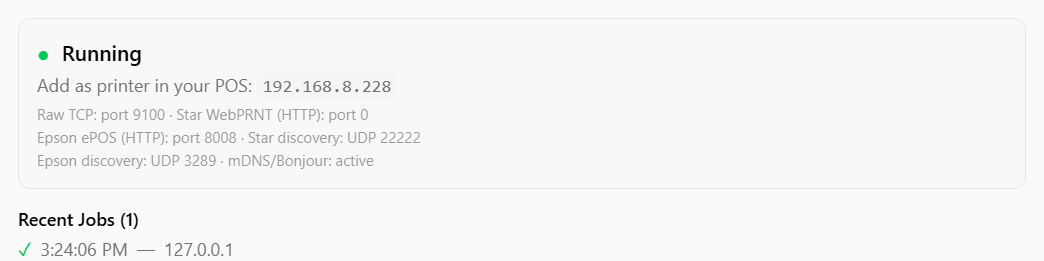
Under the status box, Recent Jobs lists each docket the screen has received, with the time and the address of the POS that sent it. The list starts empty each time the app opens, and does not appear until the first docket arrives.
- No Recent Jobs, or your test order is not in it: the POS is not reaching the screen. Carry on with the checks below.
- It is listed with a ✗: the docket arrived but could not be used, and the reason is shown beside it. Send us the diagnostics — see the end of this article.
3. Has the display's IP address changed?
This is the most common cause by a distance, and it usually happens after a power cut or a router restart.
The status box shows the screen's address after Add as printer in your POS:. Compare it with the address set in the POS. If they differ, the POS is sending orders to an address nothing is listening on.
Fix it properly rather than just updating the POS: give the device a static IP address or a DHCP reservation on the router, so it cannot drift again.
4. Are both devices on the same network?
The POS and the display must be on the same network. Check that the tablet has not joined a guest network, or dropped to mobile data.
5. Is anything routed to that printer?
A printer that exists but has no categories assigned receives nothing. In the POS, confirm that the kitchen categories are routed to the printer you created for the screen.
On Uniwell MGP, check that departments and PLUs are assigned to the right KP number — see Connect a Uniwell MGP POS.
6. Is every item on the order routed elsewhere?
If a sale contains only drinks and the screen is set up for food, nothing arrives — correctly. Try a test order containing an item you know is routed to this screen.
7. Are you reprinting the same order?
When the screen can read the order number, it ignores a second copy of the same order from the same POS within 30 seconds. This stops a customer copy sent to the same printer showing as a second order.
To test, ring up a new sale rather than reprinting the last one.
8. Is a message covering the whole screen?
A message such as Trial ended or Connect to the internet to continue means the screen's licence needs attention. Follow what the message says, and see A licence message covers the screen.
Dockets that reach the screen while the message shows are kept, and appear once the screen works again. They do not sound or print in the meantime.
9. Online orders after an internet outage
Online orders placed while the display had no internet appear, with a chime, as soon as it is back online, and all of them are there when the app comes back from the background. An order cancelled meanwhile leaves the board. The display also checks for missed orders every five minutes, so one that is still missing a few minutes after the internet is back points to the connection: see Check this screen's licence, sync and app version for Last sync.
Still nothing
Send us the diagnostics — see Send diagnostics to support.