Each POS and each kiosk signs in with its own device login. An admin adds it in the merchant portal, under Users.
Before you start
- An admin login. Only admins see the New button, Device PIN and Clear lockout.
- One device login per counter or tablet. Tablets that share a login share one till, and each device login has one EFTPOS pinpad.
- An email address for the device that no other POS or kiosk login uses. The device signs in with it.
Add the device
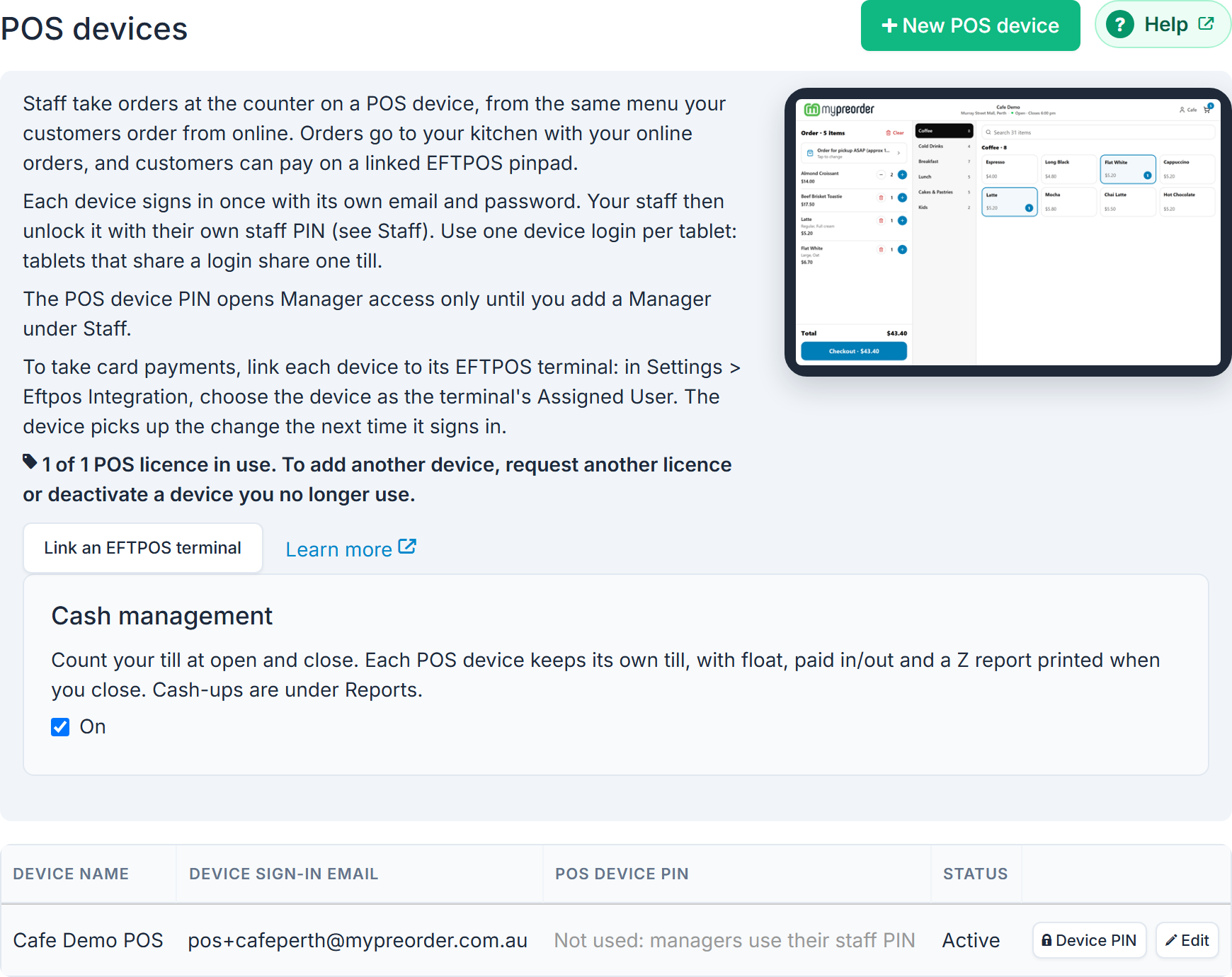
- Go to Users → POS devices (or Kiosk devices).
- Select New POS device (or New kiosk device).
- Name: name it after the counter or spot, such as "Front counter". The name shows on the POS's staff sign-in and lock screens, in the Assigned User list when you link its pinpad, and on its cash-ups.
- Email: the device's sign-in email.
- Password and Password Again: at least 6 characters. Generate makes one and shows it once. Keep it in your password manager, not on the device.
- Select Save changes.
Done looks like "User saved!" and the new device in the list, with its Device name, Device sign-in email, POS device PIN (or Kiosk device PIN) and Status.
Set its Device PIN
The Device PIN opens Manager access on that device: refunds, pairing the pinpad again and signing the device out. It works on that device only. A Kitchen Display PIN doesn't work there.
- On the device's row, select Device PIN.
- Type 6 digits in New PIN and again in New PIN again. Avoid repeated digits, runs like 123456 and repeating patterns.
- Select Set PIN.
Setting a PIN also clears a lockout and ends any manager session open on the device.
Once you add a Manager under Users → Staff, managers open Manager access with their own staff PIN, and the device's PIN column reads "Not used: managers use their staff PIN". See Give staff their own PIN for the POS and Kiosk.
Next: its pinpad, then sign it in
- Link the device to its EFTPOS pinpad. Link an EFTPOS terminal on the section opens Settings → Eftpos Integration. See Connect a Linkly EFTPOS pinpad to a POS or Kiosk or Set up a Tyro terminal for a POS or Kiosk.
- Sign the device in with its email and password. See Sign in a POS or Kiosk and pair the EFTPOS terminal.
Change or deactivate a device
Select Edit on the device's row to change its name, email or password. Leave the password fields blank to keep the current one.
To stop a device being used, set Status to Inactive and select Save changes. It is signed out straight away, and signing in shows "This login has been deactivated. The store can reactivate it in the merchant portal, under Users." Set Status back to Active to use it again.
Locked out by wrong PINs
After too many wrong PINs, the device's Status shows "Locked by wrong PINs: 5 min" (the time left). Select Clear lockout to end it now.
If something is not right
| What you see | What to do |
|---|---|
| The section has no New button and no device list | The POS (or kiosk) isn't switched on for your store. Select Register your interest if it's offered, or contact us. |
| No POS devices under Users at all | The mypreorder POS isn't offered with your store's point-of-sale set-up. Contact us if you think it should be. |
| The devices are listed, but there's no New button or Device PIN | Your login isn't an admin. Ask an admin. |
| "That email address is already used by another POS or kiosk login. Please use a different one." | Choose an email address that no other device uses, at any store. |
| "2 of 2 POS licences in use", and New opens a message to us | Every licence is in use. Send the message to request another, or deactivate a device you no longer use. |