Sign a walk-up customer up for your VIP club, or sell them account credit, at the POS. Customers can do the same for themselves at a kiosk. The membership or credit goes on the customer's own account, found or made from their email.
Before you start
You need a product that signs people up. In Menu Builder → Menu, edit the product and select Show advanced settings:
- Add VIP Tag: Yes makes buying it a VIP club membership.
- Add Credit: the amount of store credit buying it adds to the customer's account.
See Add a product to your menu.
Sign a customer up at the POS
- Add the signup product to the order, with anything else they're buying.
- Select Checkout · $X.
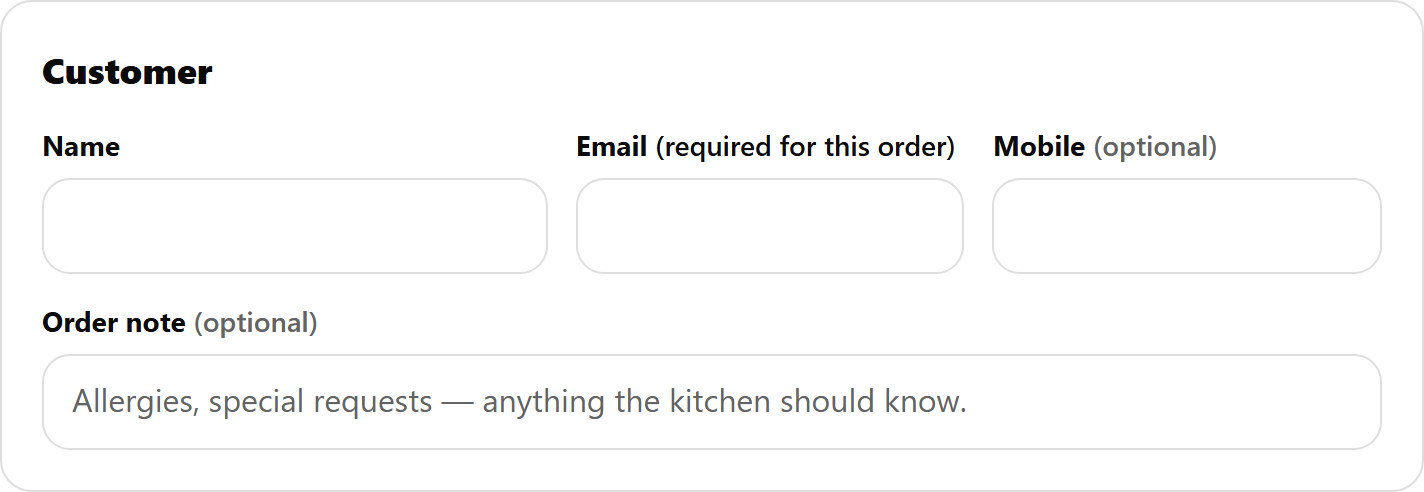
- Under Customer, enter their Name and Email. The email reads (required for this order).
- Take payment. For credit, use EFTPOS or Cash: credit can't go through as Other. A VIP membership with no credit can be paid any way the POS offers.
See Take payment on the POS: EFTPOS, cash or other.
A signup product can't be made complimentary.
Or make them a customer first
Before you take the order, select Find customer, then New customer, and make their account with their permission. The order is theirs from the start: it earns their points, promo codes for a first order work for them, and checkout already has their name and email. Then add the signup product and take payment as above. See Find a customer and add them to a POS order.
At a kiosk
The customer adds the signup product and enters their own email at checkout, where it reads (required for this order). Credit must be paid by card on the kiosk's terminal, not At the counter.
What the customer gets
- A member, who already signs in with that email: the membership or credit goes on their account. No email is sent.
- Anyone else: mypreorder sets up an account for the email (or uses the one from an earlier guest order), puts the membership or credit on it, and emails "Welcome to the [store] VIP club: set your password" (or "Welcome to [store]: set your password" for credit only). Set your password in the email works for 7 days. After that, they use Forgot password with the same email.
Either way the order is filed under their account. The name and mobile typed at the counter stay on this order and never change an existing account.
Points for joining. If your loyalty reward gives Points awarded on joining VIP, a new VIP gets them with this order, once. When the customer is on the order (added with Find customer or New customer), they can spend them straight away: the free item comes off at checkout, even for a guest, whose chip says "joining reward in this order; other points once a member". With only their email typed at checkout, the points arrive with the order, for their next visit. See Set up a loyalty reward.
Once they've set a password, they sign in on your website or app with that email to see their credit and VIP prices. You can check it in the merchant portal: see Look up a customer and manage their account.
Next time they're at the counter, find them with Find customer so the order gets their VIP prices and earns their points, whether or not they've set a password yet. See Find a customer and add them to a POS order.
If something is not right
| What you see | What to do |
|---|---|
| "Enter the customer's email to join: we'll set up their account and email them a link to set their password" | Enter the customer's email. It's required for a signup. |
| "Enter your email to join: we'll set up your account and email you a link to set your password" | The kiosk's version: the customer enters their email. |
| "Take cash or EFTPOS for credit: it can't go through as Other." | Choose Cash or EFTPOS. |
| "Pay by card for credit: it can't be paid at the counter." | On a kiosk, credit must be paid by card. |
| The customer didn't get the email | Check the spelling of the email on the order, and their junk folder. They can use Forgot password on your website. |