Manager mode lets a manager refund kiosk orders, reprint a card receipt, close the store, pair the pinpad again and sign the kiosk out, at the kiosk itself. Nothing on the kiosk screen shows customers the way in, on purpose: tell your managers, not your customers.
Which PIN opens it
- The kiosk device PIN, 6 digits. An admin sets it in the merchant portal: Users → Kiosk devices → Device PIN on the kiosk's row, then New PIN, New PIN again and Set PIN. It works on that kiosk only. Until one is set, nobody can open manager mode on the kiosk.
- A manager's own staff PIN, once your store has a Manager under Users → Staff. From then on the kiosk device PIN no longer works, and the kiosk's row says "Not used: managers use their staff PIN". A 4-digit Staff PIN never opens it. See Give staff their own PIN for the POS and Kiosk.
Open manager mode
- Tap the strip at the very bottom of the kiosk screen, with the small mypreorder logo, five times within three seconds.
- Manager access opens. Enter the PIN on its keypad and select Enter.
To back out, select Cancel — back to ordering. The PIN keypad also closes by itself after a minute untouched.
What's in it
The bar at the top shows Manager mode, the kiosk's name (or the manager's, with a staff PIN) and "exits automatically after 3 minutes of inactivity". You see only the groups that apply to your kiosk.
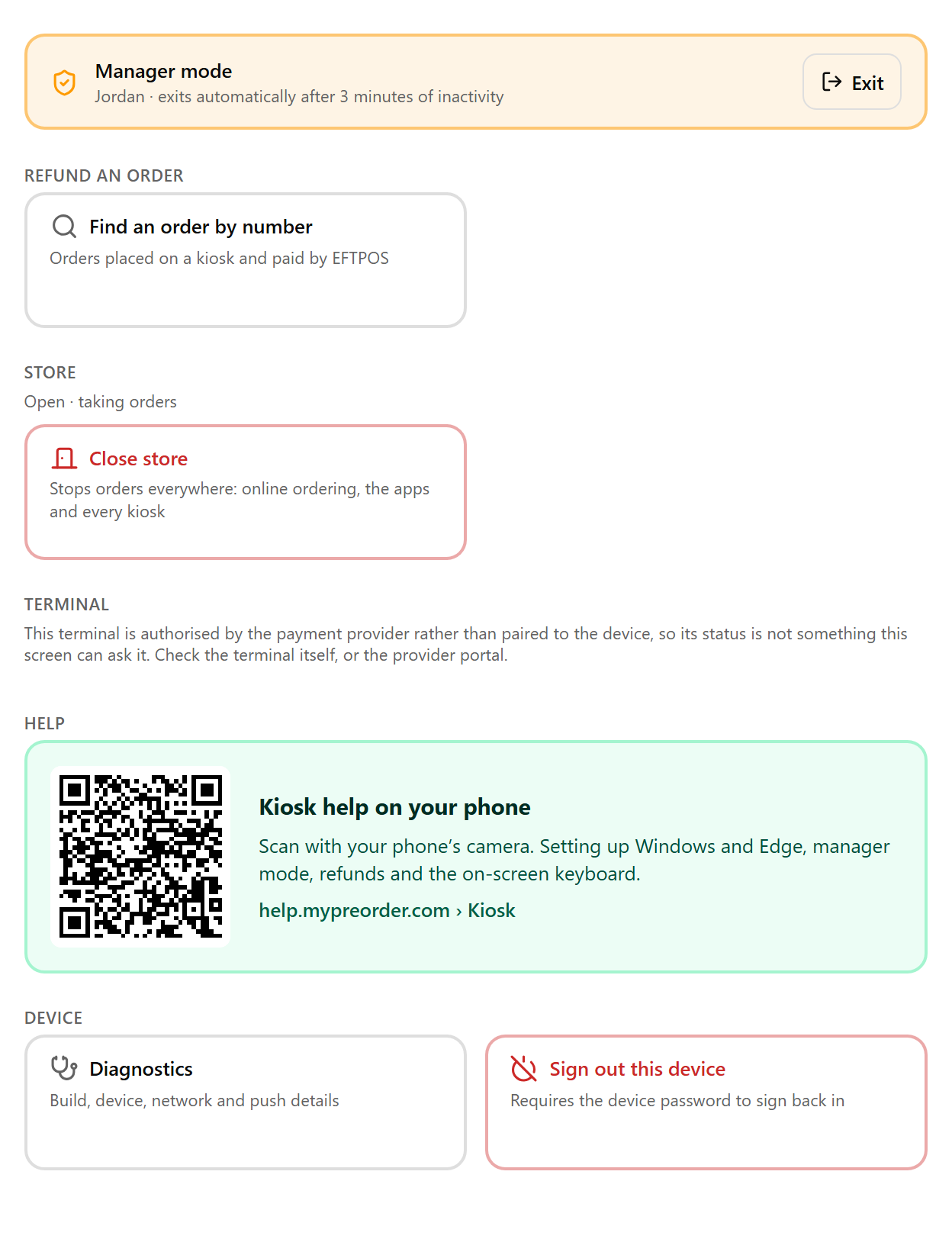
- Needs attention appears only when there's something to fix, on a Tyro terminal: a card was charged but no order was made, such as "$12.50 charged, no order". Tap it to refund the card at the terminal while the customer is there.
- Last order on this device is the order this kiosk took most recently:
- Reprint card receipt prints the customer's EFTPOS receipt on a Linkly pinpad.
- Reprint docket sends the order's docket to your printers again, when your store has a docket printer.
- Refund this order: see Refund a card payment at the kiosk.
- Refund an order → Find an order by number refunds any kiosk order paid by EFTPOS.
- Store: Close store stops orders everywhere: online ordering, the apps and every kiosk. Tap it, then Tap again to close the store. Open store starts them again the same way. On a day with no trading hours it warns "No trading hours today: only dine-in will work."
- Terminal:
- Check terminal asks a Linkly pinpad whether it is responding.
- Pair terminal again, after swapping a Linkly pinpad. See Pair a Linkly pinpad again.
- A Tyro terminal has neither: check the terminal itself, or Tyro's portal.
- Help: a QR code for these kiosk articles. Scan it with your phone's camera to read them on the phone. The kiosk itself never opens another website: a kiosk in Windows kiosk mode would have no way back.
- Device:
- Diagnostics shows the kiosk's app version, network and Screen details. If the kiosk looks too big or too small, send us a photo of the Screen section. Opening it leaves manager mode: to come back, tap the strip five times and enter the PIN again. Left alone, the kiosk goes back to its menu by itself.
- Sign out this device: tap it, then Tap again to sign out. The kiosk can't take orders until someone signs it in again with its device sign-in email and password, so only do this when you have them. See Sign in a POS or Kiosk and pair the EFTPOS terminal.
Leave manager mode
Select Exit. Manager mode also closes by itself after 3 minutes without a tap, except while a refund is running on the terminal. Either way, the kiosk clears any order left on it and goes back to the menu, ready for the next customer.
If something is not right
| What you see | What to do |
|---|---|
| "Incorrect PIN." | Check which PIN the kiosk takes (above). If your store has a Manager under Staff, use your own staff PIN, not the device PIN. An admin can see whether a device PIN is set in the Kiosk device PIN column under Users → Kiosk devices. |
| "Too many incorrect PINs." and "Try again in" with a countdown | Five wrong PINs in a row lock the keypad for 1 minute, then 5, then 15. Ordering and payment carry on. Wait, or an admin selects Clear lockout on the kiosk's row under Users → Kiosk devices. |
| Five taps do nothing | Tap quicker, on the strip at the very bottom. The kiosk must be signed in. Before its Linkly pinpad is paired, the pairing screen opens instead. |
| No Last order on this device | The kiosk hasn't taken an order since it was last restarted or signed in. Use Find an order by number. |
| No refund tiles, and Terminal says "No card terminal is configured for this device. Orders are taken without EFTPOS." | The kiosk has no EFTPOS terminal assigned. See Connect a Linkly EFTPOS pinpad to a POS or Kiosk. |