Sign the POS or kiosk in once with its device login. The first time, it pairs its Linkly pinpad. After that it stays signed in and goes straight to the menu.
Before you start
- The device's sign-in email and password, from Users → POS devices or Kiosk devices. See Add a POS or Kiosk device.
- Its pinpad added first, under Settings → Eftpos Integration. The device picks it up when it signs in.
- For a Linkly pinpad: your Linkly Username and Linkly Password, and the pinpad switched on, online and showing its Pair Code.
The address
- POS:
https://pos.mypreorder.com, the same for every brand. The device login decides which store it runs as. - Kiosk:
https://kiosk.mypreorder.com, or your brand's own kiosk address, such ashttps://yourbrand-kiosk.mypreorder.com. We tell you which. An older kiosk may still be on an address ending in.app: its screen is titled Kiosk Sign In, and the steps are the same.
Sign in
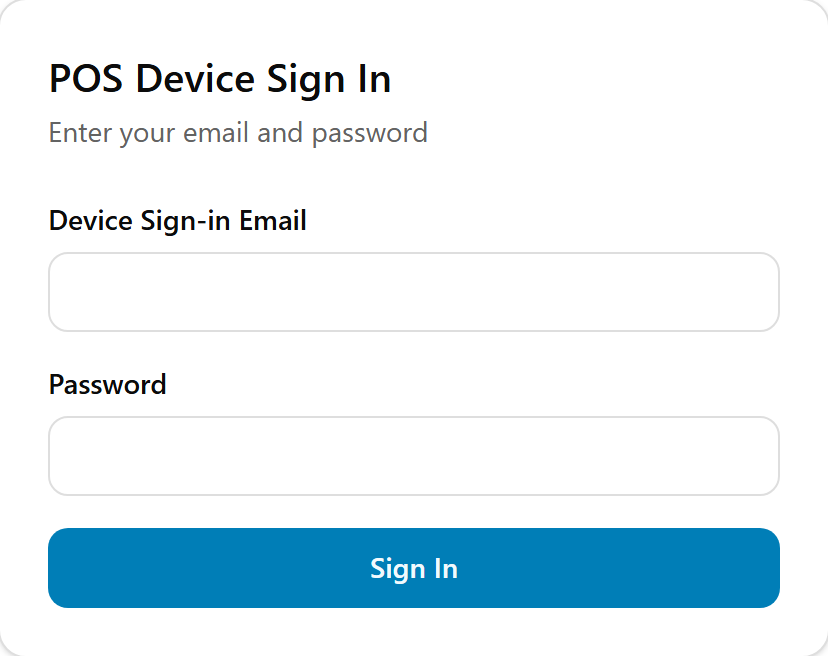
- Open the address. The screen is titled POS Device Sign In (or Kiosk Device Sign In).
- Enter the device's email in Device Sign-in Email, and its Password.
- Select Sign In.
A POS takes POS device logins only, and a kiosk takes kiosk device logins only. Backoffice logins for the merchant portal don't work on either.
Pair the Linkly pinpad (first time only)
The first time a device with a Linkly pinpad signs in, Pair EFTPOS pinpad opens, showing its POS ID.
- Enter your Linkly Username and Linkly Password.
- Enter the Pair Code shown on the pinpad.
- Select Pair Pinpad. It shows "Pairing pinpad…" while it works.
The pairing is kept with the device login, so later sign-ins don't ask for it. Never write your Linkly password down on or near the device.
A Tyro terminal needs no pairing on the device. It goes straight on. See Set up a Tyro terminal for a POS or Kiosk.
Done
The store's menu shows: the kiosk is ready for customers, and the POS for its first order.
If your store has staff under Users → Staff, the POS opens on its staff sign-in screen instead: "Enter your staff PIN to start." See Sign in to the POS with your staff PIN, switch and lock.
A sign-in lasts about four weeks from the last time the device was used, so a device used every day stays signed in. If it keeps asking, see The POS or Kiosk asks to sign in again.
If something is not right
| What you see | What to do |
|---|---|
| "Invalid email or password" | Check the email against Device sign-in email in Users. An admin can set a new password with Edit on the device's row. |
| "This is the POS device sign-in. Use a POS device sign-in from the merchant portal (Users › POS devices)." or "Invalid pos user" | That's a kiosk device login or a customer account. Use the POS device's login. |
| "This is the kiosk device sign-in. Use a kiosk device sign-in from the merchant portal (Users › Kiosk devices)." or "Invalid kiosk user" | That's a POS device login or a customer account. Use the kiosk device's login. |
| "This login has been deactivated. The store can reactivate it in the merchant portal, under Users." | An admin sets the device's Status back to Active under Edit. |
| "Maximum login attempts reached. Try again later." | Too many wrong passwords. Wait a while, then try again. |
| "Pairing failed." and Linkly's reason | Check the pair code hasn't expired on the pinpad. Get a new one and try again. |
| It never asks to pair, or there's no EFTPOS at checkout | The pinpad isn't added or isn't Active in Eftpos Integration, or was added after the device signed in. Fix it, then sign the device out (manager mode, Sign out this device) and in again. |
| Signed in to the wrong device login, stuck on the pairing screen | Select Sign this device out and sign in with the right one. |