Choose what the POS and the kiosk offer: which order types, how they are timed, and how customers pay. It is one screen in the merchant portal, with a column for each way of ordering.
Open Order Types & Payments
- Open Menu Builder.
- Select Order Types & Payments in the left-hand list.
The grid has one column for each way of ordering:
- Customer app: the app and online ordering. Always shown.
- Kiosk: shown when your store has kiosk ordering.
- POS: shown when your store has the POS.
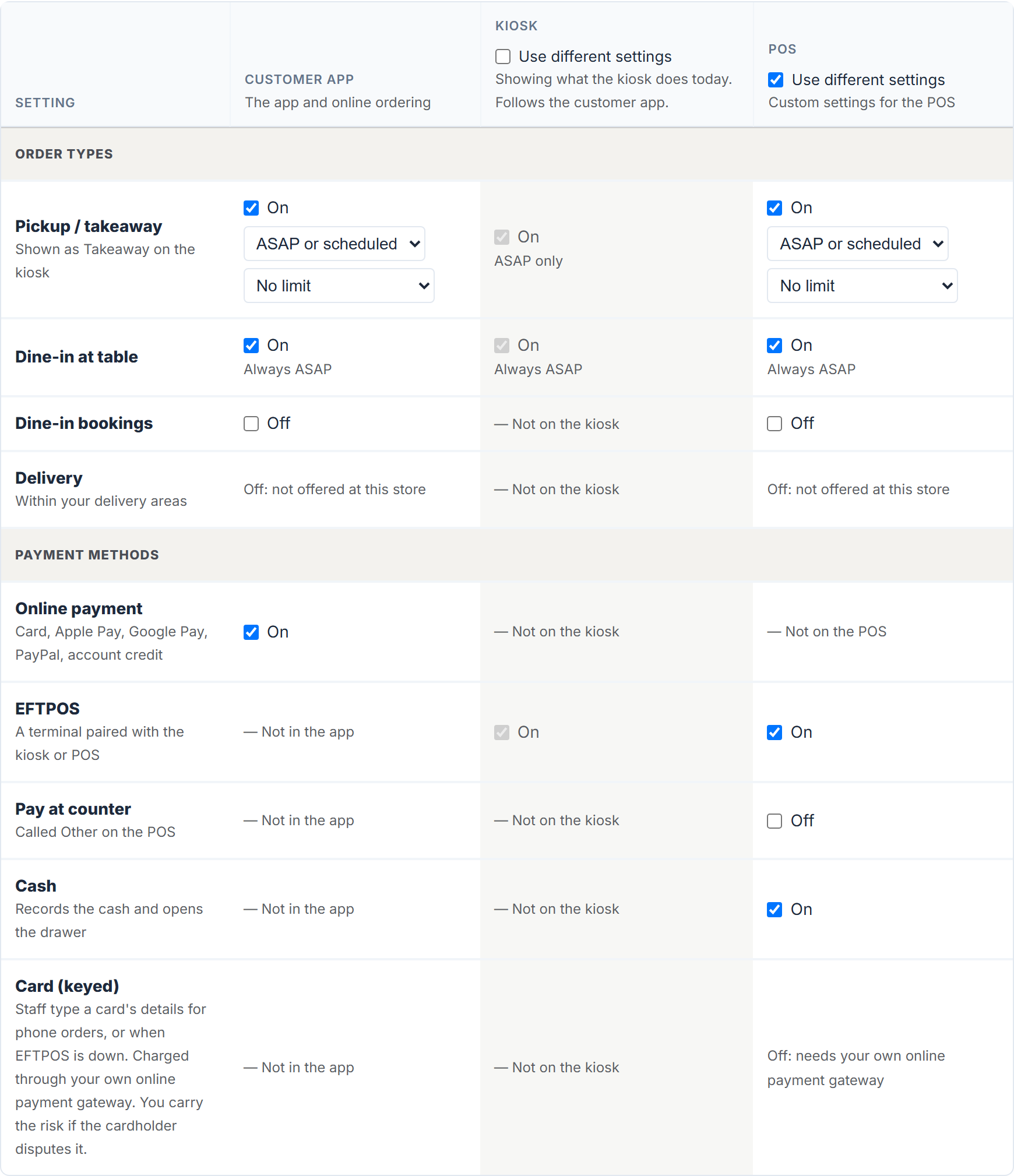
The settings are saved with your menu. A catering menu doesn't use them.
The kiosk and POS follow the customer app at first
Until you change it, the Kiosk and POS columns say "Showing what the kiosk does today. Follows the customer app." (or the POS). Their boxes can't be ticked, and they change as you change the Customer app column, so they always show what saving will do.
To give the kiosk or the POS its own settings:
- Tick Use different settings at the top of its column. It now says "Custom settings for the kiosk" (or the POS), and starts from what the column showed, so nothing changes until you change a box.
- Tick or untick the order types and payment methods for that column.
- Select Save Changes at the bottom of the tab.
Done looks like "Order types and payments saved". To make a column follow the customer app again, untick Use different settings and save.
On the kiosk column, the switch also warns "Older kiosks (version 3) will also stop offering delivery and later times."
Order types
| Row | Kiosk | POS |
|---|---|---|
| Pickup / takeaway | Yes, shown as Takeaway on the kiosk | Yes |
| Dine-in at table | Yes | Yes |
| Dine-in bookings | No: — Not on the kiosk | Yes |
| Delivery | No: — Not on the kiosk | Yes |
Off: not offered at this store means that order type isn't switched on for your store. Contact us if you need it.
If the grid says "Order types at this store are set up by mypreorder (custom fulfilment options), so they are not listed here.", only the payment rows apply to you.
Payment methods
-
Online payment: the customer app only. The other columns show — Not on the kiosk and — Not on the POS.
-
EFTPOS: "A terminal paired with the kiosk or POS". Each device needs its pinpad linked: see Connect a Linkly EFTPOS pinpad to a POS or Kiosk. Off: not offered at this store means EFTPOS isn't set up for your store yet.
-
Pay at counter: "Called Other on the POS". On the kiosk the customer chooses At Counter, places the order and pays at the counter. On the POS, Other records a sale paid some other way.
-
Cash: "Records the cash and opens the drawer". The POS only, at checkout and in Orders → Take payment. For the drawer, see Connect a cash drawer to the POS.
-
Card (keyed): "Staff type a card's details for phone orders, or when EFTPOS is down. Charged through your own online payment gateway. You carry the risk if the cardholder disputes it." The POS only, and only with Use different settings ticked. It needs your own online payment gateway: a greyed cell says why it's off. See Take a card over the phone (keyed card).
If Cash says — Not with your POS integration, your store is linked to a third-party point-of-sale system under Settings → POS Integration (Kounta or Square, for example). The POS can't take cash at those stores.
Each column you set needs at least one order type and one payment method. Otherwise saving stops with a message such as "Kiosk: choose at least one payment method."
How staff then take payment is in Take payment on the POS: EFTPOS, cash or other.
Timing
- The kiosk is always ASAP. Its cells say ASAP only.
- On the POS, Pickup / takeaway and Delivery each have a timing choice: ASAP only, ASAP or scheduled or Scheduled only. With scheduled times, choose how far ahead: Today only, Up to 1 day ahead to Up to 30 days ahead, or No limit.
- Dine-in at a table is always ASAP, and bookings are always scheduled.
- Menus with pickup locations, delivery slots or delivery stops keep their own schedules.
Surcharges
The Surcharges section is on the same tab, below the grid, and saves with it. Australian stores see that card surcharges ended on 1 October 2026. See Card and payment surcharges in Australia and New Zealand.
If something is not right
| What you see | What to do |
|---|---|
| No Kiosk or POS column | Kiosk ordering or the POS isn't switched on for your store. See Add a POS or Kiosk device. |
| A column's boxes can't be ticked | It follows the customer app. Tick Use different settings first. |
| "POS: choose at least one order type." | Tick an order type in that column, or untick Use different settings. |
| EFTPOS is missing when staff take payment | Check the device's pinpad is linked, then sign the device in again. See Sign in a POS or Kiosk and pair the EFTPOS terminal. |
| The drawer doesn't open for a cash sale | See The cash drawer doesn't open, or the till won't print. |