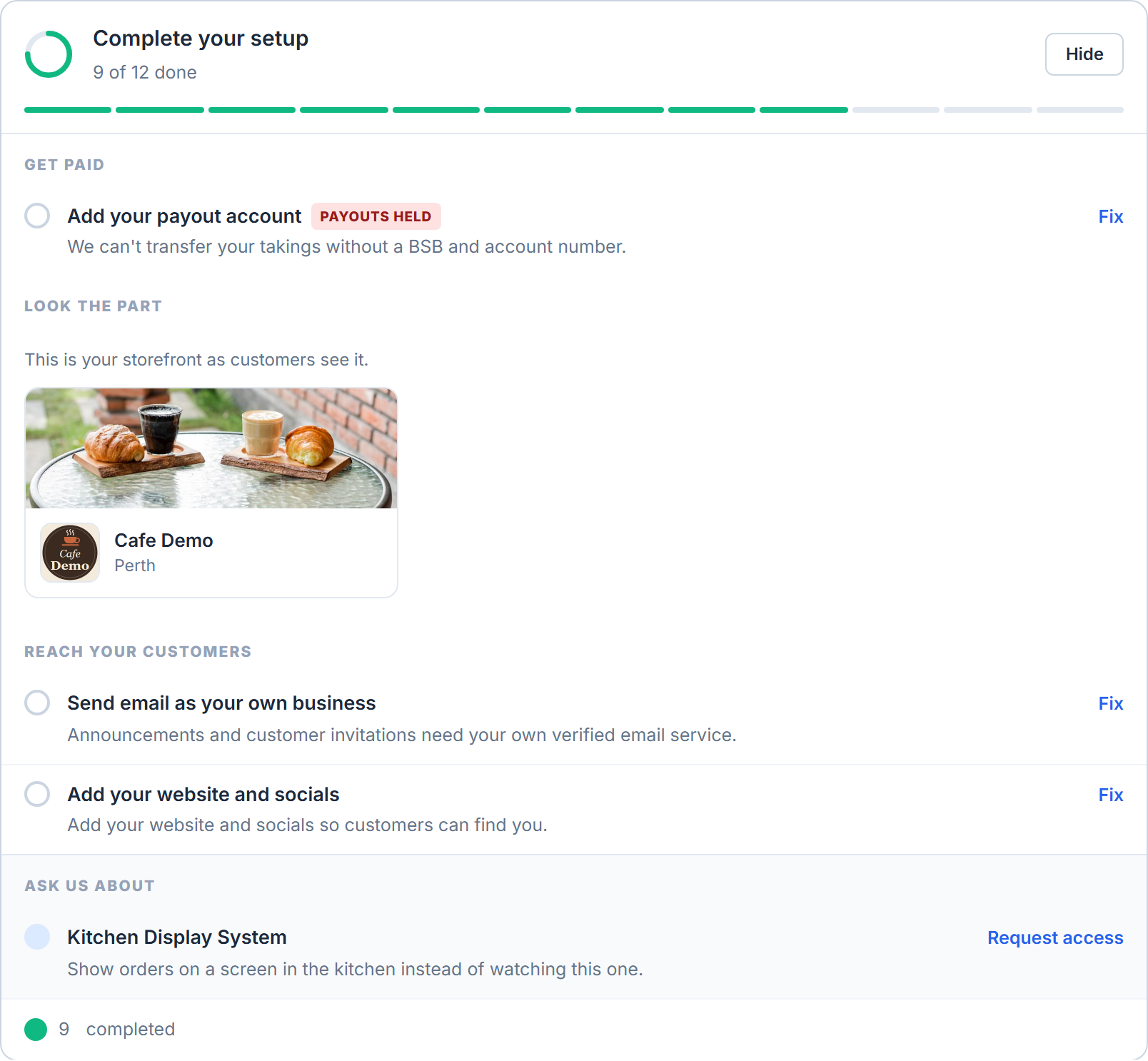
New stores get a Complete your setup card at the top of the Dashboard, with a green progress ring and a list of what is still outstanding. Each row has a Fix link that jumps straight to the screen that clears it.
Get open
Everything that stops customers ordering.
- Add your store details — name, address, suburb and postcode, under Settings → About.
- Add items to your menu — Menu Builder → Menu.
- Set your trading hours — Menu Builder → Menu Settings. See Change your trading hours.
- Publish your menu — your store is not yet live to customers. This row carries a Not live yet chip. See Publish your menu so customers can find you.
- Set your delivery areas — shown only if your menu offers delivery.
Get paid
- Add your payout account — your bank details under Settings → Billing. Until they are in, the row carries a Payouts held chip.
Look the part
- Add your logo and Add a banner photo — Settings → Brand.
- Show your product photos — the Display Images preference in Menu Builder → Menu Settings.
- Add photos to your menu items.
This group also shows a storefront preview — the same banner and logo a customer sees, with the caption "This is your storefront as customers see it." An image that fails to load there is the check failing; a missing banner shows as No banner photo.
Reach your customers
- Send email as your own business — see Send email from your own business address. If you have saved settings but never tested them, the row instead reads Finish setting up your email service, with the note "Your settings are saved but not switched on yet. Send a test email to activate them."
- Add your website and socials — Settings → About.
Ask us about
- Kitchen Display System — this row has a Request access link. It opens the Kitchen Display System (KDS) dialog, where Request a licence key asks us for the key that activates a screen. See Set up a kitchen display with a licence key.
If you cannot see the card
Two reasons, both normal:
- You are not an Admin user. The checklist is built only for admins, because most of the fixes live behind admin-only settings tabs.
- Your store is an established one. The card is currently shown only to newer stores. If you have been trading for years you will not see it, and nothing is wrong.
Rows that are already done drop off the list, and a group with nothing left in it disappears entirely.