A POS counter has five pieces of hardware and one internet connection. Apart from power, there are only two cables: the printer's LAN cable and the cash drawer's cable. Everything else talks over the internet.
What you need
- Internet: Wi-Fi at the counter, and a spare LAN port on the router for the printer.
- An EFTPOS terminal from your bank, with Linkly Cloud turned on, and your Linkly username and password. For a Tyro terminal, see With a Tyro terminal below.
- A tablet (10 inches or larger, used in landscape) or a PC, with Chrome.
- A Star CloudPRNT printer, with paper and a LAN cable. An Epson with ePOS-Print works too, printed straight from the POS, but it prints online orders only while the POS is open: see Set up an Epson receipt printer.
- A cash drawer, with its cable.
- Optional: a barcode scanner that reads QR codes (a "2D" scanner), USB or Bluetooth, to scan customers' loyalty cards. A hands-free one in a stand lets customers scan their own card. The tablet's camera can scan them too, more slowly. See Choose and set up a barcode scanner for loyalty cards.
What plugs into what
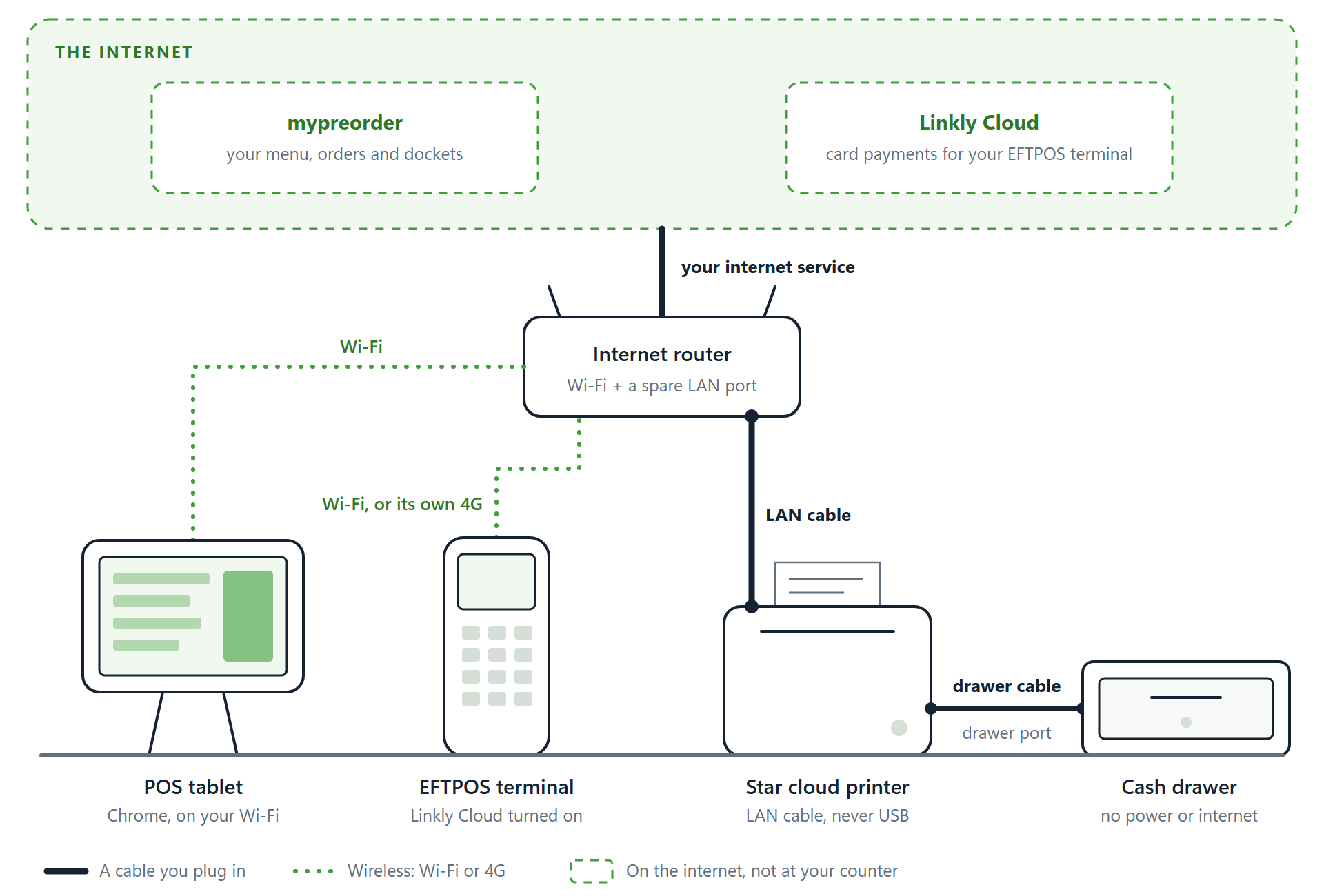
- The printer: a LAN cable to the router. Cloud printing doesn't work over USB.
- The cash drawer: its cable goes into the printer's drawer port (Cash Drawer / Buzzer on the Star mC-Print3 and MCP30, DK on some other models). The printer opens the drawer, and only while it has paper.
- The tablet: on your staff Wi-Fi. Nothing plugs into it.
- The EFTPOS terminal: on the same Wi-Fi, or its own 4G if your bank set it up that way.
- A barcode scanner (optional): USB into a PC, or paired with the tablet over Bluetooth. Set it to work as a keyboard (often called HID or keyboard mode, usually how it comes), and to send Enter after each scan. It types what it reads, and the POS picks out a loyalty card wherever you are on the menu or checkout. See Choose and set up a barcode scanner for loyalty cards.
Everything also needs power.
How a sale travels
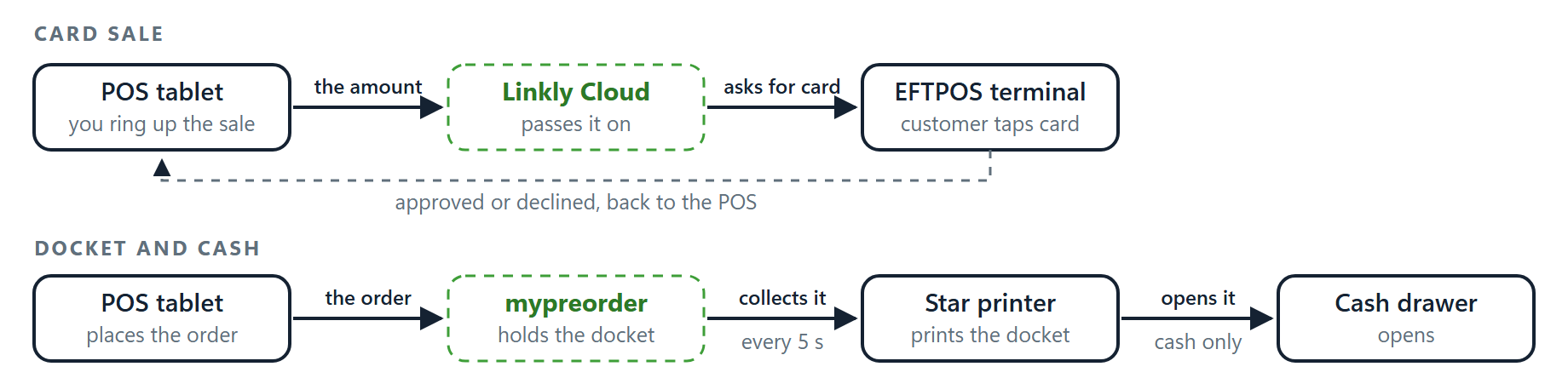
The tablet, the terminal and the printer never talk to each other directly. They reach each other through the internet, so each one needs its own working connection.
- A card sale: the POS sends the amount to Linkly Cloud, which asks your EFTPOS terminal for the card. Approved or declined comes back to the POS.
- A docket: the POS sends the order to mypreorder, and the printer collects it at its polling time. Set that to 5 seconds on a counter printer. For a cash sale, the printer opens the drawer as the docket prints.
Online orders from your app and website print on the same printer.
Set it up, in this order
- Ask your bank to turn on Linkly Cloud on the terminal, and for your Linkly username and password. Do this first: banks can take a few days.
- Set up the printer. See Set up a Star CloudPRNT docket or label printer.
- Plug in the cash drawer and tick Cash drawer on the printer. See Connect a cash drawer to the POS.
- Add the POS device's login. See Add a POS or Kiosk device.
- Add its pinpad. See Connect a Linkly EFTPOS pinpad to a POS or Kiosk.
- Set up the tablet. See Set up a tablet or PC for the POS.
- Sign in and pair the terminal. See Sign in a POS or Kiosk and pair the EFTPOS terminal.
Optional: Give staff their own PIN for the POS and Kiosk, and Turn on the till (cash management) for your POS.
With a Tyro terminal
Card payments go through Tyro instead of Linkly Cloud, and there's no Linkly username, password or pair code. Everything else connects the same way. See Set up a Tyro terminal for a POS or Kiosk.
If something is not right
| What you see | What to do |
|---|---|
| One device stops working | Check that device's internet first: the printer's LAN cable, the tablet's Wi-Fi, the terminal's Wi-Fi or 4G. |
| Dockets don't print | See Order dockets are not printing. |
| The drawer doesn't open | Check the printer has paper. Then see The cash drawer doesn't open, or the till won't print. |
| The POS opens in a browser tab | Install it as an app. See Set up a tablet or PC for the POS. |
| A barcode scanner types into the search box instead of adding the customer | Check it reads QR codes (a 2D scanner: a 1D one reads only stripes), and that it's in keyboard mode with no prefix of its own. Scanners come with setup barcodes in their manual. See Choose and set up a barcode scanner for loyalty cards. |
| The tablet's on-screen keyboard stops appearing after you pair a scanner | The tablet treats the scanner as a keyboard. See Choose and set up a barcode scanner for loyalty cards. |